The creative industry is shifting under your feet. You are seeing it in your feeds, hearing about it in pitch meetings, and feeling the pressure to adapt. Generative AI isn’t coming; it is already here. For a long time, the conversation was dominated by standalone tools like Midjourney or Stable Diffusion.
Those tools are powerful, but they sit outside your primary workflow. They require you to leave your environment, generate assets, and then try to wrestle them back into your projects.
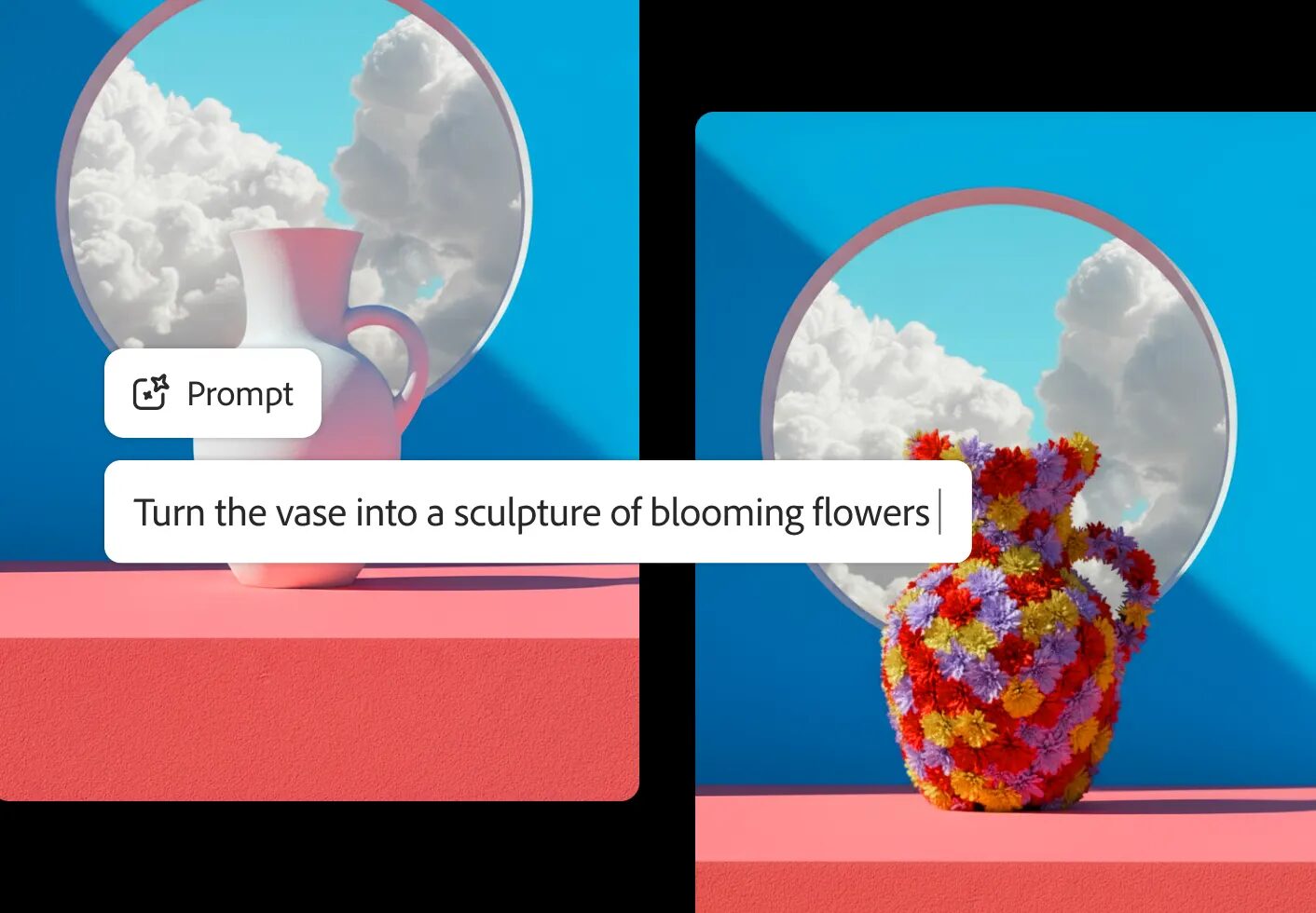
Adobe Firefly is different. It brings generative AI directly into the Creative Cloud ecosystem you likely already pay for and use daily. It isn’t just a web toy for making surreal art; it is a serious production tool integrated into Photoshop, Illustrator, Express, and Premiere Pro.
What Adobe Firefly Is
Adobe Firefly is a family of creative generative AI models designed by Adobe. It is not a single button or a single website. It is a collection of machine learning models trained to generate images, text effects, vectors, and eventually video and 3D assets based on text prompts and reference imagery.
The distinction between “Firefly” and other generators lies in the training data. Adobe trained the initial commercial Firefly model on Adobe Stock images, openly licensed content, and public domain content where copyright has expired.
This matters for your business. When you use tools trained on scraped internet data with unclear ownership, you introduce risk into your client work. Firefly is built to be commercially safe. Adobe has designed the output to be safe for commercial use, which means you can integrate these assets into campaigns for major brands without the looming threat of copyright litigation regarding the source material.

The Tech Behind The Model
Firefly utilizes a diffusion model architecture. Without using metaphors, a diffusion model works by learning how to de-noise an image. During training, the system adds noise (random static) to an image until it is unrecognizable. It then learns the reverse process: how to remove that noise to reconstruct the clear image.
When you provide a text prompt, the model starts with random noise and iteratively refines it, using your text as a guide, until it forms a coherent image that matches your description.
Firefly is hosted in the cloud. Whether you are using it through the web application or inside Photoshop, the processing happens on Adobe’s servers, not your local GPU. This allows for high-quality generation regardless of your local hardware specs, provided you have an internet connection (and you can now use 3rd part models like Nano Banana in Photoshop).
Core Features in Photoshop
For photographers and retouchers, Firefly is most visible through features integrated directly into Adobe Photoshop. These features reside in the Contextual Task Bar.
Generative Fill
This is the most utilized feature for high-end retouching. Generative Fill allows you to select a portion of an image and use a text prompt to add, remove, or replace content non-destructively.
You make a selection using the Lasso tool or Marquee tool. A task bar appears where you can type a command. If you leave the prompt blank and hit “Generate,” Firefly analyzes the surrounding pixels and fills the selection to match the lighting, perspective, and depth of field of the original image.
This replaces the Content-Aware Fill for complex tasks. Where Content-Aware Fill pulls pixels from elsewhere in the image, Generative Fill creates new pixels that logically fit the scene. If you select a person’s shirt and type “leather jacket,” the model generates a jacket that fits the subject’s pose and matches the lighting of the environment.
Generative Expand
You often encounter scope creep where a client wants a portrait crop turned into a landscape banner, or a 16:9 video frame converted to 9:16 for social. Previously, this required tedious cloning and painting.
Generative Expand resides in the Crop tool. When you drag the crop handles beyond the original canvas size, you can choose Generative Expand. The model fills the transparent space with content that continues the scene. It synthesizes floorboards, sky, foliage, or studio backgrounds that align with the focal length and perspective of the original shot.
Reference Image
In the Generative Fill panel, you can now upload a reference image. This is critical for art direction. Instead of relying solely on text to describe a specific jacket or a specific texture, you upload a jpeg of the desired texture. Firefly uses that visual information to guide the generation, ensuring the output matches the style or structure you need.
Vector Generation in Illustrator
For graphic designers and illustrators, pixel-based generation is useless if you need scalable vectors. Adobe Illustrator implements Firefly through the Text to Vector Graphic feature.
Text to Vector Graphic
Located in the Properties panel or the Contextual Task Bar, this tool generates fully editable vector paths from a text prompt. You define the type of output: Subject, Scene, Icon, or Pattern.
The engine creates grouped vector shapes. Unlike “Image Trace,” which converts a raster image to vector (often resulting in messy anchor points), this generates clean paths from scratch. You can separate the elements, change stroke widths, and adjust colors immediately.
Generative Recolor
This feature allows you to change the entire color palette of a vector artwork using text prompts. If you have a complex illustration with hundreds of paths, manually selecting and recoloring groups is time-consuming.
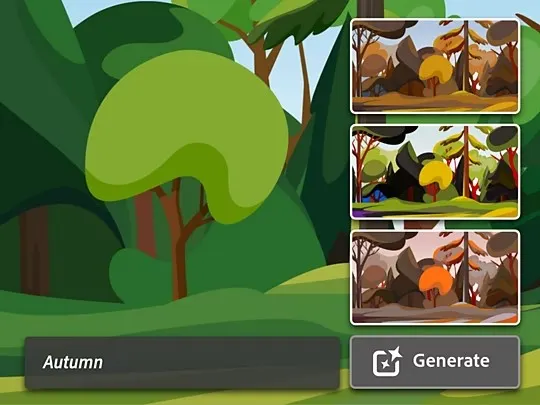
With Generative Recolor, you select the artwork and type a mood or theme, such as “neon cyberpunk” or “faded 70s postcard.” The system creates multiple color variations mapped to your current paths. It offers a “Recolor” dialog where you can fine-tune specific colors after the generation. This is useful for presenting multiple colorways of a logo or brand identity to a client in minutes rather than hours.
capabilities of the Firefly Web Application
While the desktop apps focus on specific tasks, the Firefly Web Application offers a broader suite of generation tools and granular controls. This acts as your laboratory for testing prompts and concepts before bringing them into production software.
Boolean and Parameter Controls
The web interface provides sliders and toggles that give you more control than the Photoshop integration.
- Aspect Ratio: You choose from Landscape (4:3, 16:9), Portrait (3:4, 9:16), Square (1:1), or Widescreen.
- Content Type: Switch between Photo and Art to instruct the model on rendering style. ‘Photo’ aims for photorealism, paying attention to lens logic and shutter speed characteristics. ‘Art’ leans into painterly or digital art aesthetics.
- Visual Intensity: A slider effectively controls the “creativity” or deviation from strict realism. High intensity results in more complex, stylized details.
- Effects: Adobe provides preset distinct style tags (e.g., Bokeh, Synthwave, Layered Paper) that you can pile onto your prompt to steer the aesthetic without typing a paragraph of style descriptors.
Structure Reference and Style Reference
These are advanced features for controlling consistency, which is often the hardest part of generative AI.
- Structure Reference: You upload an image to serve as the structural “bones” of the generation. If you upload a sketch of a room layout, Firefly will generate a photorealistic room that adheres to that specific layout, camera angle, and depth. It keeps the composition but changes the content.
- Style Reference: You upload an image to dictate the “look.” If you have a mood board image with specific lighting and color grading, you upload it here. Firefly generates your prompted subject but forces it to match the colors and texture of the reference image.
By combining Structure Reference (for layout) and Style Reference (for aesthetic), you gain significant control over the output, moving away from the “slot machine” feeling of random generation.
The Firefly Video Model
Adobe supports video workflows through the Firefly Video Model within Adobe Premiere Pro. This is currently focused on solving specific editing problems rather than generating full movies from scratch.
Generative Extend for Video
Editors frequently face the issue where a video clip is a few frames too short to hit a beat or fill a gap in the timeline. Generative Extend allows you to drag the end of a clip, and the AI generates new frames to extend the action. The model analyzes the pixel motion in the existing clip and predicts the subsequent movement to create seamless additional footage.
Object Removal in Video
Combining masking with Firefly, you can remove unwanted objects from moving footage. The model tracks the environment across frames and fills the hole left by the removed object, maintaining temporal consistency so the background doesn’t “jitter” or morph distractingly as the camera moves.
Commercial Safety and Indemnification
For the professional, the most distinct feature of Firefly isn’t a slider or a button—is the legal infrastructure.
The Training Data Advantage
Adobe trained Firefly on:
- Adobe Stock: Images with clear model releases and property releases.
- Open License Content: Content explicitly licensed for reuse.
- Public Domain: Content where copyright has expired.
This significantly reduces the risk of the model accidentally reproducing a trademarked character or a recognizable piece of copyrighted art.
IP Indemnification
For Enterprise customers, Adobe offers IP indemnification. This means if a commercial client uses Firefly-generated assets and gets sued for copyright infringement related to the output, Adobe will legally defend the client and pay the damages (subject to the terms of the agreement). This gives large agencies and corporations the confidence to deploy these tools without fear of legal backlash.
Content Credentials (C2PA)
Adobe is a founding member of the Content Authenticity Initiative. Firefly assets are embedded with Content Credentials by default. This is tamper-evident metadata that indicates the image was created or edited using AI. This provides transparency, allowing viewers to see which parts of an image are human-made and which are AI-generated.
Generative Credits and Cost
Firefly is computationally expensive. Running diffusion models on the cloud requires significant GPU resources. Adobe manages this via “Generative Credits.”
Every time you click “Generate” in Photoshop, Illustrator, or on the web, you consume a credit.
- Your Creative Cloud subscription includes a monthly allotment of these credits.
- The amount depends on your tier (e.g., All Apps plan gets more than the Photography plan).
- If you run out of fast credits, the service may not stop, but it will throttle your speed, meaning generations take longer.
- You can purchase additional credit packs if your volume demands it.
Understanding this economy is part of managing your business overhead. If you are quoting a project that requires thousands of iterations, you need to factor the potential cost of additional credits or the time lost to throttled speeds into your pricing.
Practical Workflows for Professionals
Knowing the features is step one. Integrating them into a workflow that pays the bills is step two.
1. The Photographer’s Cleanup
In high-volume commercial photography—product shots, e-commerce, events—cleanup is the biggest time sink.
- Old Workflow: Clone stamping dust, using the Patch tool to remove stray hairs, manually painting out a light stand.
- Firefly Workflow: Lasso the light stand. Hit Generate. Lasso the stray hair. Hit Generate.
- Benefit: You reduce retouching time by 50-70%. This allows you to process higher volumes or increase your profit margin on fixed-rate jobs.
2. The Art Director’s Mood Board
Pitching concepts requires visuals.
- Old Workflow: Searching Pinterest or Google Images, dealing with watermarks, struggling to find an image that matches the specific lighting in your head.
- Firefly Workflow: Use the Text to Image web app. Prompt “High fashion editorial, model wearing avant-garde red dress, desert at sunset, hard lighting.” Generate 20 variations.
- Benefit: You create bespoke assets for your pitch deck that look exactly like your vision. You avoid “frankening” together low-res JPEGs.
3. The Graphic Designer’s Ideation
Creating a brand identity involves exploring directions.
- Old Workflow: Sketching by hand or building rough vector shapes for hours to test a concept.
- Firefly Workflow: Use Text to Vector in Illustrator. Prompt “minimalist geometric lion logo, blue and gold.” Generate 50 iterations. Pick the best three, expand them into paths, and refine them manually.
- Benefit: You get to the “refining” stage faster. The AI handles the “blank page” problem, providing you with raw material to polish.
Prompt Engineering for Firefly
To get professional results, you must learn to speak the language of the model. Firefly responds best to specific nouns and clear stylistic descriptors.
The Structure of a Good Prompt
A strong prompt follows this hierarchy:
[Subject] + [Action/Context] + [Art Style] + [Lighting/Camera] + [Color Palette]
- Weak Prompt: “A cool car.”
- Strong Prompt: “Vintage 1960s sports car driving on a coastal highway in Italy, motion blur, photorealistic, golden hour lighting, cinematic composition, teal and orange color grading.”
Negative Prompts
Adobe Firefly allows for negative prompting (telling the model what not to include) in the web interface advanced settings. If the model keeps generating text or blurry backgrounds, you can add “text, blur, watermark, low resolution” to the negative prompt field to filter those elements out.
Ethics and The Future of Work
You might feel hesitation about using these tools. That is a natural reaction to disruption. However, in the professional sphere, efficiency and quality dictate the market. The “middle” of the market—mediocre work done slowly—is evaporating.
Firefly does not replicate your taste. It does not replicate your relationship with the client. It does not replicate your ability to curate and choose the right image from the 50 generated. It effectively replicates the grunt work—the pixel pushing, the background extending, the tedious masking.
By mastering Adobe Firefly, you are not surrendering your creativity to a machine. You are offloading the technical labor so you can focus on the high-value decisions: composition, emotion, color theory, and storytelling.
The tools are available in the software you already have installed. Open the panel, run the credits, and see what the engine can do. The industry is moving forward; make sure you are moving with it.