We talk a lot about the big players in AI video—Runway, Kling, Sora, Veo—but there’s one tool that is quietly crushing it right now, and almost nobody is talking about it: Grok Imagine.
Grok is developed by xAI, and while it’s often buried in headlines about tweets and tech politics, for creative pros, it’s a sleeper hit. Specifically, its image-to-video capability is arguably the best “quick fix” animation tool on the market. It’s fast, it’s fluid, and it just works.
The Workflow: From Image to Video
Here is the exact step-by-step process to get this running. It’s deceptively simple.
1. Get the App
Either head to grok.com and sign in, or download the standalone Grok app. I like the mobile app for because it fits perfectly into that “in-between moments” workflow where you’re mocking up ideas on the go.
2. Upload Your Image
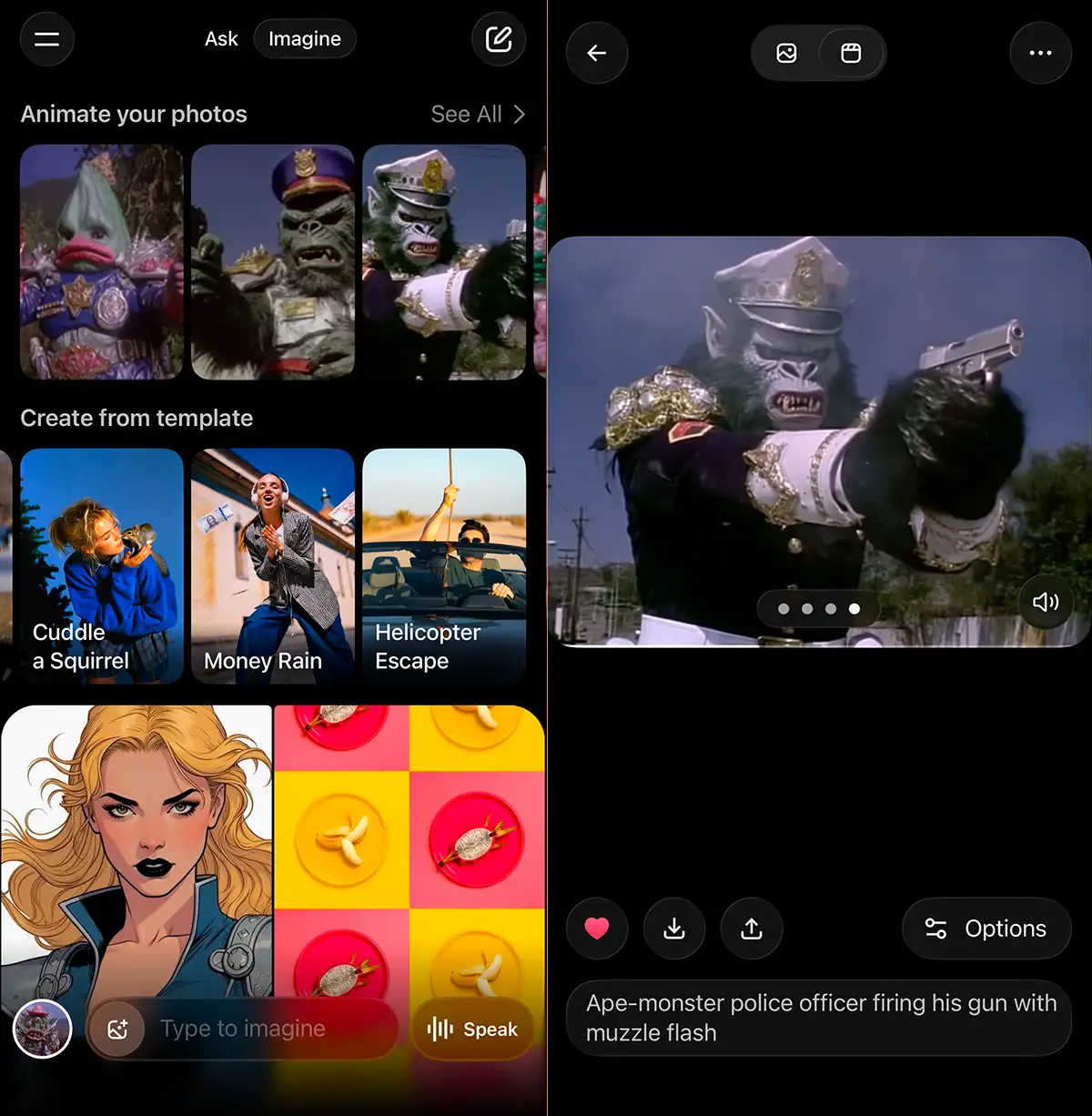
Once you’re in, tap the image icon at the bottom of the screen. You can also give it access to your photo library, and your recent shots will appear at the top under “Animate your photos.”
3. Animate
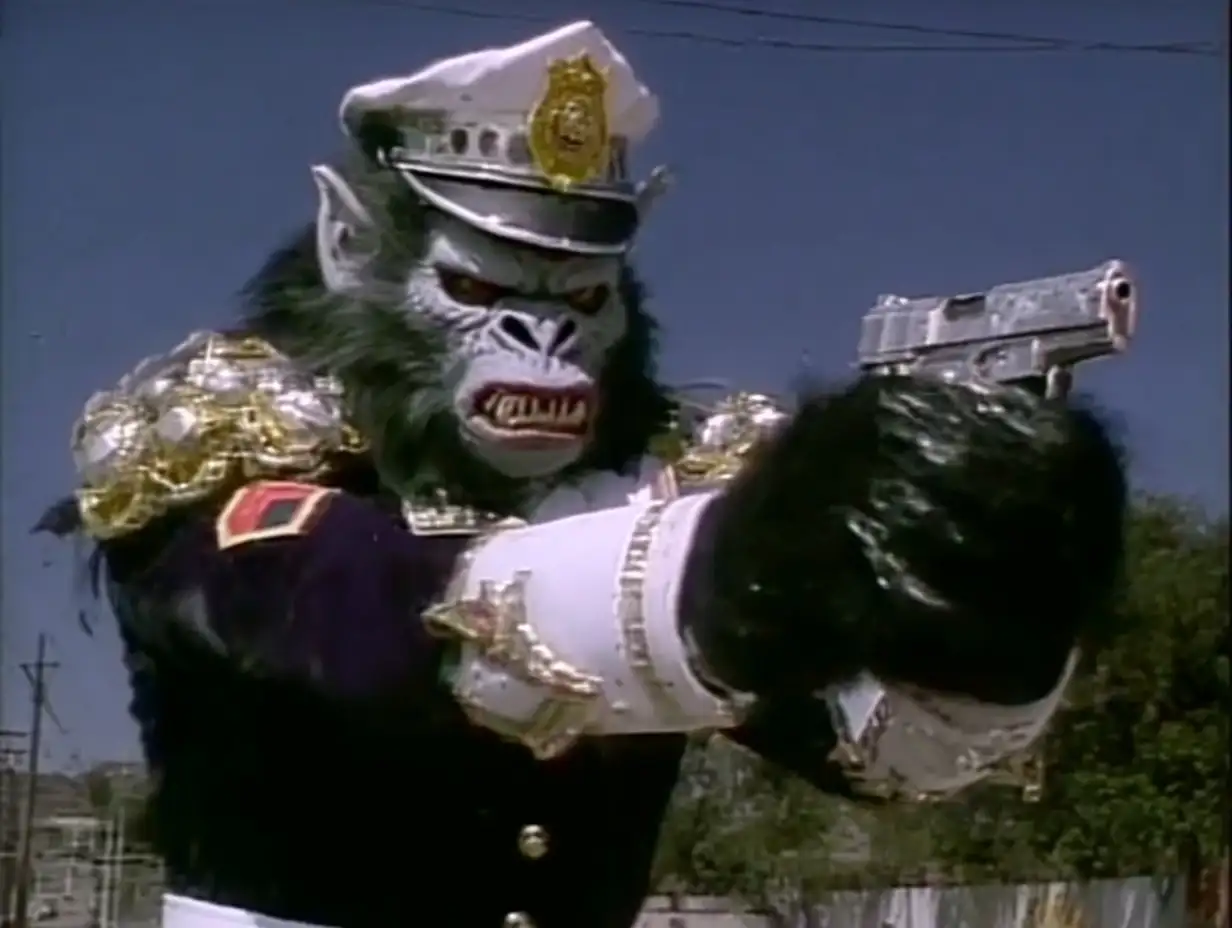
Select the image you want to bring to life. For this test, I used a goofy image of an “ape police officer” I generated in Midjourney (don’t ask—creativity requires play!).
Here is the magic part: You don’t even need to prompt it.
When you choose “Animate photo,” Grok uses its own vision model to analyze the image, figure out the context, and predict the motion. It saw the officer and the gun and immediately understood the assignment. The default animation was very good right out of the gate.
4. Refine (Optional)
If the default isn’t quite what you envisioned, you can take control. Just type a new prompt describing the specific action you want. Grok will regenerate the video based on your direction.
5. Download
Hit the download icon, and it saves directly to your device.
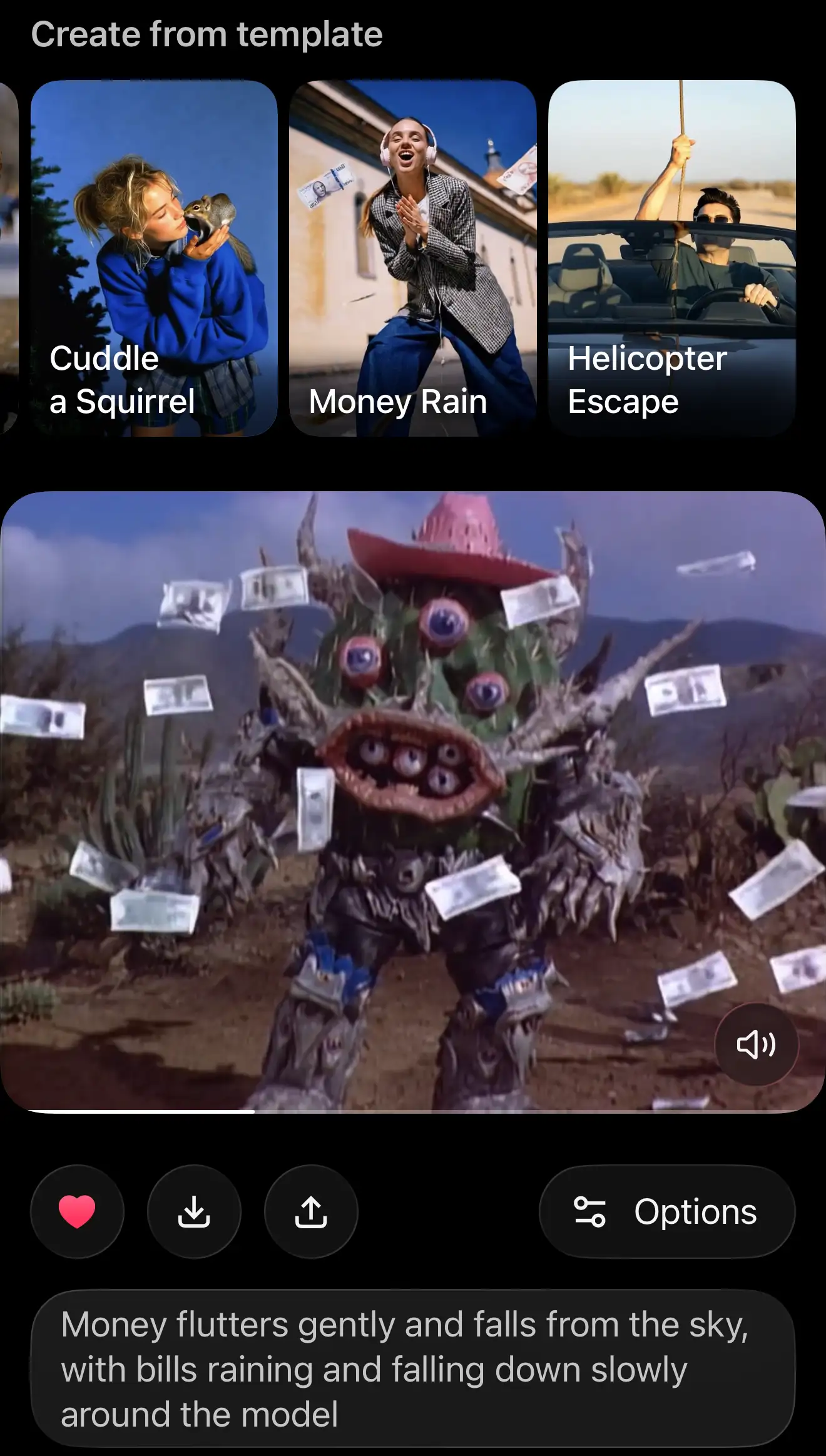
Tip: Grok has some “fun” presets – like a money dance animation – that are great for memes or quick social gags. But for professional work, stick to the standard generation or your own custom prompts to maintain the integrity of your original image.
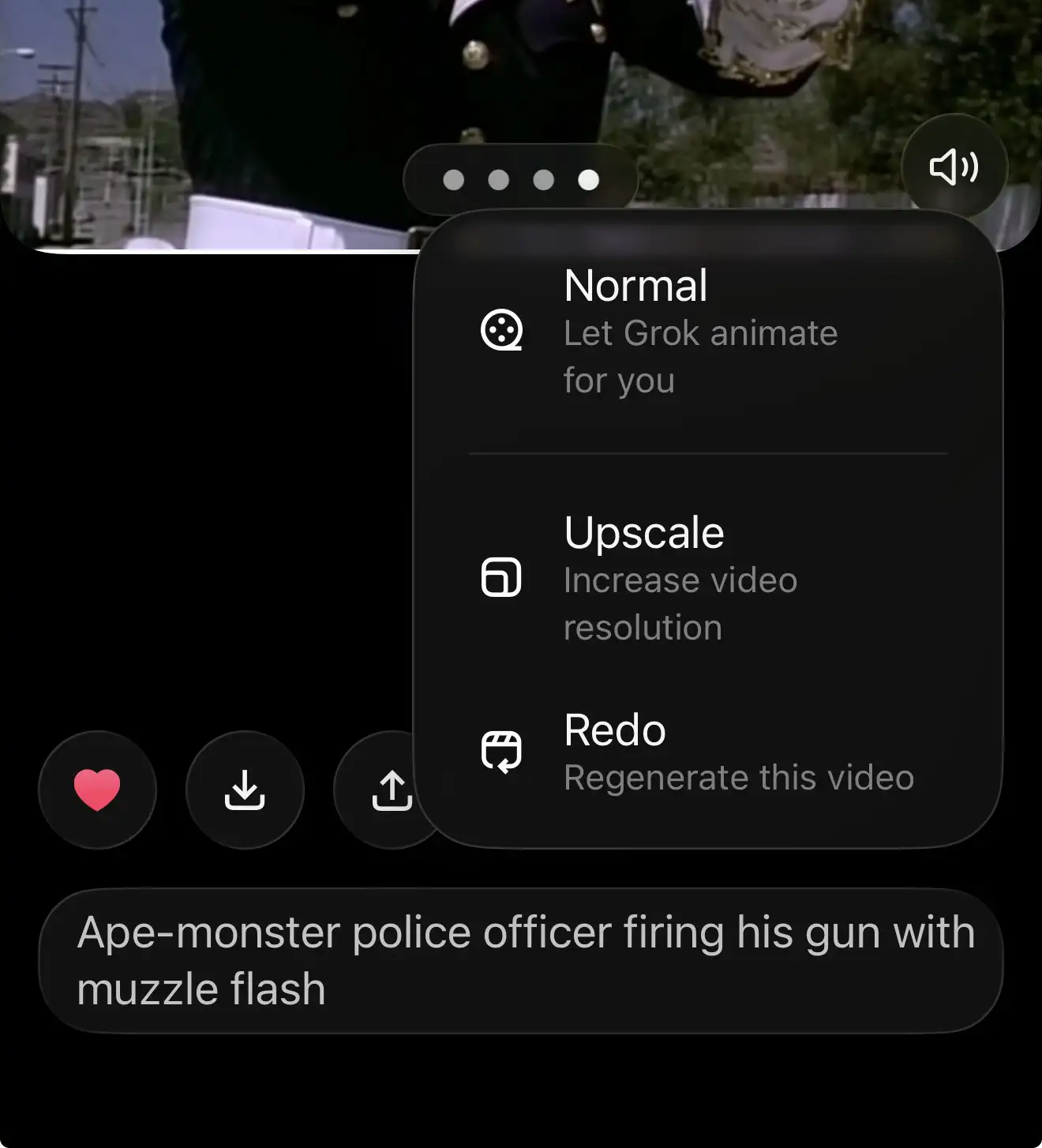
Getting the Best Quality
Out of the box, Grok generates video at 480p. This is fine for a quick text to a client or exploring an idea, but it’s not deliverable quality.
Once you have a generation you like, look for the “Options” button and select Upscale. This will render a 1080p version of your clip. Always do this before you pull the file into your edit.
The Cost of Creativity
As of early 2026, Grok’s pricing is tied to the X (formerly Twitter) ecosystem, which makes it one of the most accessible “pro” tools if you’re already on the platform.
-
Free Tier: You can dabble here, but it’s limited. Expect roughly 10 image generations every 2 hours. It’s good for testing the waters.
-
Premium ($8/mo): This gets you access to the Grok 2 model, but there are still caps on heavy video usage.
-
Premium+ ($16/mo): This is the sweet spot for creators. It opens up higher limits (reports of ~200 images/videos per day) and faster processing speeds. Compared to the credit-burning models of other video AIs, this is a steal for high-volume iteration.
The Verdict
It is FAST. We’re talking maybe 15 seconds to generate a video. In a world where some render queues give you time to go make a coffee, this is a huge plus.
It is fluid. The animation quality is arguably the best of any model for “one-shot” motion. Other models like Kling or Veo can sometimes feel stiff or dream-like in a bad way. Grok feels surprisingly grounded in physics.
However, know the limitations. If you need precise control—like specifying a start frame, an end frame, and exact camera movements—you are better off using Google’s Veo. Veo allows for reference objects and granular keyframing that Grok doesn’t offer yet.
But if you just need a high-quality, one-off animation from an image to sell an idea or spice up a social feed, Grok Imagine is arguably your best option right now.
Next Step: Download the app and try animating one of your old portfolio shots. You might be surprised at how a little motion can reinvent your best work!
Relevant Reading: