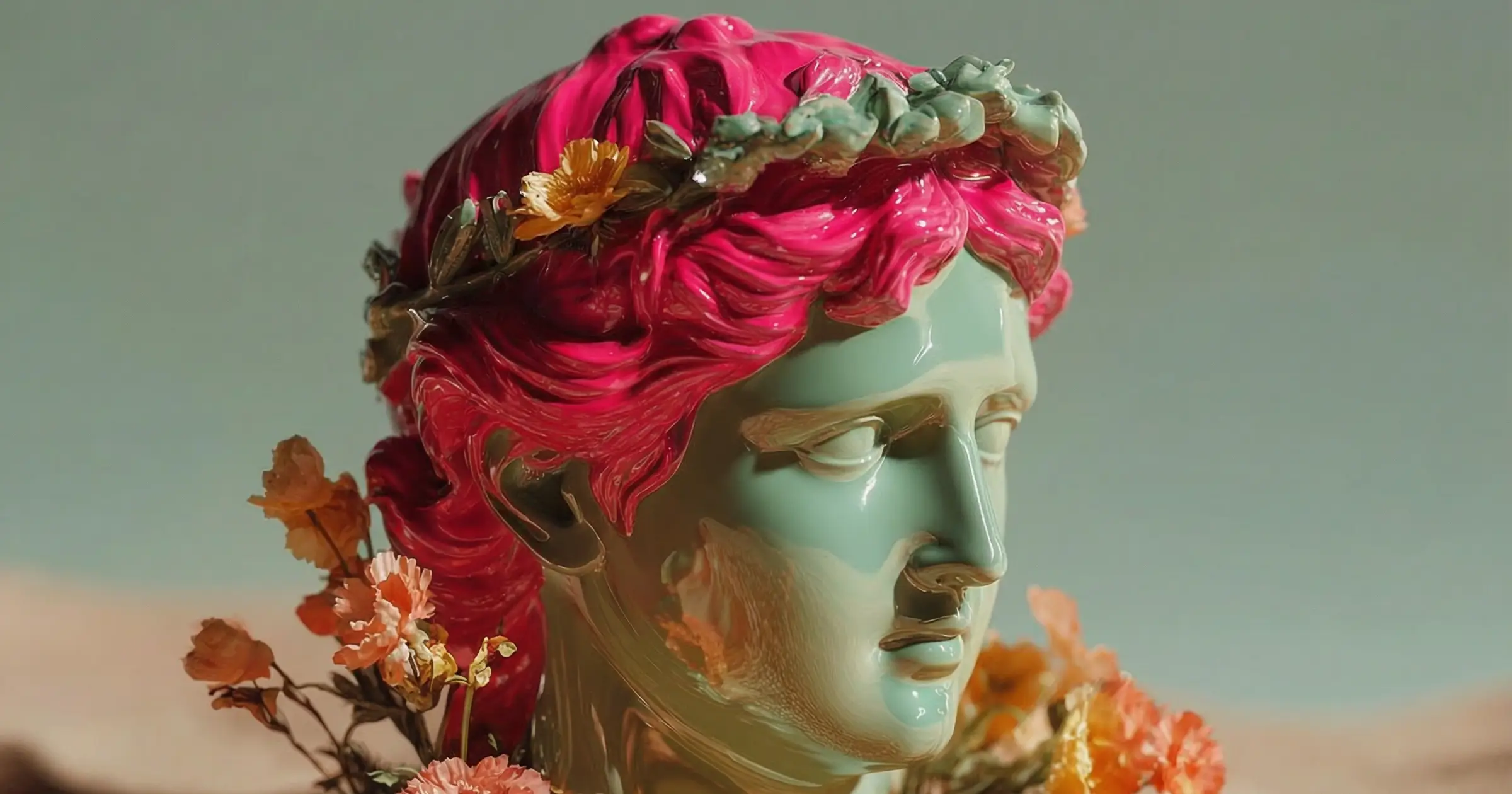
Nano Banana Pro is easily the most powerful image editing (aka inpainting) app I’ve seen to date. It’s a total game-changer for our community because it handles tasks in minutes that used to take hours – or even days – of high-end retouching. The best part? You don’t need to learn a million keyboard shortcuts. You just talk to it like you’ve got a world-class retoucher sitting right next to you.
I’m using Weavy for these examples, but these techniques will work in the Gemini app or other AI platforms like Higgsfield, Flora, or Krea.
1. Text Prompt Only
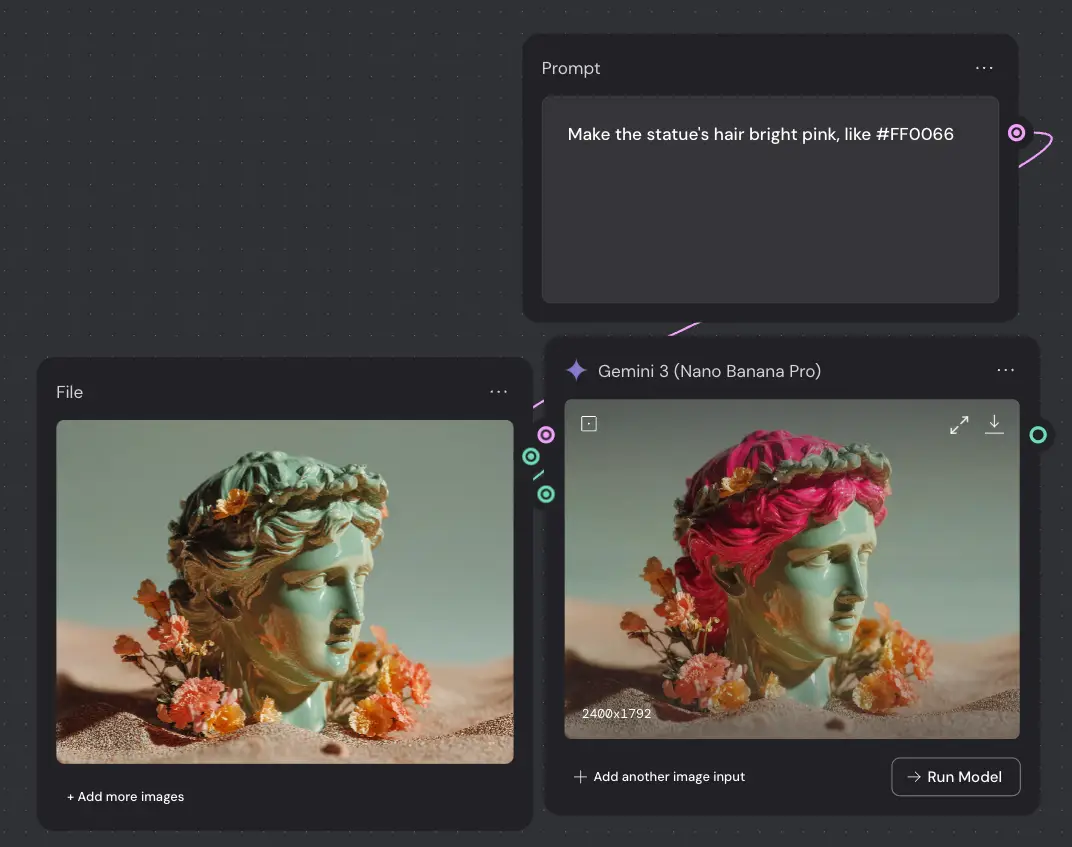
This is the fastest way to work with editing/inpainting. Because Nano Banana Pro uses advanced semantic segmentation, it actually analyzes and understands the objects in your image. It knows which pixels are flowers, which are sand, where the statue’s eyes and ears are located, etc.
The prompt: “Make the statue’s hair bright pink, like #FF0066”
-
Why it’s great: It’s low friction. If you just want to see “what if the hair was bright pink,” you type it in and it happens.
-
The Downside: You have less granular control. Sometimes the AI’s idea of “pink” isn’t yours.
Sometimes, the first prompt just works! If not, then try one of these options:
2. Text + Reference Image
If you have a very specific texture or object in mind, don’t waste time “re-rolling” (generating again) hoping the AI guesses right. Just show it.
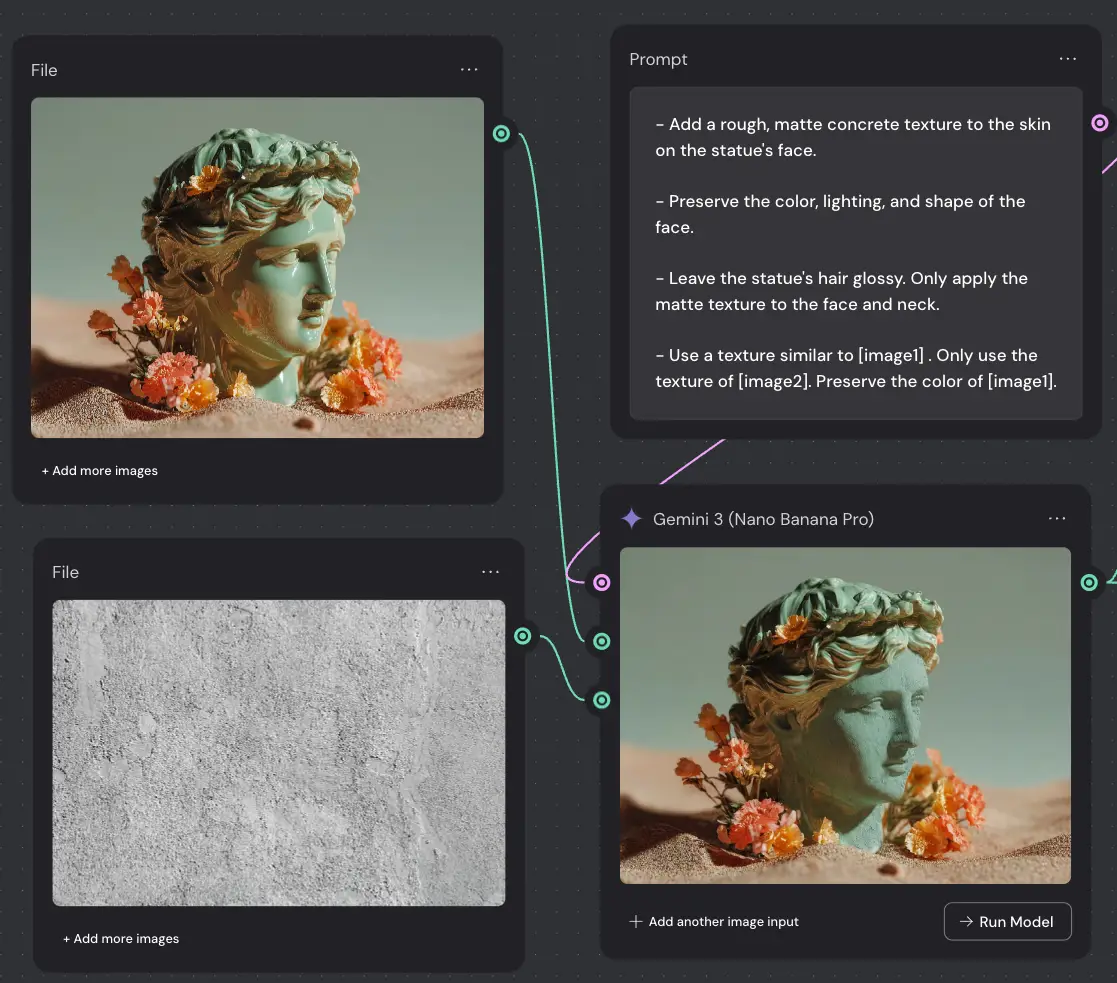
In the example above, I wanted the statue to have a rough, matte concrete texture instead of a glossy finish. Describing the specific grit of concrete in text is surprisingly hard, so I just used a reference image… why guess?
The prompt:
“- Add a rough, matte concrete texture to the skin on the statue’s face.
– Preserve the color, lighting, and shape of the face.
– Leave the statue’s hair glossy. Only apply the matte texture to the face and neck.
– Use a texture similar to [image1] . Only use the texture of [image2]. Preserve the color of [image1].”
This is where Nano Banana shines: it respects your reference while intelligently applying it only to the areas you specify (like the face and neck) while leaving the hair alone.
This will work in the Gemini app, but note that it will have a watermark – not ideal for pro applications.
I could have re-rolled and/or refined the prompt to address the worm coming out of the nose, but I think it works as-is
3. Markup + Reference + Prompt
This is the ultimate level of control, and honestly, it’s what sets Nano Banana Pro apart from standard models like Stable Diffusion or Flux.
The prompt:
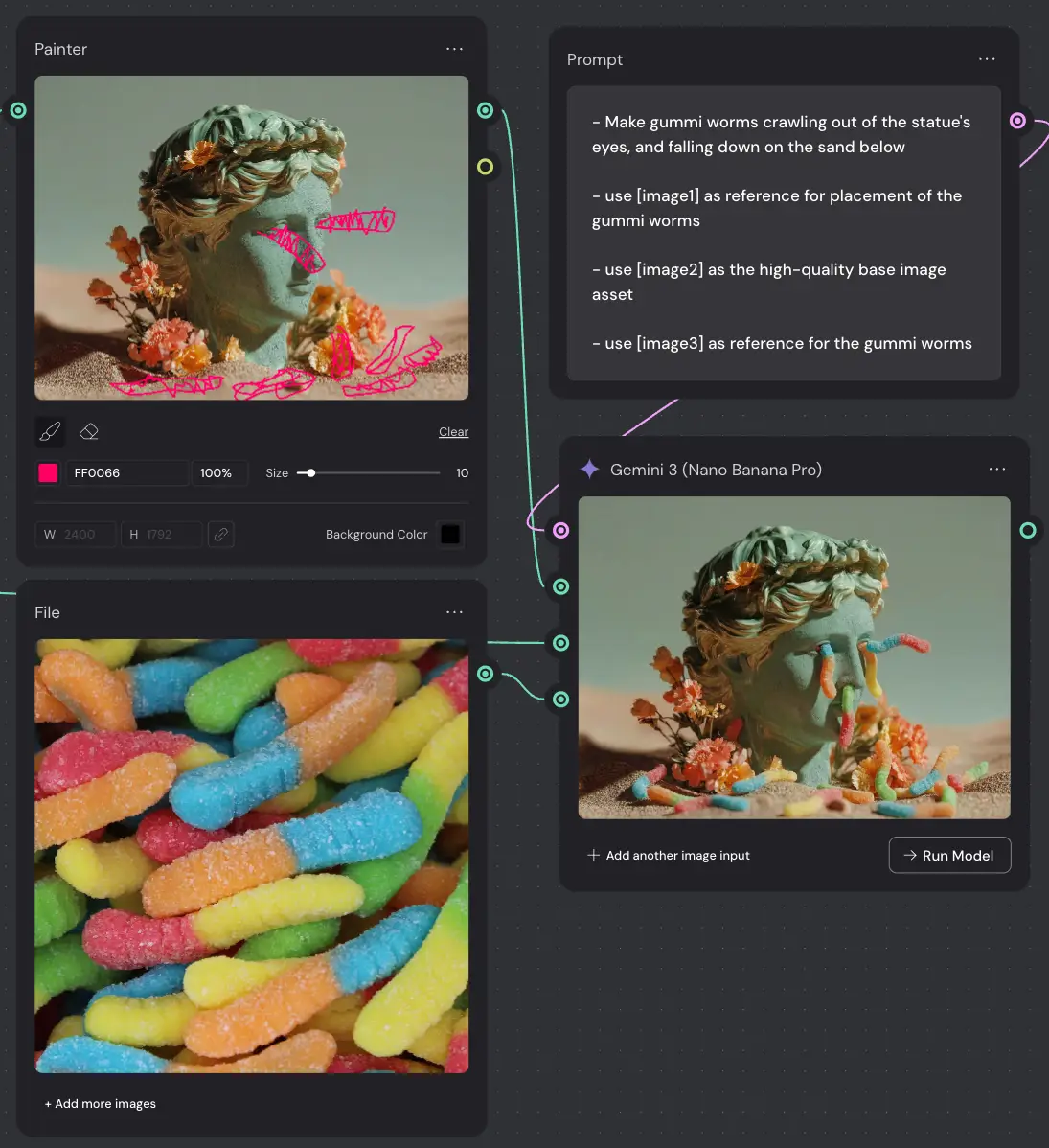
“- Make gummi worms crawling out of the statue’s eyes, and falling down on the sand below
– use [image1] as reference for placement of the gummi worms
– use [image2] as the high-quality base image asset
– use [image3] as reference for the gummi worms”
When you need specific placement – like having gummi worms crawling out of a statue’s eyes – you can’t just hope for the best:
-
Markup image: Use the “Painter” node in Weavy (or Photoshop or even MS Paint) to scribble exactly where you want the objects to go.
-
Reference: Provide an image of the exact item. I wanted those pastel, sugar-coated gummi worms, not the translucent ones.
-
The Result: Nano Banana creates a 3D understanding of the scene. It doesn’t just paste the worms on; it calculates how they should drape over the stone and how the light should hit them.
Before this, you’d need a massive, “spaghetti” inpainting workflow in ComfyUI to achieve this. Now? It’s a few nodes and a conversation.
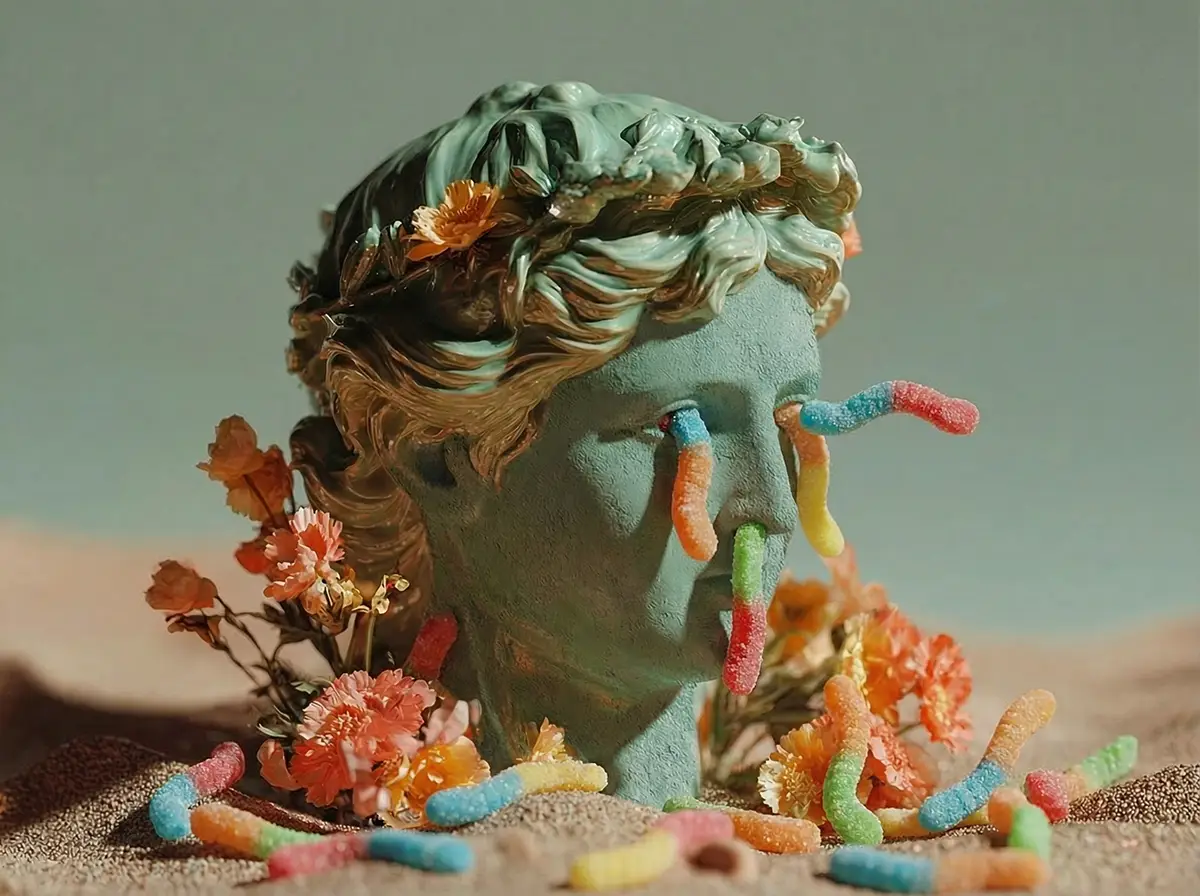
Note the accurate shadows, color balance, lighting, etc. Nano Banana is no joke!
Pro Tips for Better Results
To get the most out of your sessions, keep these three things in mind:
-
The 4K Advantage: Always choose 4K resolution. It’s not just about the final file size; it actually gives the model more “canvas” to work with, resulting in more realistic textures and fewer artifacts.
-
Don’t Fear the Re-roll: Even the best AI needs a second pass. If the first result is 90% there, try again.
-
Kill the “Random Seed”: Once you find a composition or “vibe” you like, uncheck the Random Seed option. A seed is basically the “DNA” of an image. If you keep the seed the same while tweaking your prompt, the AI will keep the layout consistent while only changing the specific details you asked for.
PS – more on Nano Banana Pro:
- How to repose a model
- How to do style transfer in Nano Banana
- Nano Banana FAQs
- Does JSON prompting work?
- How to master Nano Banana prompting
- Extend an image
- How to use Midjourney with Nano Banana Pro
- Remove the Nano Banana watermark
- Set up a virtual product shoot with Nano Banana
- Add texture to a logo