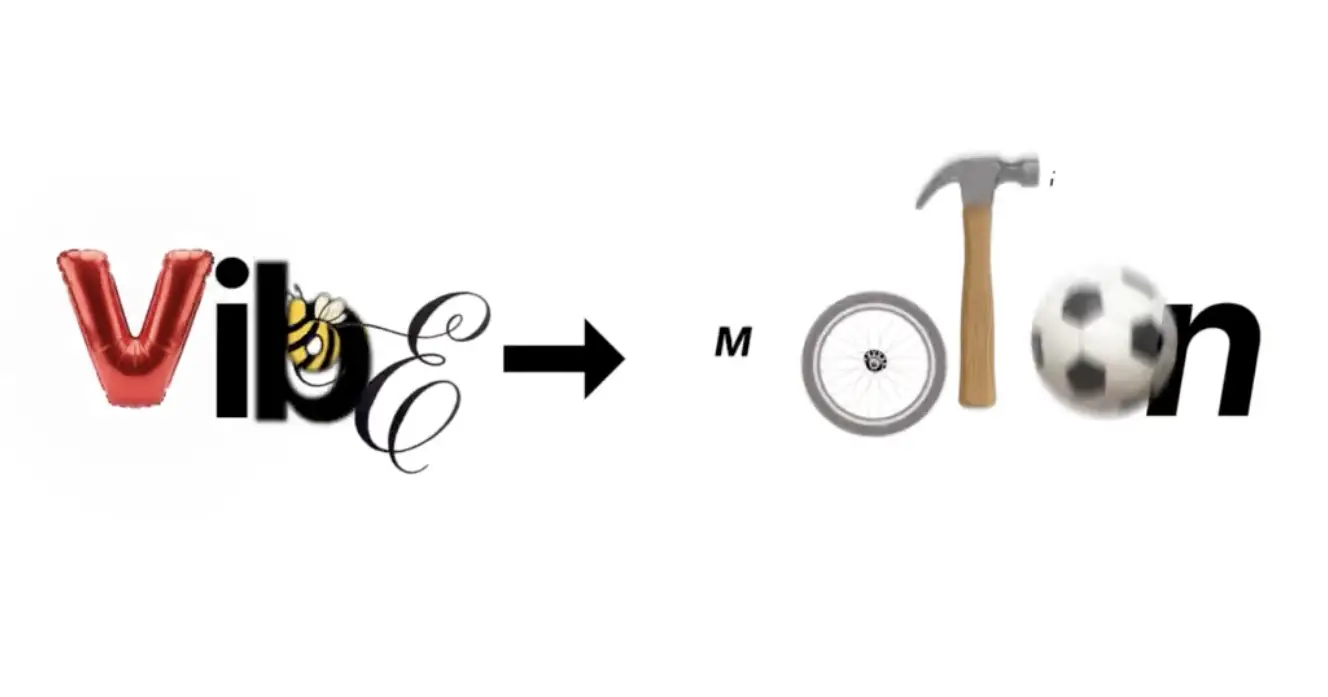
Higgsfield just dropped this new feature that promises to turn your text prompts into motion graphics. It’s built in partnership with Anthropic (the folks behind Claude), and it seems to be leveraging the power of Remotion (although I’m not 100% sure about that), which has already generated a lot of buzz in the dev community.
The promise? “Real-time” motion design control. Prompt, and you get polished motion graphics back.
The reality? Well, I took it for a spin so you don’t have to guess. Here’s what I found.
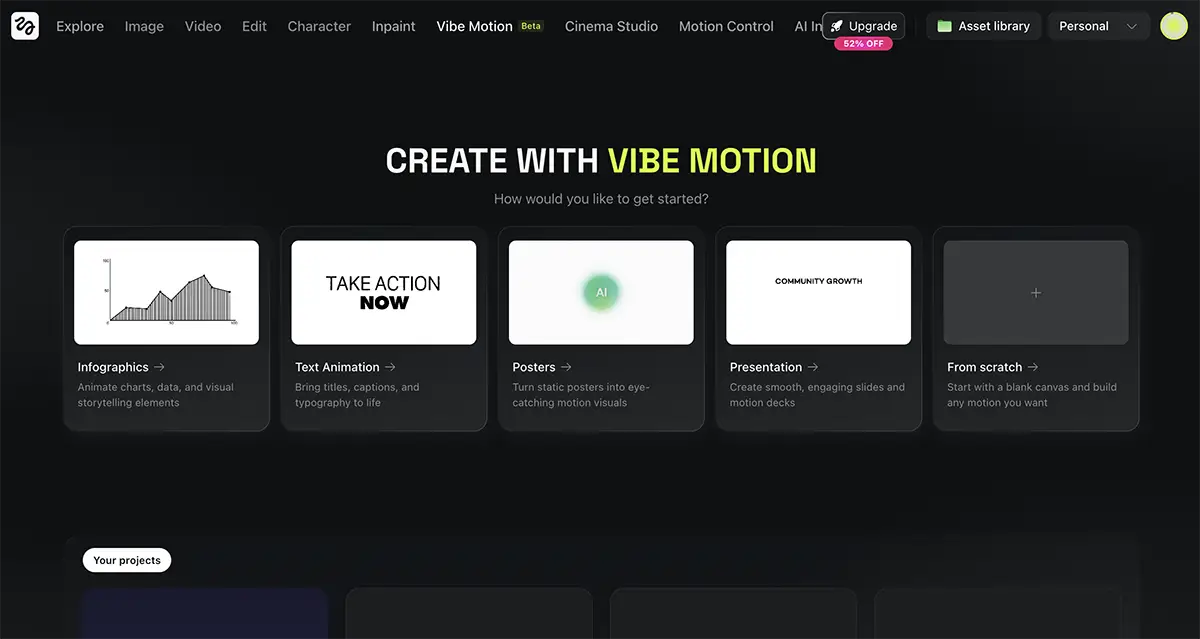
How to Use Vibe Motion
The interface is clean and feels familiar if you’ve used any generative AI tools recently, and certainly much more accessible than using Remotion with Claude Code.
-
Login: Head over to Higgsfield and select the Vibe Motion app.
-
Choose Your Format: You can start from scratch or pick a preset. They have templates for things like “Infographics,” “Text Animation,” and “Posters.”
-
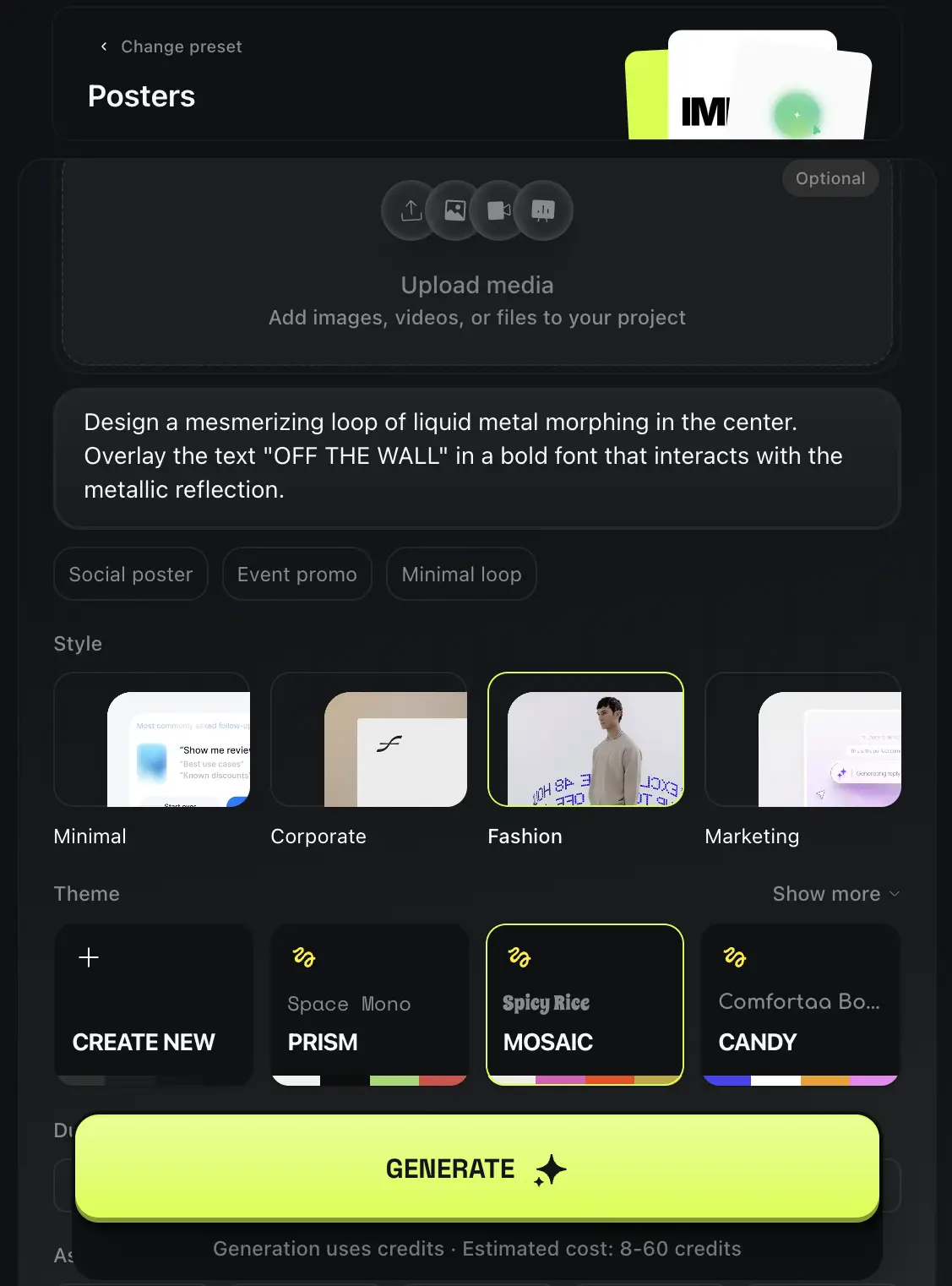
Set the Vibe: You can choose a color palette preset (like “Mosaic,” “Prism,” or “Candy”) or customize your own brand colors.
-
The Prompt: This is where the magic (supposedly) happens. You describe exactly what you want—transitions, particle effects, text behavior, hit generate and wait a few minutes.
Putting Vibe Motion to the test
I didn’t want to just give it a softball prompt. I wanted to see if Vibe Motion could handle actual creative direction. I ran two specific tests:
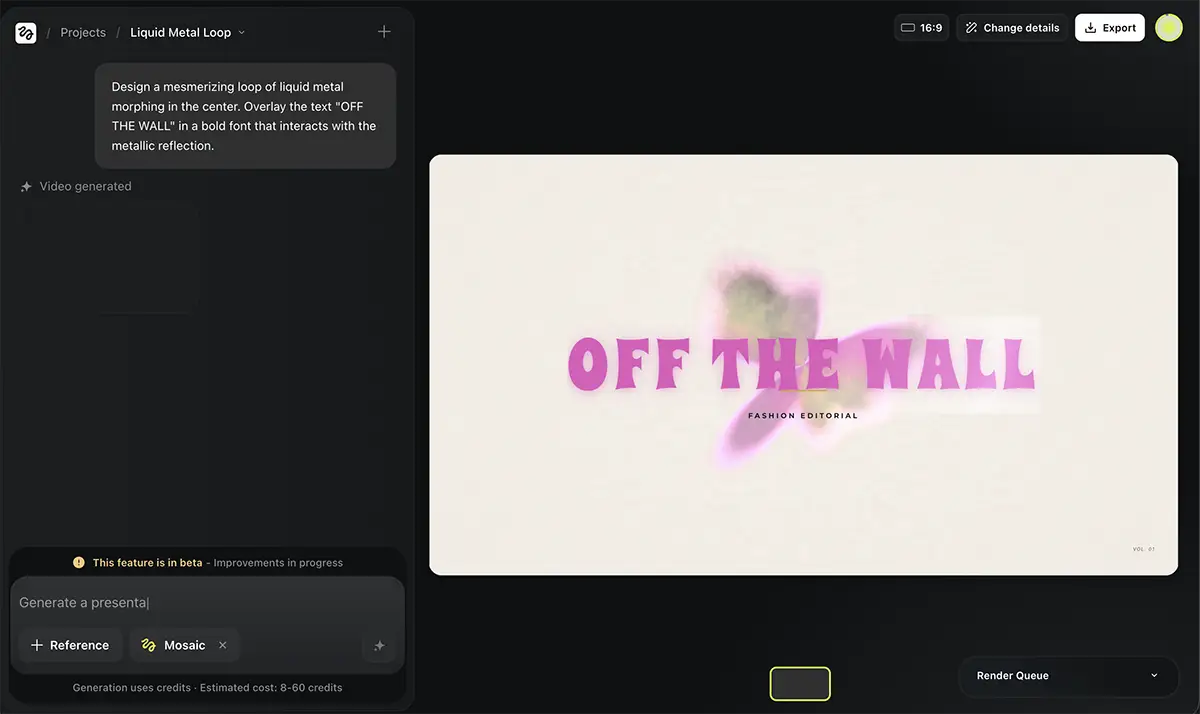
1. The “Poster” Preset
First, I tried their standard “Poster” preset. I wanted to see what the tool produces when I stay within the guardrails they designed. I used a simple prompt about “animated infographics” to see how it handled data visualization motion.
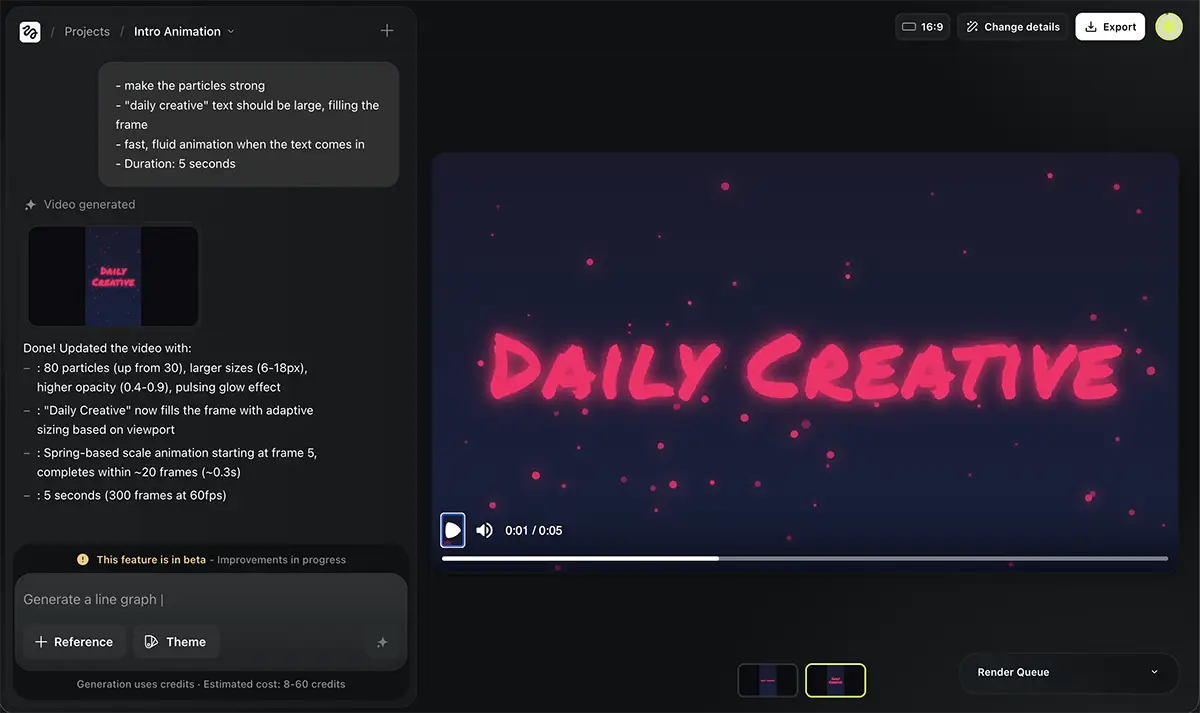
2. The “Daily Creative” Intro
Next, I went off-road. As many of you know, my book Creative Calling is all about establishing a daily practice. So, I tried to create a custom intro bumper for my old YouTube series The Daily Creative.
I gave it very specific instructions:
-
Background: Dark gradient (#1a1a2e to #16213e).
-
Font: Scratchy, loose handwriting in bright pink (#FF0066).
-
Animation: Text should fade in, scale up with a bounce, and have floating particles in the background.
So, is Vibe Motion any good?
I want to stress that I’m using the product on literally day one, so anything here should be interpreted accordingly.
It’s Slow (For Now)
“Real-time” is a bit of a stretch right now. It took 5+ minutes just to get the first draft of my “Daily Creative” intro.
If you’re used to the instant gratification of tools like Midjourney, this feels like an eternity. Plus, you have to re-render every time you make a tweak. I suspect this is because the feature just launched and their servers are absolutely melting under the load, so take this with a grain of salt. It’ll likely speed up as they scale.
The Quality: Good, Not Great
The output for the “Daily Creative” video was… okay.
-
It nailed the pink neon text and the particle effects were there.
-
The “bounce” animation worked.
-
But aesthetically? It lacked that human touch.
To be frank, you could probably get a more polished result using a Canva preset in half the time and for less money.
However, I’ve seen some incredible examples on Twitter from people who clearly spent serious time (and credits) refining their prompts. It’s capable of greatness, but it’s not a “one-click-wonder” just yet.
The Potential
That said, I’m bullish on the tech. The fact that it’s generating actual motion code (via Remotion) rather than just hallucinating pixels means the text never breaks, and the edits are consistent. This is the future of motion design—we’re just in the early innings.
Pricing
This is where you need to pay attention. The tool runs on a credit system:
-
Cost: 8–60 credits per generation.
-
Plan: The basic $9 Higgsfield plan gives you roughly 150 credits.
Do the math—if you’re iterating a lot to get the animation perfect, you’re going to burn through that $9 plan very quickly. Given how compute-intensive video generation is, the pricing is fair, but it’s not cheap if you’re just playing around.
Bottom Line
If you have a Higgsfield subscription and some credits to spare and you’re curious about the future of design, give Vibe Motion a try. It’s fascinating to watch an AI interpret motion instructions.
However, I’d say it’s not quite ready for prime time for pros. It’s a bit too slow and the “out of the box” design quality needs a human eye to really polish it up.
But keep your eye on this. Prompt-to-animation is going to be a massive part of our workflow very soon, and I expect Higgsfield to be part of that.