I’m a huge fan of Weavy. It’s arguably the best generative AI canvas app for creative professionals who want the power of a node-based system without the headache of managing a raw ComfyUI installation.
But there is a very powerful function in Weavy that is barely documented. I love the product and the company, but their official documentation doesn’t explain a lot of the critical details. So, I’m going to do it here.
We’re talking about LoRAs: they give you access to a massive chunk of the open-source ecosystem, allowing you to fine-tune your aesthetic with precision – without the overwhelming complexity that you might find in ComfyUI.
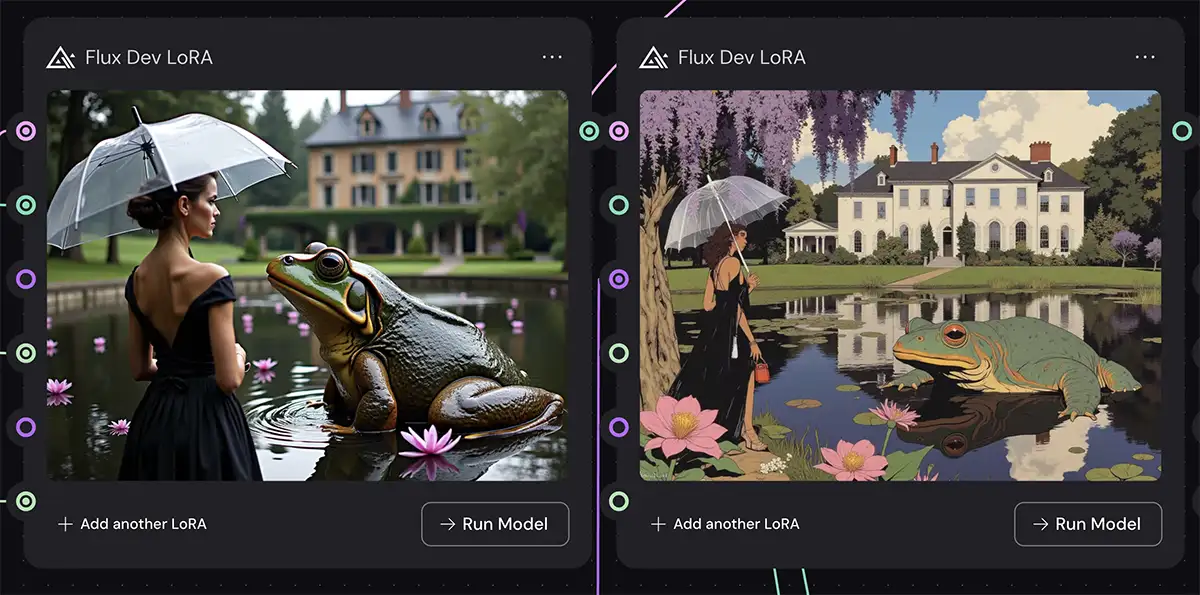
No LoRa (left) vs with an illustation LoRA (right) in Flux Dev
What Are LoRAs and Why Should You Care?
Think of LoRAs (Low-Rank Adaptations) as style presets or filters that plug into AI image models like Flux and Stable Diffusion. They’re small, efficient files that tweak the model to understand a specific concept, style, or character like oil painting, 8mm film, Batman, etc.
You can even layer them together and change the weights, for example you could mix watercolor and colored pencil LoRAs to apply a unique illustration look to an image.
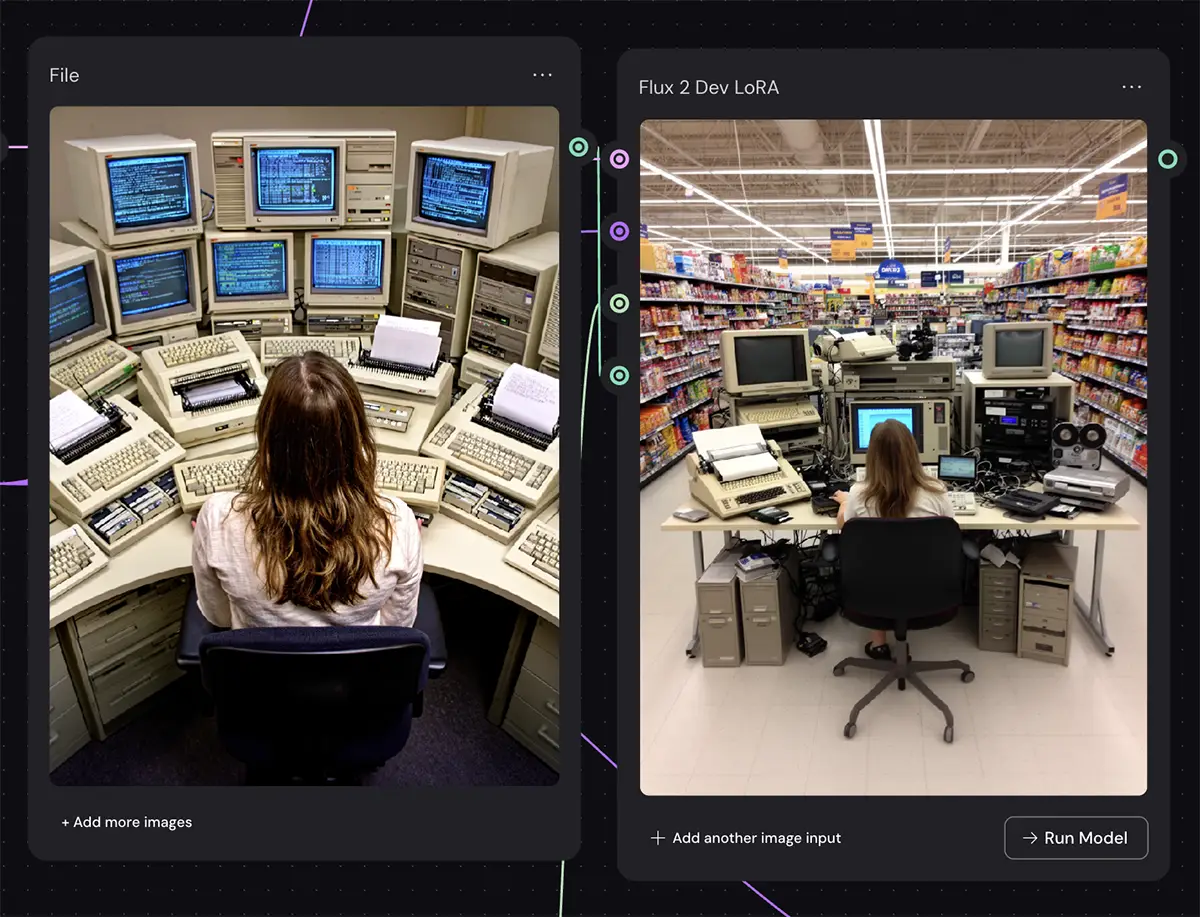
For example, I’m currently loving Flux 2 Dev paired with the Boreal LoRA for that slightly surreal, cinematic look. On the other hand, when I want that gritty, nostalgic feel, I use the 2000s Analog Core LoRA with Flux 1 Dev. The difference in creative control is night and day compared to simple prompting.
What You Need to Know About LoRAs in Weavy
Before you start dragging nodes around, there are a few “gotchas” that can trip you up – the implementation of LoRAs in Weavy is actually pretty powerful, but the presentation is a little confusing.
1. Pay Attention to the Version
This is the most common mistake. LoRAs only work with a specific version of a specific model.
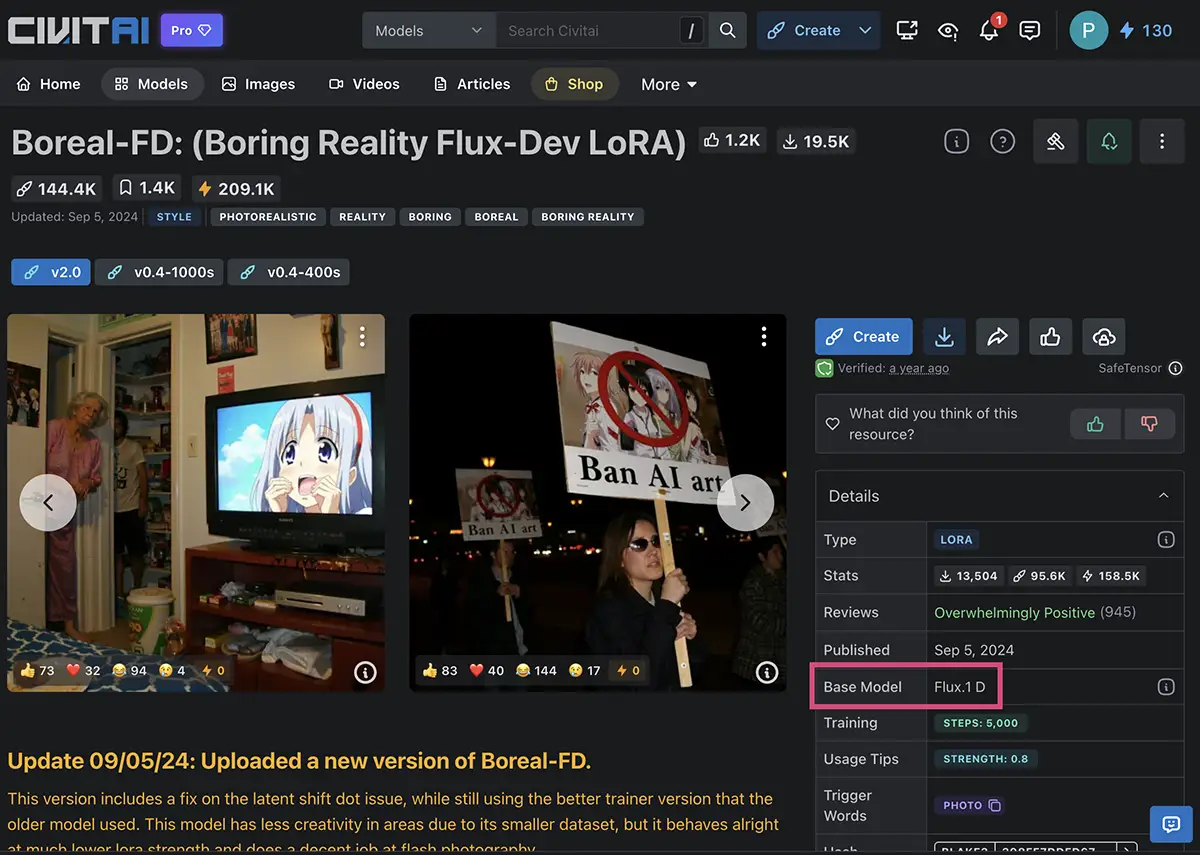
The “Base Model” is Flux.1 D aka Flux 1 Dev
For example, the “90s Indie Movie” LoRA might work with ZimageTurbo, Flux.1 Dev, and SDXL, but it won’t work with any other models unless specificed. This is confusing because there are many models with similar names, and it must be an EXACT MATCH.
To make things even more confusing, Weavy’s naming is slightly different from what you see everywhere else.
-
For example, Flux.1, Flux.1 Dev, Flux.2, and Flux 2 Klein 4B are all different models (there’s also Flux Kontext, Flux Redux, and more…)
-
A LoRA made for Flux.1 will likely not work with Flux.2.
- In Weavy, the “Flux” node is Flux.1 and “Flux Dev” is Flux.1 Dev
It can be a pain to find LoRAs that match the models you rely on, but checking the version number is a must.
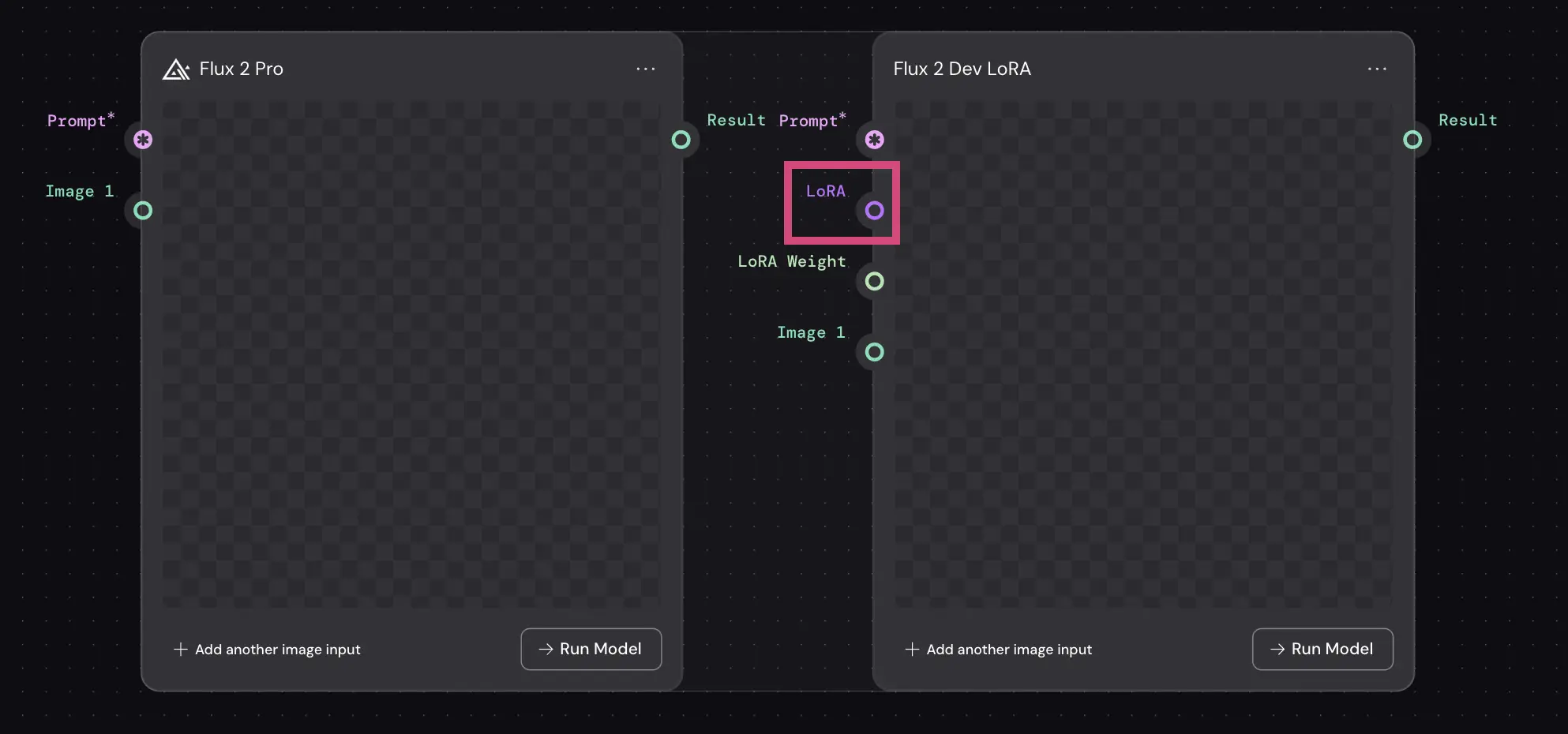
2. The Model Must Have a LoRA Input
Many of the default model nodes in Weavy don’t have an input slot for LoRAs, which can get confusing. For example:
- The “Flux 2 Pro” node doesn’t have a LoRA input
- The “Flux 2 Dev LoRA” node does
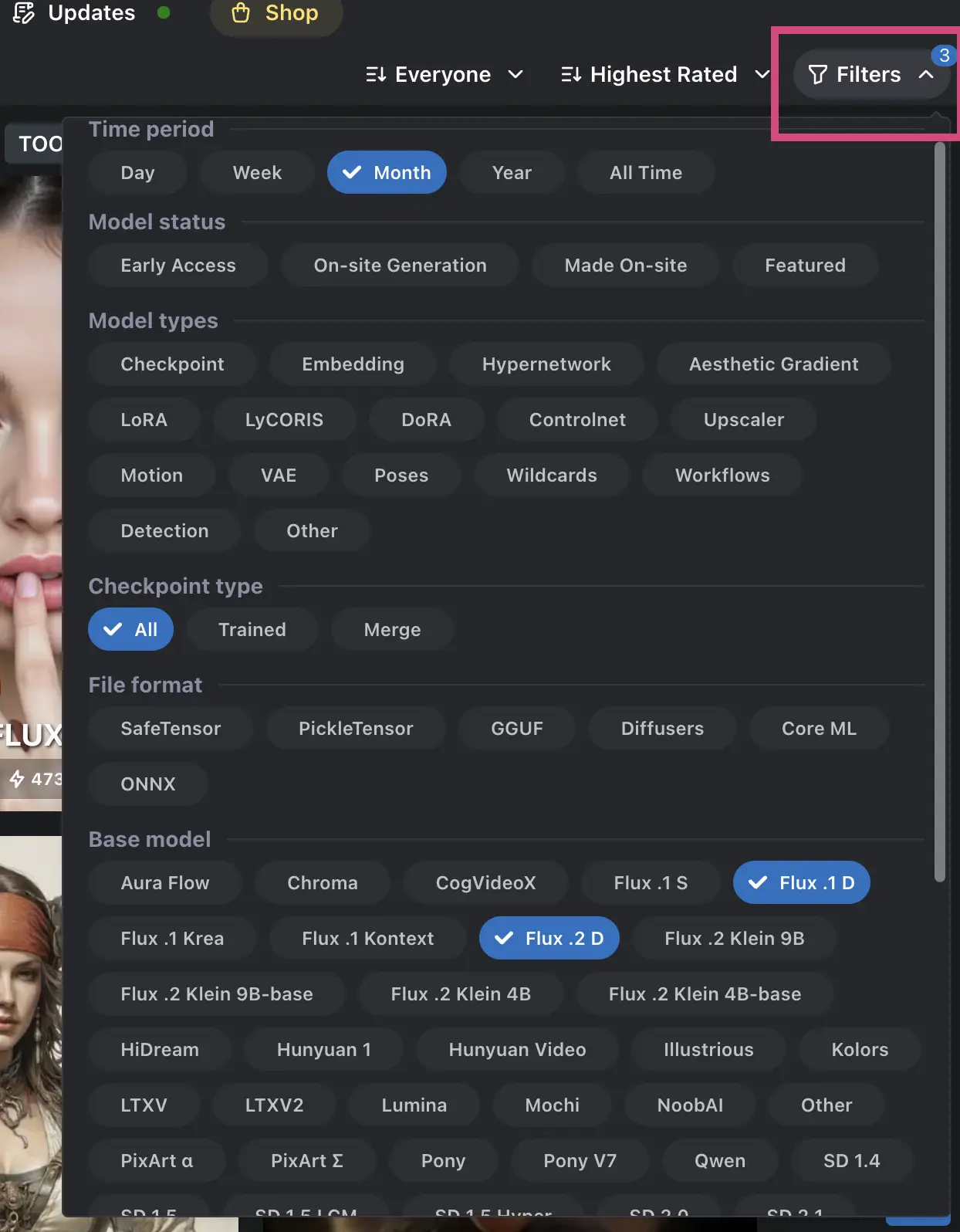
This means you need to find a combination that works: a model that matches your quality needs and has a LoRA input, and a LoRA file that matches that specific model version. I recommend using the “filters” function on sites like Civitai to narrow this down.
Now you’ve got everything you need: the LoRA and a model that supports it.
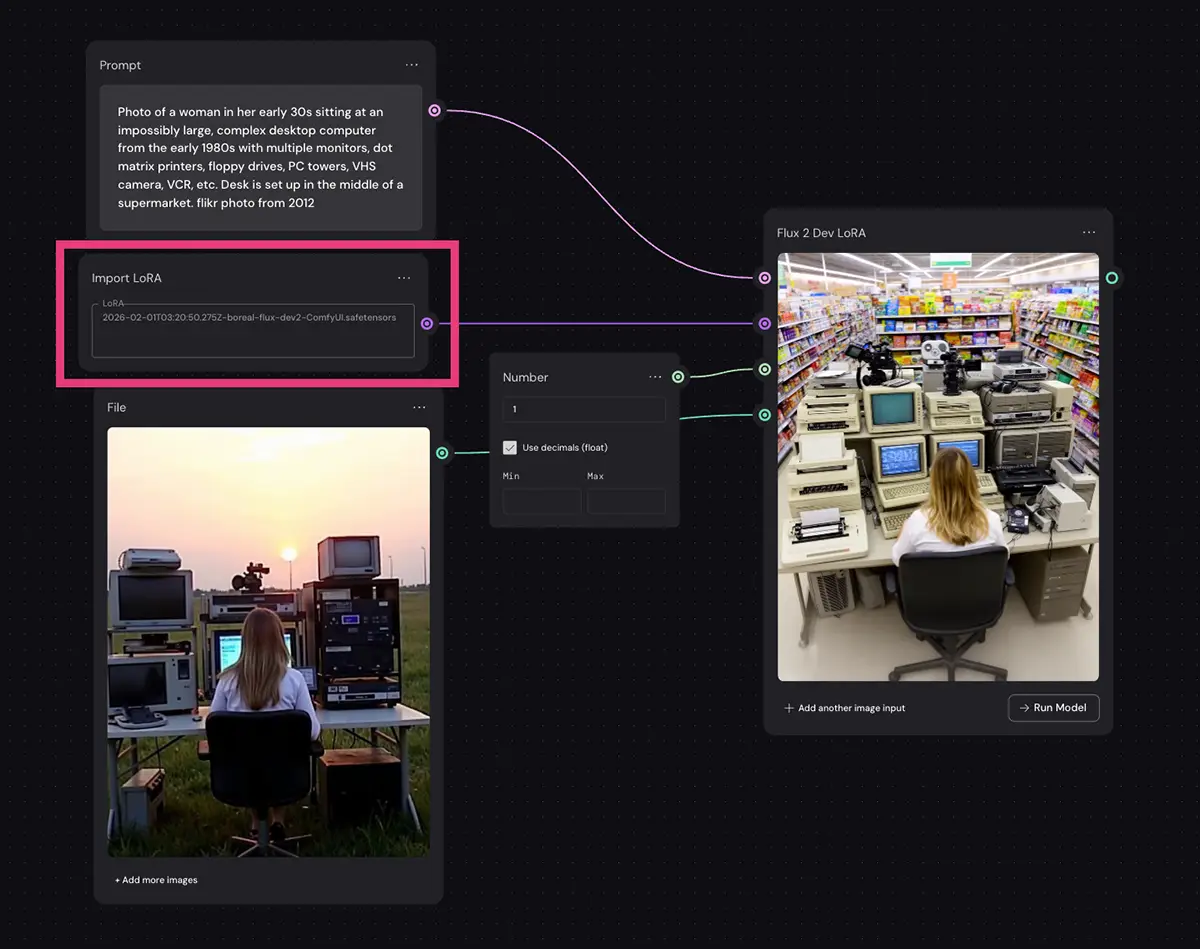
How to Use Them in Weavy
Here is the workflow that isn’t clearly explained in the manual:
-
Download the LoRA: Make sure you have the right version (it should be .safetensors file) from a site like Civitai or Hugging Face.
-
Use the “Import LoRA” Node: Drag this node onto your canvas and upload the .safetensors file there.
-
Connect the “Import LoRA” node to the LoRA input on your model node. This is confusing because Weavy often labels the input as “LoRA URL.” It doesn’t actually want a text URL there; it wants the connection wire from the “Import LoRA” node.
-
Set the Weight (optional): Add a Number node and connect it to the LoRA Weight input.
-
Run It: Click “Run Model” and adjust to your liking.
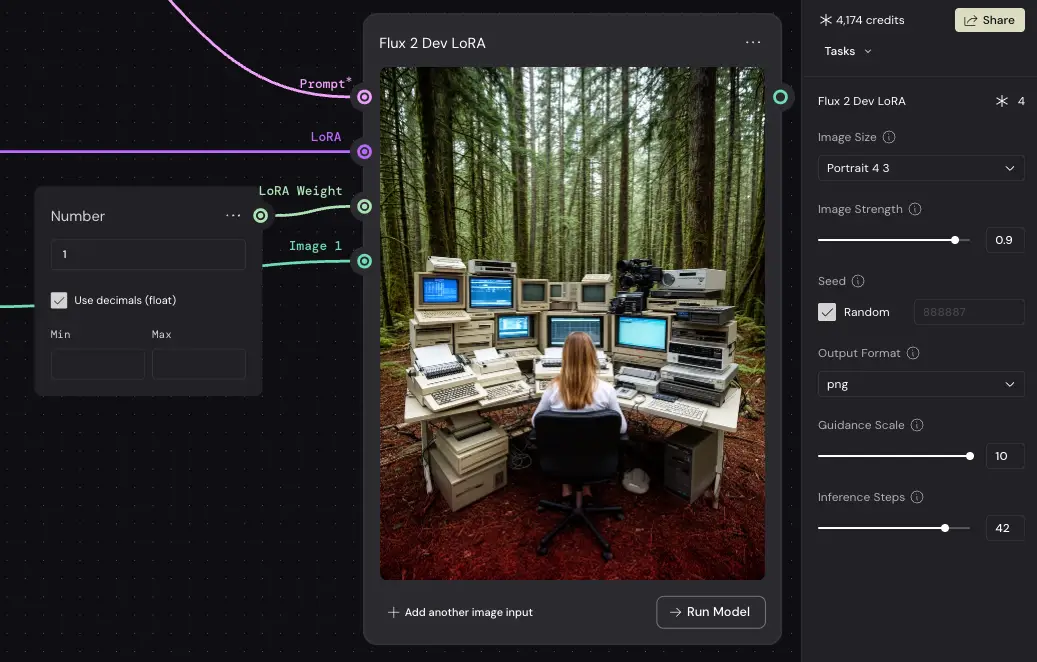
Adjusting Your Parameters
- LoRA Weight: As you’d expect, this is how much influence the LoRA has. Use this to balance them out when you have multiple LoRAs stacked.
-
Image Strength: This applies to the input image in you have one. 1.0 means it follows the content of the image very closely, 0.01 means it only takes loose guidance.
-
Guidance Scale: How strictly the AI adheres to your prompt. This is the same as the CFG parameter in ComfyUI.
-
Inference Steps: How many “passes” the AI takes to generate the image. Higher isn’t always better, but it usually means more detail.
You can even use multiple LoRAs on some nodes by chaining them, but be careful—mixing too many together can turn into a mess.
Where Do You Download LoRAs?
The most popular sources for LoRAs are CivitAI, HuggingFace, Fal and Replicate. There may be others scattered around, but those sites should cover just about anything you’d need or want.
The interfaces can be a little hard to navigate so it’s often best to just Google or ask ChatGPT/Gemini what you want, and get the link from there.
Gotchas You Should Be Aware Of
-
Random Seed: If you want to refine an image without changing the composition, keep your seed number fixed. If you want a totally new variation, randomize the seed.
-
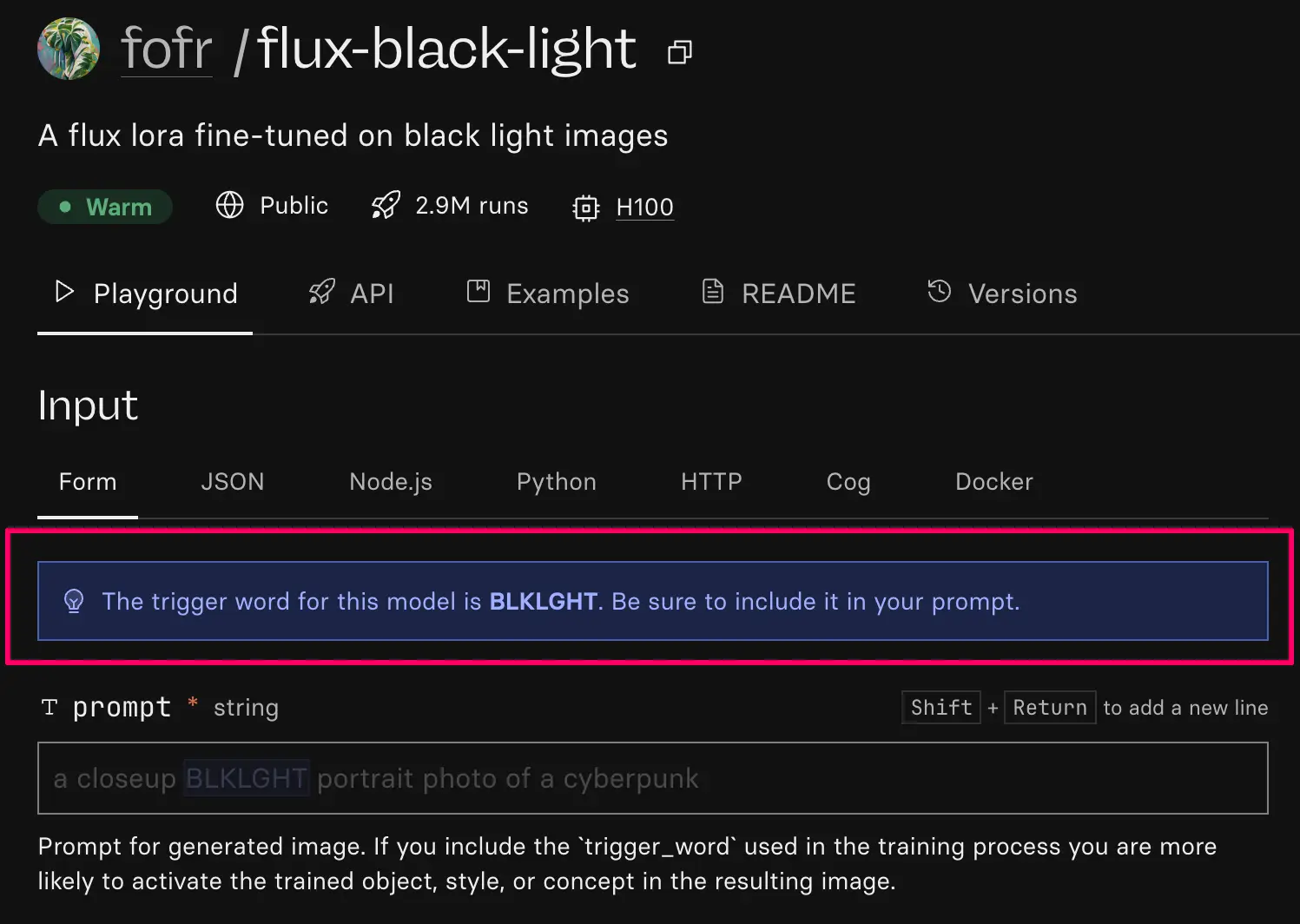
Trigger Words: Some LoRAs require a specific “trigger word” in your text prompt to activate (e.g., “shot on analog film” or a specific code like “TOK”). Always check the LoRA’s download page for this info.
-
The Tradeoff: Older models (like SDXL) have a massive library of LoRAs, but the base image quality isn’t as high as the new Flux models. I generally wouldn’t use SDXL today for professional work, even with its variety. In my opinion, Flux 1 is currently the best balance of a high-quality model with a robust LoRA ecosystem.
-
Translation Required: Almost all online discussion is about ComfyUI. Since Weavy uses slightly different terms than ComfyUI and doesn’t expose all the same parameters, you’ll have to mentally translate some terms (like samplers or VAEs) that Weavy might automate or hide.
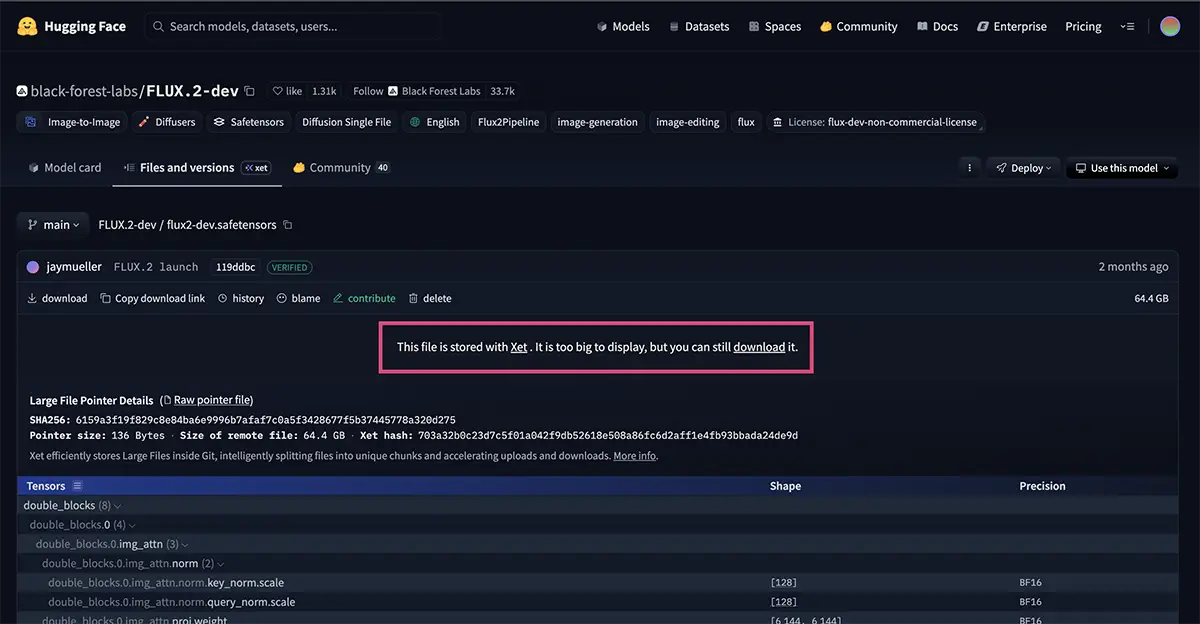
Look for a direct link to the .safetensors file
Importing Custom Models
Sometimes you’ll find a model online that you absolutely need, but it’s not in Weavy’s default library. You can import it yourself.
-
Get the URL: Copy the exact download URL of the
.safetensorsfile.-
Tip: On Hugging Face, this is often buried in the “Files and versions” tab, not the main browser URL. It should be something like “https://huggingface.co/black-forest-labs/FLUX.2-dev/resolve/main/flux2-dev.safetensors”
-
-
Paste into “Import Model”: Use the Import Model node in Weavy and paste the link.
-
Use It: It will appear in your library like any other node.
Weavy also has a “Community Models” section at the bottom of the node list where you can find pre-imported gems with support for controlnets, IP adapters, etc.
Conclusion
LoRAs are an incredible tool for creative differentiation, but the ecosystem can be confusing. It is a mix of engineering and art, but that is exactly where the modern creative professional needs to live. It’s not as hard as it seems, especially now that you have this guide.