You might have heard the rumblings about Google Flow: It’s their new AI-powered filmmaking tool, built on top of heavy-hitting models like Veo and Gemini. But let’s cut through the tech specs and get to the heart of the matter: Is this actually useful for creative pros, or is it just another shiny toy?
I’ve dug into the interface and the output, and I’m seeing some things that attempt to solve the biggest headaches we’ve had with AI video so far. But do they?
Let’s find out.
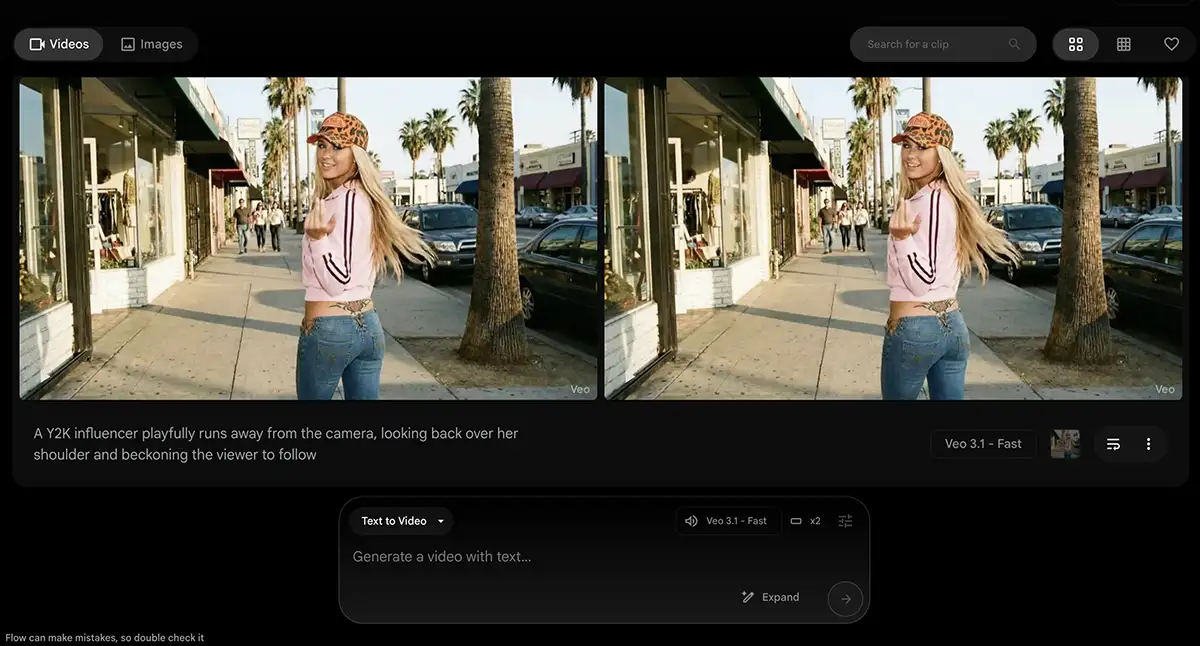
Google Flow is an AI video editor
It is not just a “generator” where you type a prompt, get a random clip, and hope for the best. It’s a workspace where you build. You start by creating video from text or static images, but the magic happens in what comes next: you edit the footage by prompting.
You can create a clip from image, video or “ingredients,” then add new instructions to change the lighting, shift the camera focus, alter the weather, etc etc. It uses Google’s Veo 3.1 model paired with the reasoning of Gemini, and the amazing Nano Banana Pro designed specifically to give you control over the lens and elements.
I could go down the laundry list of everything in their press release but I’d rather focus on what could actually be useful. Here’s what Flow brings to the table:
1. “Frames to Video” & Zero Morphing
Add start and end frames and it will do the rest – the same as using Veo 3 with Weavy, Higgsfield or any other API integration. I saw an example from the Flow team (check out their X feed) where they took a static shot of a woman in a desert and used Nano Banana Pro to “make it rain.”
They directed the focus to shift from the background to the foreground, added complex weather physics like wet fabric and mud.
And refreshingly, the character didn’t morph as we so often see with AI video – that’s thanks to Veo 3, which currently the best AI video generator out and Flow takes full advantage of it.
Verdict? Solid feature.
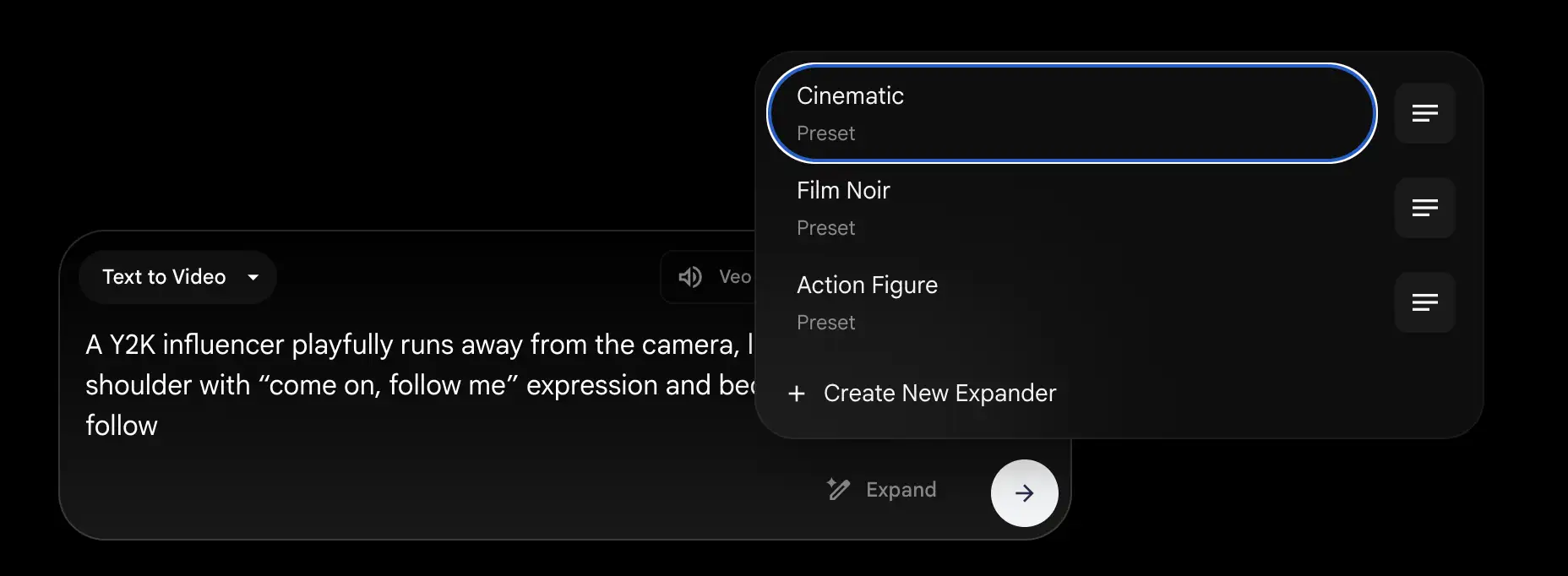
2. Ingredients & Presets
it’s very simplified web app vs something like After Effects (or even Weavy), but there’s more power than meets the eye. You have a few distinct modes that are huge for workflow:
-
Ingredients to Video: Essentially like an asset manager. You feed it your “ingredients” (characters, props) so the AI knows exactly who or what to put in the scene before you even start prompting.
-
Presets: You’ll see options for “Cinematic,” “Film Noir,” and “Action Figure.” This is basically instant color grading and style transfer. If you’re pitching a mood to a client, being able to toggle between “Noir” and “Cinematic” in seconds is powerful.
-
Aspect Ratio Control: You can toggle 16:9 right in the prompt box. Basic? Yes. Essential? Absolutely.
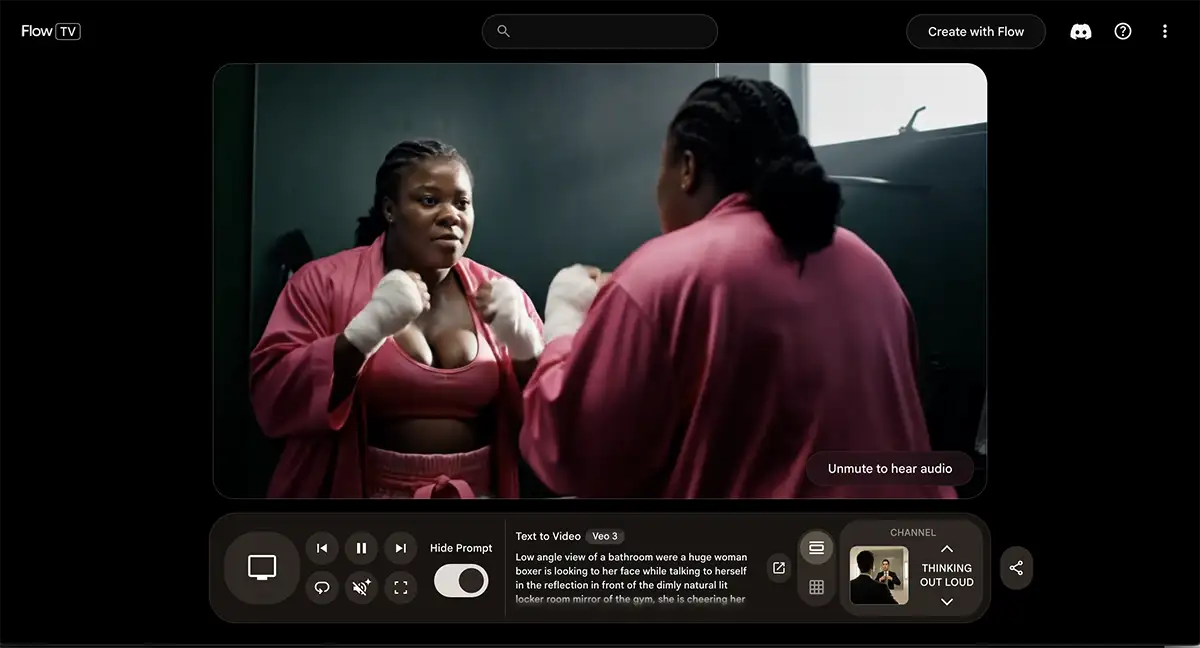
3. Flow TV: The “Open Source” Film School
Flow includes a section called Flow TV, which is a gallery of videos to show you how to use the app. You can watch clips created by other pros—like a cinematic shot of a boxer psyching herself up in a locker room, and see the exact prompt they used. You can see the model (e.g., Veo 3), the settings, and the syntax. Very helpful to get an idea of the nuances in action, since video prompting is still a new thing for most of us.
4. Scene Builder & Expand
Ever get a perfect shot but it cuts two seconds too early? Flow lets you temporally “Expand” a clip, predicting what happens next to extend the footage seamlessly. The Scene Builder then lets you stitch these clips onto a timeline. It bridges the gap between generating a cool GIF and actually editing a scene.
That said I personally found this pretty confusing to use. perhaps that’s operator error on my part but I have also been making videos for a couple decades so I think this just isn’t quite ready for prime time yet in terms of UX – but I expect that to change quickly given how Google is moving these days.
Who is This For?
The Filmmaker & Director:
it’s definitely not a replacement for any of your pro apps but it may have a place – for example, storyboarding. Instead of sketching stick figures, you can generate a high-fidelity “mood film” using Frames to Video to pitch your vision to clients or investors. It bridges the gap between the idea in your head and the visual on the screen faster than ever.
The Solo Creator:
If you’re a one-person production house, the Ingredients feature helps you create B-roll or cinematic intros with a consistent character, saving you from hiring actors for every small pickup shot.
The Agency Creative:
Need to mock up a commercial concept in an afternoon? Use the Presets. You can iterate on visual styles (Noir vs. Pop) instantly before you commit to a shoot. Again not a replacement for pro apps but definitely a handy tool to have in your arsenal
Pricing: Is it worth it?
Flow is rolling out with a credit-based system (generations seem to cost around 20 credits). It’s likely part of the Google AI Pro ecosystem. Is it worth it? If it saves you hours of storyboarding or stock footage hunting in a single month, the math does itself.
My Verdict
Let’s keep it 100. This is a pretty cool app, and it’s genuinely fun to use, but it’s probably not quite ready for high-end client work just yet.
Why? It’s still a little finicky. Prompt adherence is an issue – sometimes you have to wrestle with the AI to get it to listen to your specific direction. And while the audio capabilities are interesting, they aren’t usable for anything high-end; you’re not going to replace your sound designer with this anytime soon.
It feels like a massive step in the right direction, but think of this as the “Version 1” moment. This is like Nano Banana 1—it’s showing us the promise of what’s possible. But I think the true “Nano Banana Pro” of video – the version that is reliable enough for daily professional use – is still coming. That’s when this stuff will become truly indispensable for pros.
My advice? Get your hands dirty anyway. The best way to be ready for that future version is to start playing with the current one today. Sign up, browse Flow TV for inspiration, and try to make a 60-second short.