This isn’t about shortcuts. It’s not about “cheating” the craft or letting a robot take the wheel. If you’re a professional—a filmmaker, editor, or creative director—you know the reality: the demands are higher, the deadlines are tighter, and the budgets are… well, let’s just say they rarely scale with the expectations.
AI video editing is about leverage. It’s about removing the friction between your vision and the final cut. The “best” AI video editor isn’t a single magic app; it’s a stack of tools that automate the drudgery so you can focus on the storytelling.

Here is the professional landscape of AI video editing for 2025.
The Core NLEs: AI Integrated, Not Add-On
Stop looking for a separate “AI editor” to replace your NLE. The real power is already inside the tools you use. The biggest shift in the last 12 months is that Adobe and Blackmagic Design have moved AI from “gimmick” to “fundamental workflow.”
Adobe Premiere Pro (v25+)
Adobe has finally integrated AI into the timeline in a way that feels native. If you are already in the Creative Cloud ecosystem, this is your first stop.
Generative Extend
Be honest—how often do you have a clip that is just ten frames too short? You used to have to slow it down (risking artifacts) or cut away early. With Generative Extend in Premiere Pro 25, you grab the edit point, drag it, and Firefly generates new frames to pad the shot. usage is subtle—don’t use it to create 5 seconds of new action, use it to fix a beat.
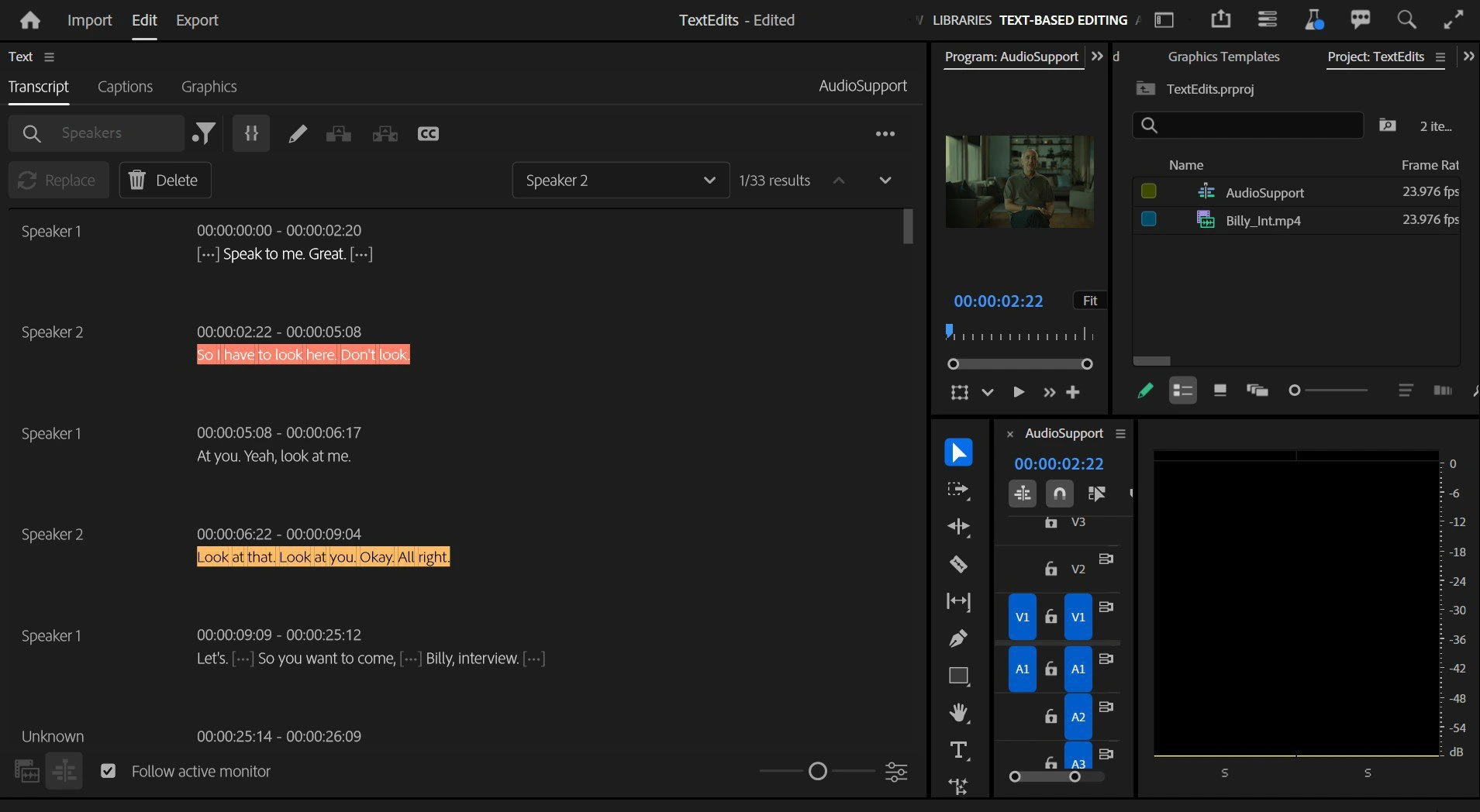
Text-Based Editing
This is now the industry standard for rough cuts. You don’t scrub the timeline anymore; you scrub the transcript.
- Workflow: Import your rushes, auto-transcribe. Highlight the text you want, press the insert key.
- Pro Tip: Use the “Bulk Delete” feature to remove every “um,” “uh,” and pause in one click. Then, manually refine. It gets you to a rough cut 60% faster.
Enhance Speech
Forget sending audio to Audition or using third-party plugins for basic noise cleanup. The “Enhance Speech” slider in the Essential Sound panel is effectively a one-knob iZotope RX.
- Setting: Keep the “Mix Amount” around 0.7. At 1.0, it can sound robotic and gated. At 0.7, it retains natural room tone while killing the HVAC hum.
DaVinci Resolve 19 (Studio)
If color and finishing are your priorities, Resolve’s Neural Engine is the heavyweight champion. Blackmagic is less about “generative” content and more about “corrective” intelligence.
IntelliTrack AI
Tracking masks used to be the bane of color grading. IntelliTrack uses point-tracker AI to lock onto objects or faces with terrifying accuracy. You can use this for audio panning too—track a car in the video, and Resolve pans the audio automatically.
Magic Mask
This is the feature that justifies the Studio license fee alone. detailed isolation of a person (or specific features like “face” or “arms”) without rotoscoping.
- Workflow: Go to the Color page, select Magic Mask, draw a stroke on your subject. The Neural Engine isolates them. You can now color grade the subject separately from the background in seconds.
The Specialists: High-Fidelity Restoration
Sometimes the footage just isn’t there. It’s grainy, it’s low-res, or it was shot on a potato. NLEs can’t fix that. You need a dedicated specialist.
Topaz Video AI 5
This is the industry standard for upscaling and restoration. It doesn’t edit; it optimizes.
Upscaling & De-interlacing
If you are working with archival footage or need to punch in on a 1080p shot in a 4K timeline, this is the tool.
- Model Selection: Use the Proteus model for fine-tuning. It allows you to manually balance “Revert Compression” and “Recover Detail.”
- Avoid: The “Artemis” model can sometimes look too smooth or waxy for professional work. Proteus gives you granular control to keep film grain (natural noise) while removing digital noise.
Stabilization
Premiere’s Warp Stabilizer often creates that weird “jello” effect. Topaz’s stabilization analyzes motion in 3D space to reconstruct the background, often saving shots that Warp Stabilizer ruins.

The Script-First Workflow
If you produce podcasts, interviews, or corporate training, a traditional NLE might be overkill for the A-roll.
Descript
Descript is still the king of text-based audio/video editing. While Premiere has caught up with text-based editing features, Descript’s “Overdub” and immediate ease of use keep it relevant, plus the new “Underlord” AI assistant.
Studio Sound
Descript’s “Studio Sound” effect (regenerative audio filtering) is aggressive. It can turn an iPhone voice memo into a studio-quality mic.
- Caveat: It adds a synthetic quality. Always dial the intensity down to 50-60% to blend the original frequencies back in.
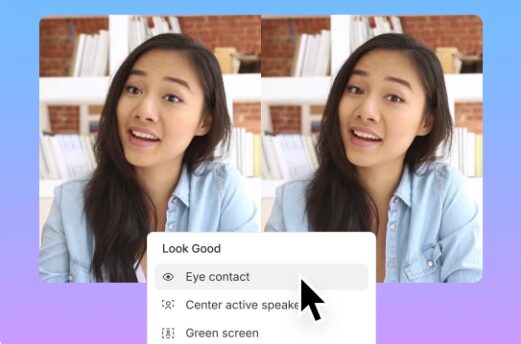
Eye Contact
If your subject is reading a teleprompter or looking at a script, Descript’s AI can digitally shift their eyes to look at the lens. It’s eerie, but effective for short social clips. Use sparingly.
Generative Video & Style Transfer
We are past usage simply for “making weird AI videos.” Tools like Runway are now viable for B-roll and visual effects.
Runway Gen-3 Alpha
Runway is the leader in generative video. For a pro, you won’t use this to generate your main subject, but you will use it for:
- Atmosphere: Generating fog, smoke, or fire elements to composite over live footage.
- Style Transfer: Taking a plain shot and reskinning it to look like claymation, watercolor, or cyberpunk neon without building 3D assets.
- Video-to-Video: Upload a crude 3D block-out or a storyboard animatic, and let Gen-3 render it into photorealistic footage.
The Volume Play: Social Micro-Content
If your career involves feeding the algorithmic beast (TikTok, Reels, Shorts), editing manually is a losing game.
Opus Clip
This tool takes long-form content (podcasts, webinars) and identifies “viral” hooks.
- How it works: You drop a YouTube link or a 1GB file. Opus analyzes it, detects the speakers, auto-reframes to 9:16 (vertical), adds captions, and gives you a “virality score” for each clip.
- Pro Use: Don’t trust the editing blindly. Use Opus to select the clips, export the XML (if available) or the high-res file, and then refine the pacing in Premiere. It turns a 4-hour breakdown job into a 15-minute review task.
The 2025 Professional AI Workflow
Here is how you actually put this together. Don’t let the tools fragment your process. Chain them.
- Ingest & Assembly: Dump footage into Adobe Premiere Pro. Use Text-Based Editing to cut the interview/dialogue track. Use Bulk Delete for pauses.
- Restoration: Identify the 2-3 clips that are too low-res or shaky. Round-trip them through Topaz Video AI (export as ProRes 422 HQ) and bring them back into the Premiere timeline.
- B-Roll Generation: realize you are missing a transition shot. Jump into Runway Gen-3, type a prompt or upload a reference frame, generate the asset, and drop it in.
- Color & Mix: Move the sequence to DaVinci Resolve. Use Magic Mask to grade the talent. Use IntelliTrack topan audio.
- Social Deliverables: Once the master is done, feed the final export into Opus Clip or CapCut to generate 10 vertical aspect ratio clips for marketing. Grok is also very good.
Final Specifics:
- Always shoot in the highest resolution possible; AI scales down better than it scales up.
- Keep your “AI usage” transparent if you’re working for news or documentary clients.
- Trust your eye. AI is a tool, not a director. If it looks fake, it is fake. Cut it.
This is the new baseline. The professionals who master this stack aren’t working harder; they’re working at a higher level of leverage. Go make something real.