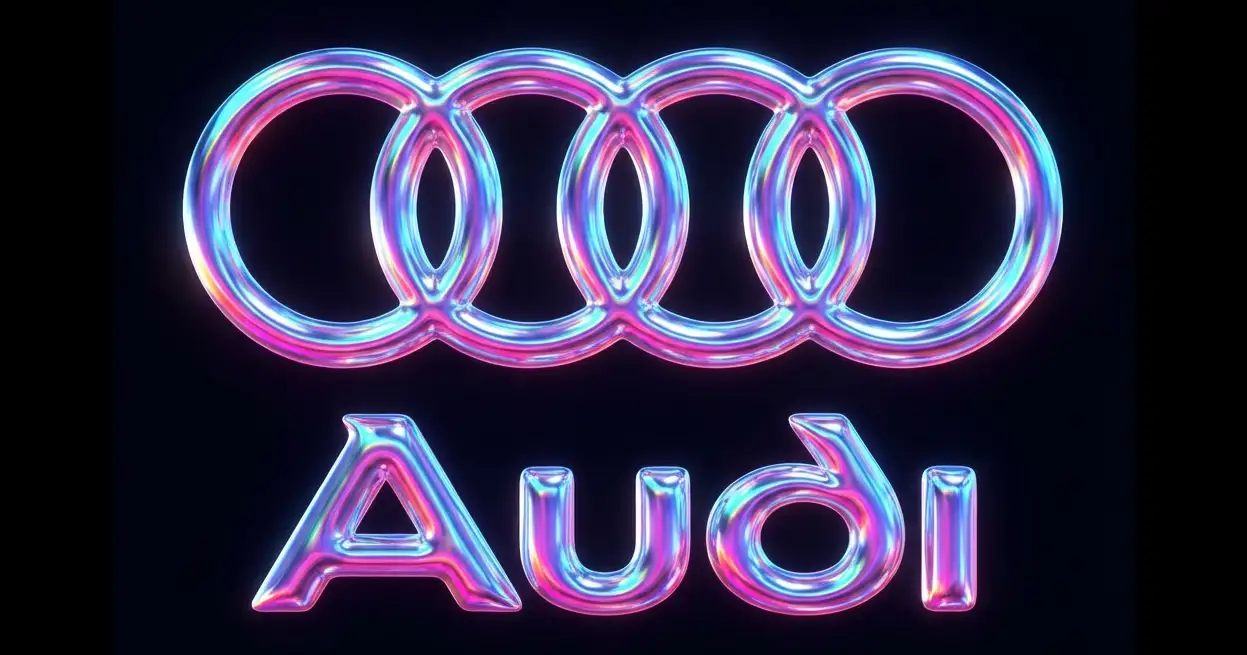
Today, I want to zero in on a specific technique that’s been blowing my mind recently: applying complex textures to logos using Nano Banana Pro for style transfer.
But more importantly, I want to talk about how we do it. Because as creative pros, we don’t just need “magic buttons.” We need control. We need replicable workflows. We need to understand the variables.
Here’s how:
The Toolset: Weavy + Nano Banana
For this workflow, I’m using Nano Banana Pro inside of Weavy.ai (This same logic applies if you’re using similar tools like Flora or Freepik, by the way).
Now, I know what you’re thinking. “Chase, can’t I just do this in the Gemini web app?”
In theory? Sure. You could try to “one-shot” the whole thing—upload a logo, upload a texture, and ask the bot to mash them together. But I don’t recommend it. Why? Because you’re guessing. It’s hard to track your variables, and if you get a result you love, good luck replicating it exactly for a different client 10 minutes later.
And it will have a watermark – not ideal.
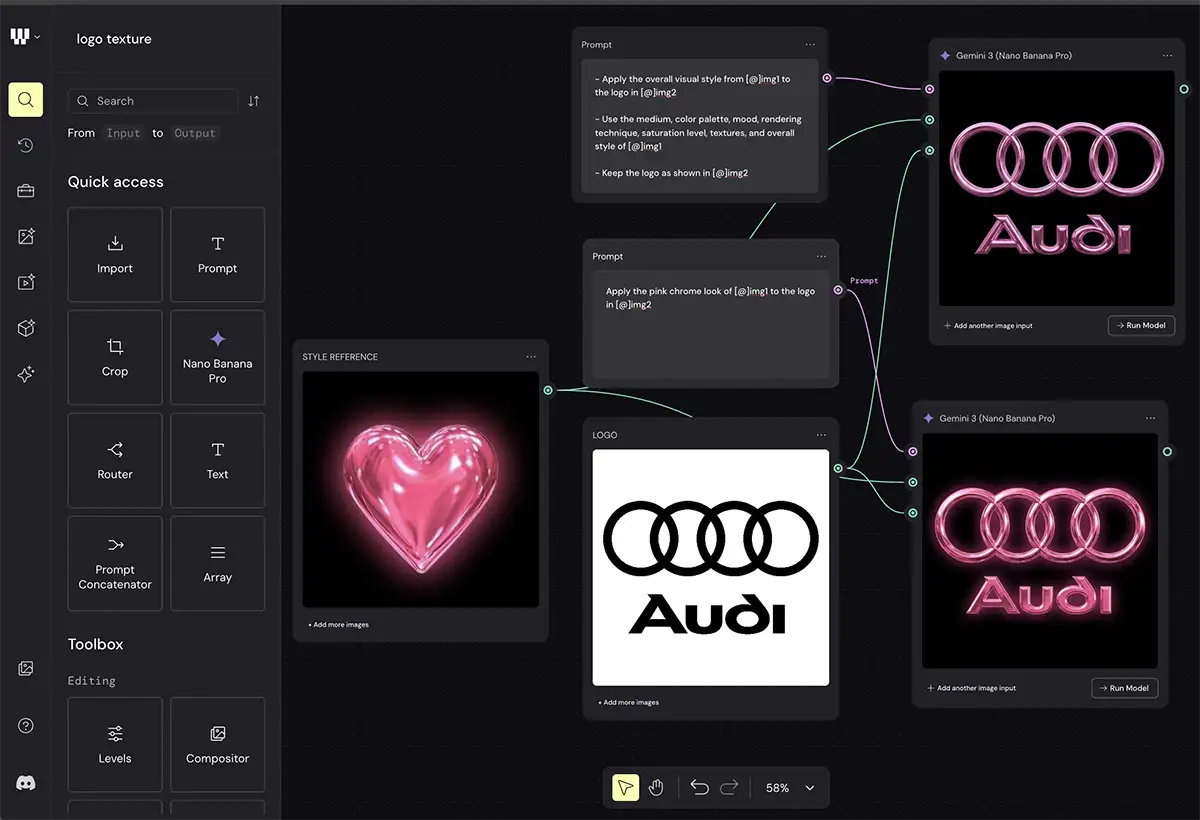
The Setup: Base image + style reference (for style transfer)
The goal here is simple: Take a flat vector logo and apply a rich, photorealistic texture to it without losing the logo’s identity.
To get started, you need two things in your node setup:
-
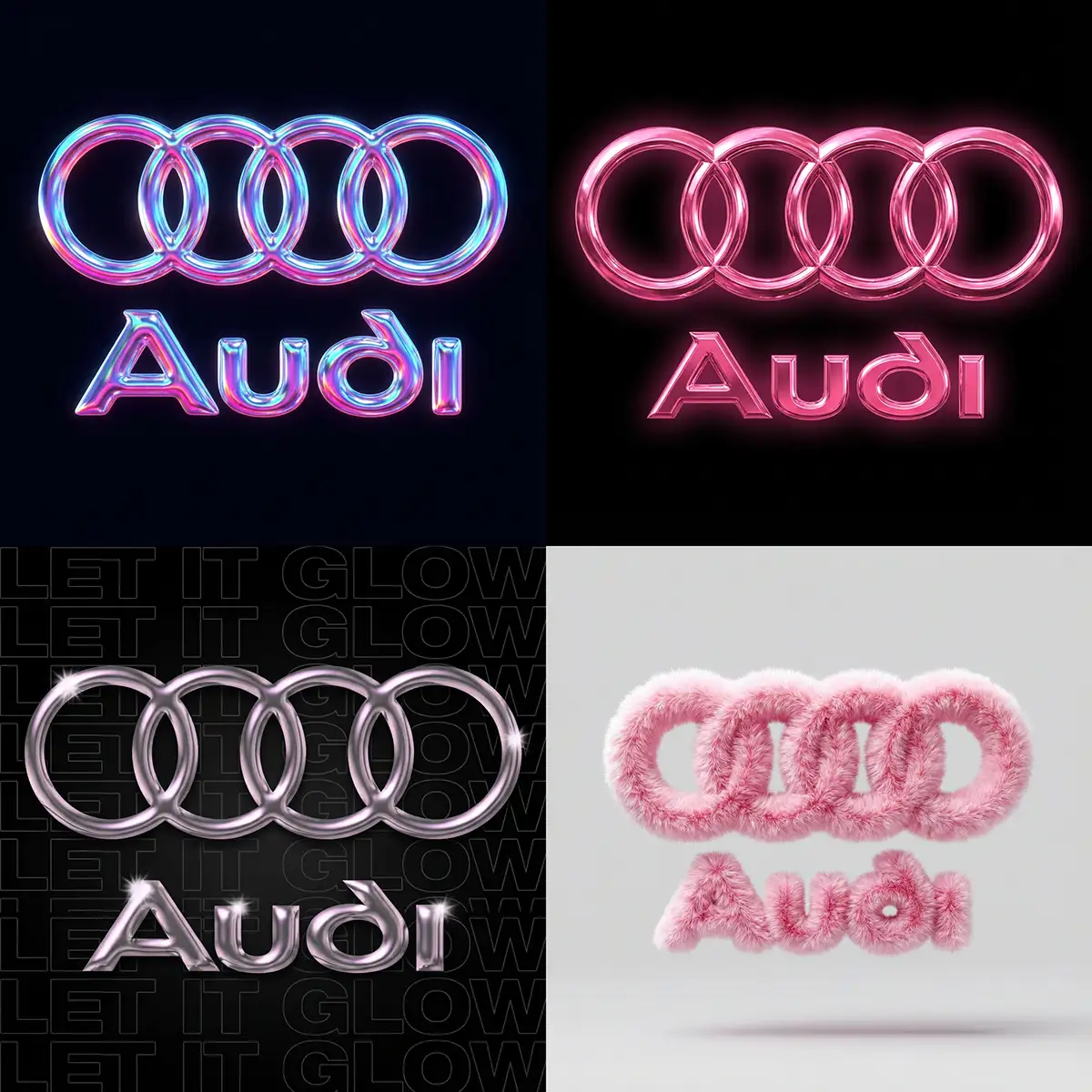
The Base: Your target logo. In my example, I’m using the Audi logo.
-
The Style Reference: This is where the magic happens. I pulled some killer textures from Pinterest—some wild pink fur and a sleek pink chrome.
You feed both of these as image inputs into the Nano Banana Pro node. This is your engine.
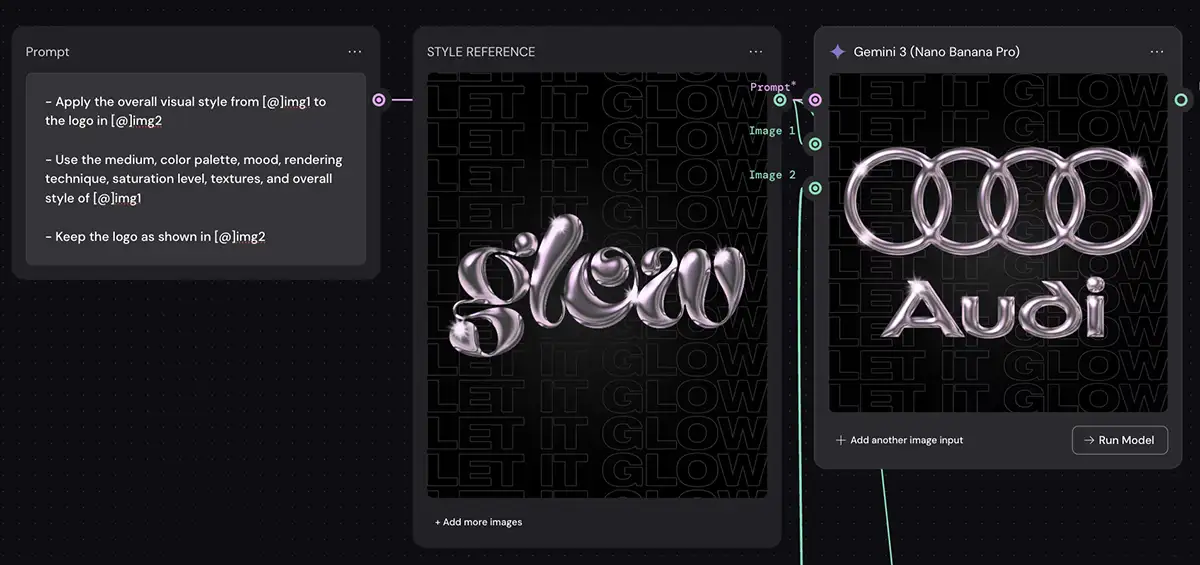
Approach #1: Generic Style Transfer Prompt
I always suggest starting here. This is your efficiency play.
The idea is to write a generic prompt for style transfer that tells the AI to look at whatever image you put in the “Style Reference” slot and apply it to the logo. In this case:
– Apply the overall visual style from [@]img1 to the logo in [@]img2
– Use the medium, color palette, mood, rendering technique, saturation level, textures, and overall style of [@]img1
– Keep the logo as shown in [@]img2
Once you have this node set up, you don’t have to rewrite your prompt. You can just drag and drop different reference images—concrete, neon, slime, denim—and cycle through them instantly. It allows you to iterate at lightning speed. You’re testing concepts, not wrestling with syntax.
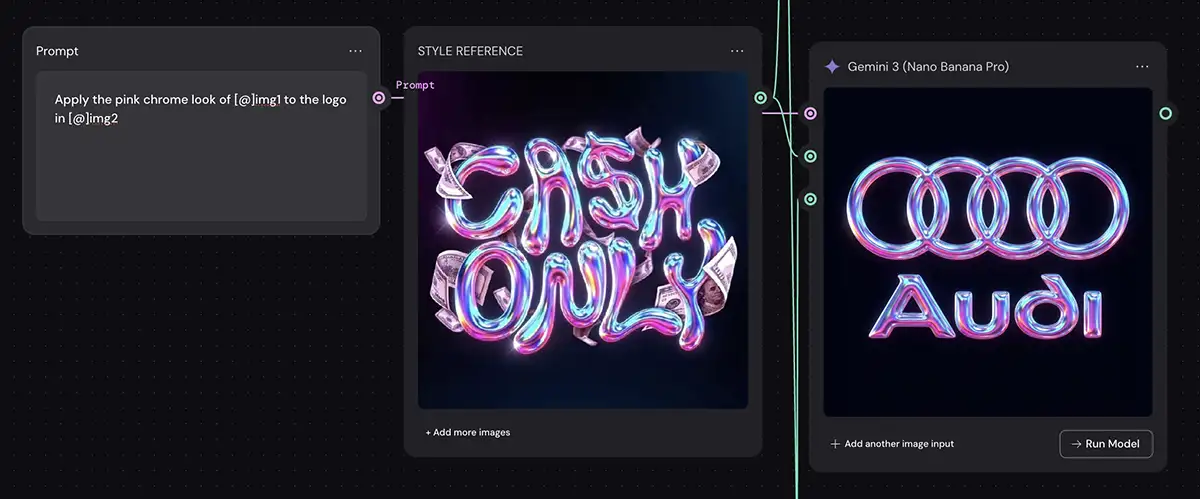
Approach #2: The Specific Prompt
Here’s the reality check: AI is amazing, but it’s not perfect. Sometimes the generic prompt just won’t cooperate. Maybe it’s not picking up the glossiness of the chrome, or the fur looks too matted.
When that happens, you switch gears to a custom prompt for style transfer:
Apply the pink chrome look of [@]img1 to the logo in [@]img2
In my test, I had to specifically call out: “Apply the pink chrome look…” to get the exact reflection I wanted on the Audi rings. This gives you significantly more control, but there’s a trade-off: it slows you down. You have to rewrite the prompt every time you change the texture.
My advice? Use the generic prompt for exploration. Only switch to the specific prompt when the generic one fails you.
The Secret Sauce: Resolution and Rerolls
Two quick technical tips that will save you a headache later:
-
Don’t Fear the Re-roll: Even with the perfect prompt, you might not nail the style transfer on the first try. That’s normal. This is why tools like Weavy are great—it’s much faster to hit that “run” button again than it is to re-type a paragraph into a chat bot. Treat it like a photo shoot; you rarely get the shot on the first click.
-
Crank the Res: In Nano Banana, always choose 2K or 4K resolution. We’re professionals; we need pixels. You can always upscale later if you really need to, but starting with high-fidelity source material is always better.
PS – More on Nano Banana Pro:
-
- How to repose a model
- How to do style transfer in Nano Banana
- Nano Banana FAQs
- Does JSON prompting work?
- How to master Nano Banana prompting
- Add a halftone effect
- How to use Midjourney with Nano Banana Pro
- Remove the Nano Banana watermark
- Set up a virtual product shoot with Nano Banana
- Create a VHS effect