If you’ve spent any time with the latest wave of AI video generators – specifically Veo 3– you’ve likely hit the wall. You know the one. You type in a prompt for something totally benign, like “a person walking down the sidewalk in late afternoon sun,” and bam: “Sensitive Content” warning.
It’s frustrating. It kills your creative flow. And frankly, it’s confusing. You aren’t trying to make anything controversial; you’re just trying to get a shot for your project.
I hear this from our community constantly. The tools are getting more powerful, but the guardrails are getting tighter. Let’s break down why this is happening and, more importantly, give you the tactical workarounds to get your video made.

What causes the sensitive content warning?
First, take a breath. You didn’t do anything wrong.
Platforms like Veo 3 (and its competitors) are under immense pressure to prevent deepfakes and unsafe content. To do this, they use automated safety layers that scan your text prompt and the generated pixels.
The problem is these filters are often “over-tuned.” They are designed to flag anything that even remotely resembles a policy violation. When you ask for “a person,” the AI sometimes hallucinates a celebrity likeness or a protected category, triggers a safety check, and blocks the generation before you even see it. It’s a false positive, but it stops your work dead in its tracks.
Here is how to bypass the noise and get back to creating.
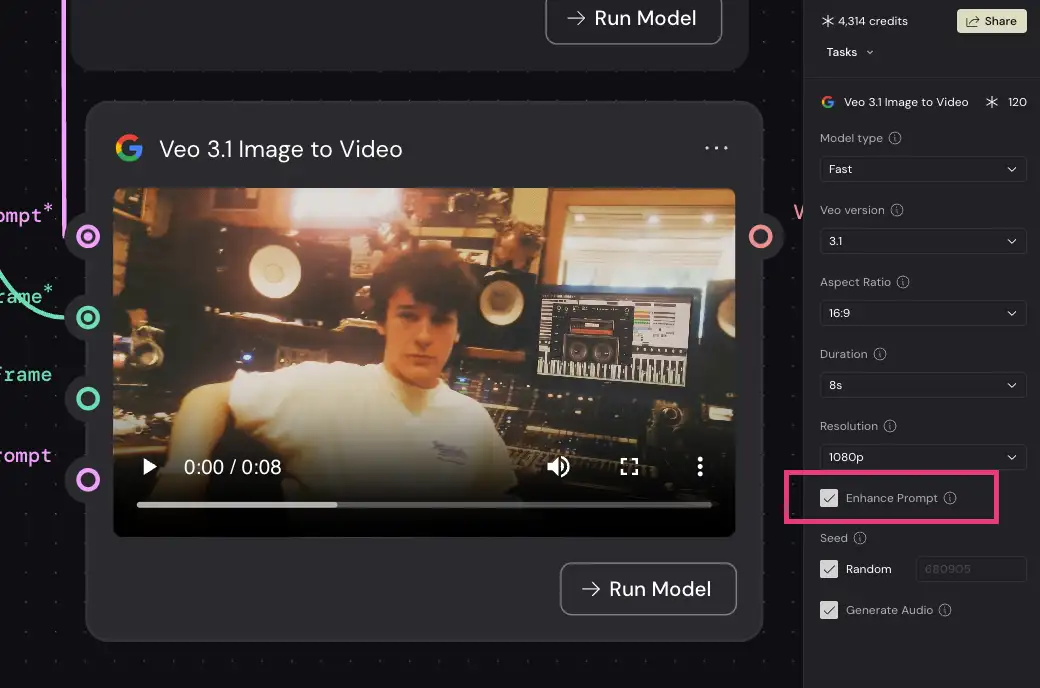
The “enhance prompt” option in Weavy
Solution 1: The “Enhance Prompt” Trap
This is the most common culprit. Many of these tools have a feature called “Enhance Prompt” (or “Optimize Prompt”) turned on by default.
What’s happening:
You type: “A woman running.”
The AI “Enhances” it to: “A fit woman in tight athletic gear running with intense physical exertion…”
Suddenly, the AI’s safety filter sees words like “tight,” “exertion,” or specific body descriptors that it deems “suggestive,” even though you never asked for that. The “Enhance” feature often adds flowery, descriptive adjectives that trip the sensitive content wires.
The Fix:
-
Turn off “Enhance Prompt.”
-
It might seem counterintuitive because we want the highest quality, but by turning it off, you regain control. You know exactly what words are being processed. If it passes without enhancement, you know the issue was the AI’s added “flavor text,” not your original idea.
Solution 2: Edit down your prompt
If you’ve turned off enhancement and you’re still getting flagged, you need to debug your prompt. This is tedious, but it works.
The Fix:
-
Strip it down. Go to the absolute simplest version of your idea. Instead of “A moody cinematic shot of a man walking down a dark alley,” try “A person walking in a street.”
-
Test. Does that pass?
-
If Yes: Start adding your adjectives back one by one. Add “cinematic.” Then add “dark lighting.” Then add “alley.”
-
If No: You know the core concept is triggering the filter (sometimes “alley” is flagged as dangerous, or “person” is flagged if the model is currently restricting human generation).
-
-
Identify the trigger. You will eventually find the single word tripping the alarm. Swap it out. Use “corridor” instead of “alley.” Use “character” instead of “man.”
This costs credits, which is annoying. But it’s cheaper than burning hours of frustration wondering what’s wrong.
Solution 3: Check Your Ingredients (Start/End Frames)
If you are using Image-to-Video features where you upload a start or end frame, the issue might not be your text at all.
The Fix:
-
Audit your uploads. Even if your image looks innocent to you, the AI might detect a brand logo, a face that resembles a celebrity, or skin exposure that hits a threshold.
-
Crop or Edit. Try cropping the image slightly differently or applying a filter in Photoshop before uploading. Sometimes changing the aspect ratio removes the “problematic” area that the AI is focusing on.
Solution 4: Swap out words for synonyms
The safety filters are often keyword-based. Certain words are invisible landmines.
Common Triggers & Alternatives:
-
“Shoot” (photography context) → “Capture” or “Film” (avoids violence triggers).
-
“Child/Kid” → “Young person” or “Subject” (avoids strict child safety filters).
-
“Public Figure” → “A person resembling…” (though this often fails) or better yet, describe the features rather than the name.
Final Thoughts
We are in the messy middle of the AI revolution. The tools are incredible, but they are also finicky. Don’t let a “Sensitive Content” flag discourage you. It’s just a puzzle to be solved.
Your job as a creative professional is to find a way to get the vision out of your head and onto the screen. Sometimes that means wrestling with the software. Keep experimenting, keep refining, and don’t let the machine tell you “no.”
PS – more of your Veo 3 FAQs answered here