The conversation around Photoshop is changing. For years, the question was simple: “What’s a cheaper alternative to Photoshop?” That question is now obsolete. The real question, the one that professional creatives should be asking, is: “What does my new creative stack look like?”
Adobe Photoshop isn’t dead, not by a long shot. But its role as the undisputed center of the creative universe is over. Trying to find a single tool to replace it is a fool’s errand. It’s not about replacement; it’s about augmentation. It’s about building a flexible, powerful, and modern workflow that leverages a stack of specialized tools to get the job done faster and better.
This guide isn’t a list of cheap knock-offs. It’s a strategic look at the best professional-grade tools on the market and, more importantly, where they fit into a modern creative workflow. We’ll cover the top-tier raster editors, specialized AI enhancement software, and the other critical tools that form the new creative stack.
Your New Workflow: from Generation to Final Polish
To understand where these alternatives fit, you have to understand the new workflow. The old model of starting with a blank canvas or a RAW photo in a single application is becoming a relic. The modern creative process can be broken down into a series of stages, each with its own specialized tools.
- Generation: This is the starting point. It could be a RAW file from a Canon R5, or it could be a series of generated images from a tool like Midjourney or Stable Diffusion using a finely tuned prompt.
- Selection & Curation: From hundreds of photos or generated assets, you select the few with real potential. This stage is about having a discerning eye and using tools like Adobe Bridge or Photo Mechanic to rapidly sort and rate your assets.
- Orchestration: This is where you combine elements. You might take the background from one generated image, a character from another, and a texture from a third. This is about rough composition and seeing if the core idea works.
- Enhancement & Refinement: This is the stage where Photoshop and its alternatives shine. It involves intensive tasks like cleaning up AI artifacts, compositing, advanced color grading, skin retouching, and precise adjustments.
- Final Polish: This involves final color correction, sharpening, adding grain, and preparing the image for its intended output.
- Delivery: Exporting the final assets in the correct formats and color spaces for web, print, or video.
Forget finding one tool that does it all. The goal is to find the best tool for each stage of the job. This article focuses on the best-in-class tools for those crucial Enhancement and Final Polish stages.
Photoshop Alternatives for Image Editing
These are the heavy hitters—the direct competitors that offer robust, professional-grade environments for image manipulation, compositing, and finishing.
Affinity Photo 2
Affinity Photo 2 is arguably the most direct and competent challenger to Photoshop. It’s not a cloud-based subscription; you buy it once, and it’s yours. That alone is a massive draw for many pros tired of Adobe’s Creative Cloud model. But its real strength lies in its raw power and meticulously designed, non-destructive workflow.
Key Features for Pros
- Layer-Based Editing:Every adjustment, filter, or mask you apply can be a non-destructive layer. This is a level of flexibility that even Photoshop struggles to match in some areas. You can go back and tweak a blur or a color grade hours later without having to rebuild your layers.
- Impressive RAW Engine: The built-in RAW development persona (Affinity’s version of a workspace) is robust. It offers all the essential controls for lens correction, noise reduction, and tonal adjustments you’d expect, making it a viable alternative to Adobe Camera Raw.
- Advanced Compositing Tools: It has a full suite of selection tools, including a refined selection brush that rivals Photoshop’s. The live perspective and mesh warp tools are incredibly powerful for mockups and complex transformations.
- Full 32-bit HDR and OCIO Support: For photographers and VFX artists working with high-dynamic-range imagery or in a color-managed OpenColorIO pipeline, Affinity Photo is a serious contender.

Where It Fits in Your Stack
Affinity Photo 2 is a complete solution for the Enhancement and Final Polish stages. You can take a RAW file or a generated AI image and handle everything from initial cleanup and complex compositing to final color grading and sharpening within this single application.
- Pricing: A one-time purchase of around $70.
- Website: https://affinity.serif.com/en-us/photo/
Capture One Pro
While often seen as a Lightroom alternative, Capture One Pro has powerful raster editing capabilities that make it a legitimate Photoshop competitor, especially for photographers. Its entire workflow is built around impeccable color science and a tethered shooting experience that is second to none.
Key Features for Pros
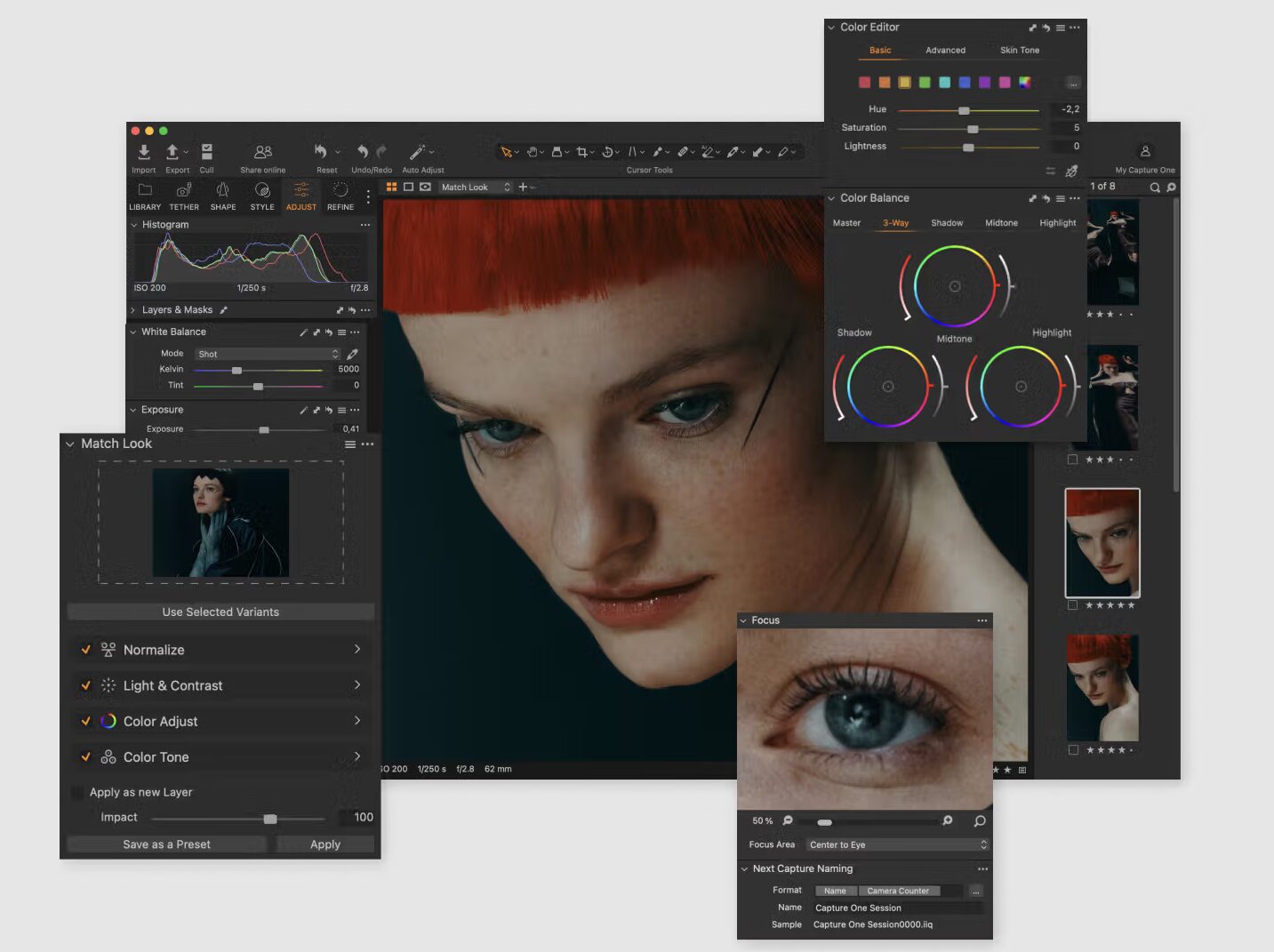
- World-Class Color Editor: This is Capture One’s killer feature. The ability to create highly specific color ranges and apply precise hue, saturation, and lightness adjustments is unparalleled. The skin tone editing tools are legendary for a reason.
- Layers and Masks: Capture One includes a robust system for layers and masking. You can create luminosity masks, gradient masks, or manually paint adjustments, allowing for detailed local edits without ever leaving the application.
- Tethering and Session Management: For commercial, fashion, or product photographers, Capture One’s tethered shooting capabilities are the industry standard. The ability to shoot directly into the software, apply presets, and have clients review images in real-time is a workflow game-changer.
- Customizable Workspace: The entire interface can be rearranged to suit your specific needs. You can create custom tool tabs and layouts for different tasks like culling, editing, and exporting.
Where It Fits in Your Stack
Capture One Pro excels at the Selection, Enhancement, and Final Polish stages for photography-centric workflows. It’s designed to take a RAW file from capture to final grade with maximum efficiency and color fidelity. It’s less suited for heavy compositing or digital painting but is a powerhouse for everything photo-related.
- Pricing: Subscription-based (around $24/month) or a perpetual license (around $299).
- Website: https://www.captureone.com/en/
Luminar Neo
Luminar Neo, from Skylum, fully embraces the AI era. While it can function as a traditional photo editor, its primary strength lies in its AI-powered tools that automate complex tasks. This makes it a powerful tool for creatives looking to speed up their workflow dramatically.
Key Features for Pros
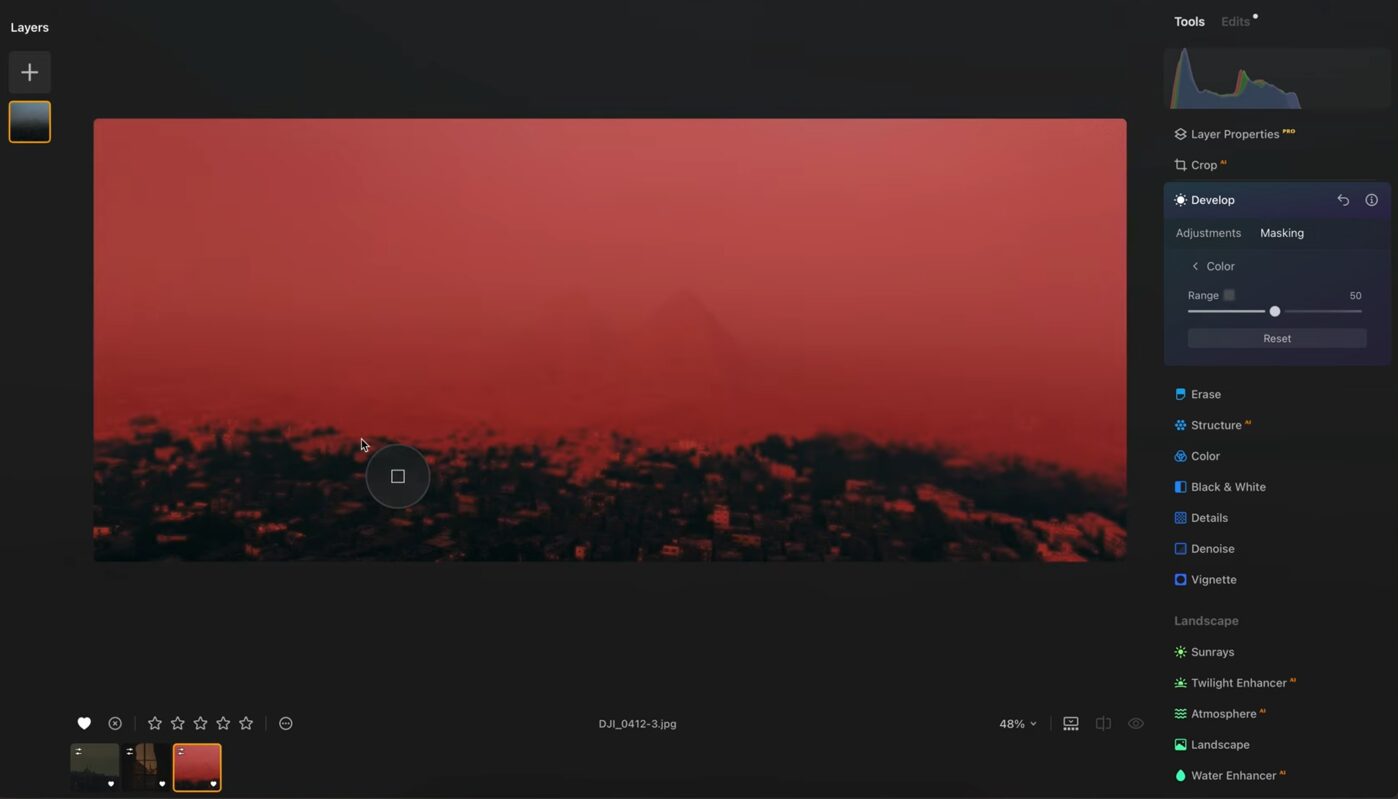
- AI-Driven Tools: Features like Sky AI, Relight AI, and Portrait Bokeh AI are not gimmicks. They produce shockingly good results with minimal effort. The ability to replace a sky or relight a scene in seconds is a massive time-saver.
- Structure AI and Sharpen AI: These tools allow you to add detail and clarity to an image intelligently. They can identify subjects and apply sharpening or enhancements selectively, avoiding the over-processed look of global adjustments.
- Layers and Mask AI: Luminar Neo supports layers and uses AI to create masks automatically. It can identify humans, skies, architecture, and more, creating precise masks with a single click.
- Extensible Framework: Skylum offers “Extensions,” which are specialized tools for tasks like upscaling, noise reduction, and focus stacking, further expanding the app’s capabilities.
Where It Fits in Your Stack
Luminar Neo is a potent tool for the Enhancement stage, particularly for photographers who need to make dramatic edits quickly. It can take a good photo and make it great in a fraction of the time it would take in Photoshop. It’s an ideal tool for wedding, landscape, and portrait photographers looking to optimize their post-production pipeline.
- Pricing: Subscription-based or a perpetual license (around $100-$150, often on sale).
- Website: https://skylum.com/luminar
Pixelmator Pro
For creatives working exclusively in the Apple ecosystem, Pixelmator Pro is a work of art. It’s fast, beautifully designed, and deeply integrated with macOS. It seamlessly blends raster and vector editing, making it a versatile tool for graphic designers, UI/UX designers, and digital artists.
Key Features for Pros
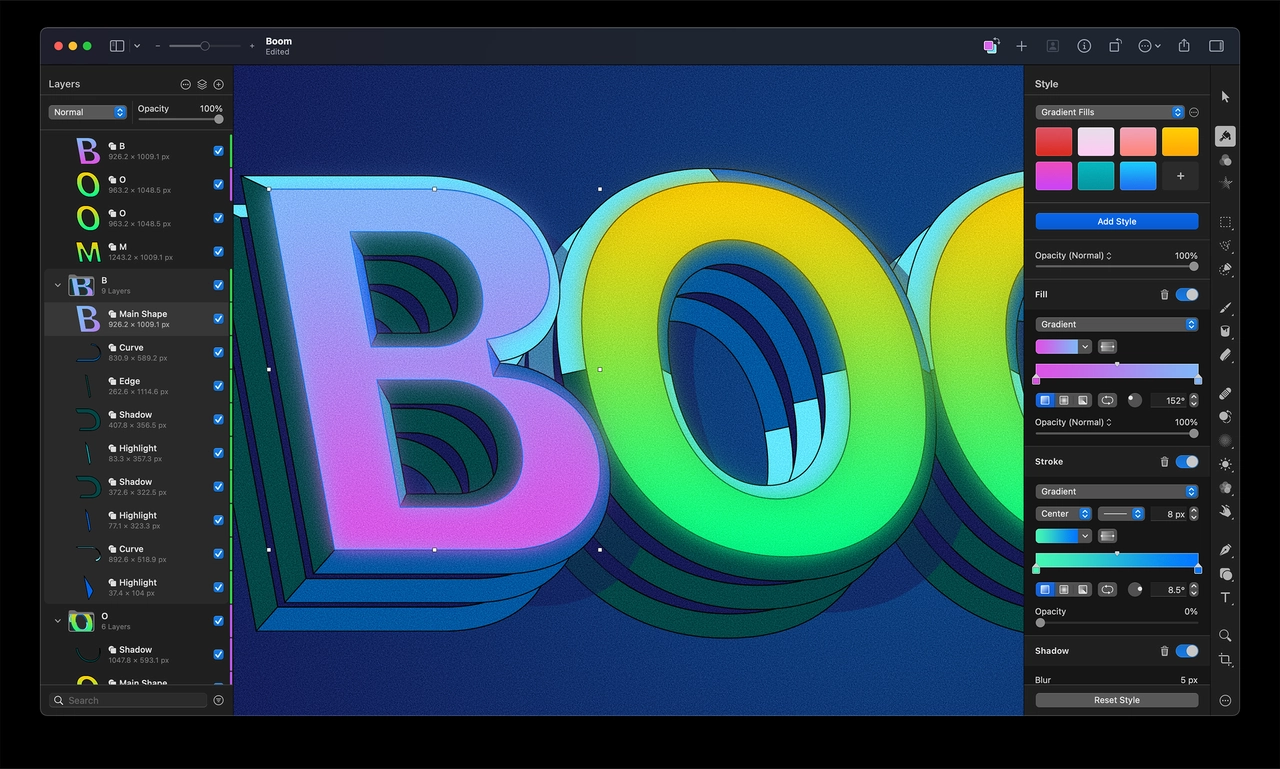
- Integrated Vector Tools: The ability to draw and edit vector shapes directly alongside your pixel-based layers is a huge advantage. This is perfect for creating digital ads, social media graphics, or app interfaces where you need both images and scalable text or shapes.
- ML Super Resolution: This machine learning-powered feature allows you to increase the resolution of images with stunning quality. It’s a fantastic tool for upscaling generated assets or older low-res photos.
- Nondestructive Color Adjustments: Pixelmator Pro leverages a powerful color adjustment engine inspired by professional video grading software. You can stack adjustments, save recipes, and apply them across multiple layers or projects.
- macOS Integration: It supports iCloud for syncing, Sidecar for using an iPad as a second display, and AppleScript for automation. It’s built from the ground up to be a good citizen on the Mac.
Where It Fits in Your Stack
Pixelmator Pro is a beast for designers who need a hybrid tool. It’s perfect for the Orchestration, Enhancement, and Final Polish stages of a design-focused workflow. It’s the tool you use to composite a generated background, add vector logotypes, and export final web graphics.
- Pricing: A one-time purchase from the Mac App Store for around $40.
- Website: https://www.pixelmator.com/pro/
GIMP (GNU Image Manipulation Program)
No list of Photoshop alternatives would be complete without GIMP. It’s free, open-source, and incredibly powerful. For years, it has been the go-to choice for those who need professional-level features without the price tag. Its interface can be less intuitive than commercial options, but don’t underestimate its capabilities.
Key Features for Pros
- Extensive Customization: GIMP’s open-source nature means it is highly customizable. You can install third-party plugins (including some that run Photoshop plugins), create custom scripts, and tailor the interface to your liking.
- Full Feature Set: It has all the core tools you’d expect: layers, masks, advanced selection tools, color correction, and robust file format support including .PSD.
- Cross-Platform: It runs on Windows, macOS, and Linux, making it a versatile option for teams working across different operating systems.
- Active Community: Being open-source means there is a large, active community of users and developers constantly working to improve the software and provide support.
Where It Fits in Your Stack
GIMP is a workhorse for the Enhancement and Final Polish stages. It’s for the creative who needs to get a professional job done without investing in a software license. It’s a great tool for startups, non-profits, or any pro who values open-source software and is willing to invest a little time in learning its workflow.
- Pricing: Free.
- Website: https://www.gimp.org/
Specialized Tools for a Modern Creative Stack
Beyond direct replacements, a modern workflow requires specialized tools that do one or two things exceptionally well.
Topaz Labs AI Suite (Gigapixel, DeNoise, Sharpen)
The Topaz Labs suite is not a full editor, but a set of surgical AI-powered utilities for image enhancement. They are best-in-class for specific tasks and are an essential part of a professional workflow that involves AI-generated or less-than-perfect source images.
- Gigapixel AI: This is for upscaling. Need to turn a 1024px AI-generated image into a high-resolution print-ready file? Gigapixel is the tool. It intelligently adds detail and reconstructs features to create a clean, sharp result.
- Sharpen AI: This tool goes beyond a simple sharpening filter. It can correct motion blur, missed focus, and general softness with specific AI models trained for each task. It’s a lifesaver for salvaging shots that would otherwise be unusable.
- DeNoise AI: This is for removing noise from images shot at high ISO or cleaning up the strange, grainy artifacts common in AI-generated images. It removes noise while preserving an incredible amount of detail.
Where They Fit in Your Stack
These tools fit perfectly into the early part of the Enhancement stage. You would take a generated asset or a noisy RAW file, run it through the appropriate Topaz app first to create a high-quality, clean base image, and then bring it into a primary editor like Affinity Photo or Photoshop for creative work.
- Pricing: Sold as a bundle or individually (around $79-$99 each).
- Website: https://www.topazlabs.com/
Photopea
Photopea deserves a special mention for its sheer accessibility and utility. It is, for all intents and purposes, a free, browser-based version of Photoshop. It opens .PSD files with layers intact, supports masks and smart objects, and has a nearly identical interface and set of tools.
Key Features for Pros
- PSD Compatibility: This is its main selling point. You can open, edit, and save layered PSD files without needing a Creative Cloud subscription. This is a game-changer for collaboration.
- No Installation Required: The ability to access a powerful image editor from any computer with a web browser is incredibly useful for making quick edits on the go or when working on a machine without your primary software installed.
- Familiar Interface: Anyone who has used Photoshop will feel immediately at home, eliminating any learning curve.
Where It Fits in Your Stack
Photopea is the ultimate utility tool. It’s perfect for situations where you don’t have access to your main machine but need to make a quick, professional edit. It’s also an excellent collaboration tool, allowing team members without a Photoshop license to review and make minor adjustments to layered files.
- Pricing: Free (with ads) or a premium subscription to remove them.
- Website: https://www.photopea.com/
How to Choose the Right Tool for Your Workflow
There is no single “best” Photoshop alternative. The right choice depends entirely on your specific work and where the biggest bottlenecks are in your current process.
- For the All-Arounder: If you need a single, powerful application to replace the core functionality of Photoshop and want to escape the subscription model, Affinity Photo 2 is the clear winner.
- For the Commercial Photographer: If your work revolves around RAW files, tethered shooting, and perfect color, Capture One Pro is an investment that will pay for itself in workflow efficiency.
- For the AI-Powered Retoucher: If your goal is to produce stunning images as quickly as possible and you embrace AI assists, Luminar Neo is a speed demon.
- For the Mac-Based Designer: If you live in the Apple ecosystem and need a seamless blend of vector and raster tools, Pixelmator Pro is a joy to use.
- For the Pragmatist: If you need professional power without the budget, GIMP is a proven and capable tool.
The master-level move is to stop thinking in terms of a single tool. A truly professional creative in the AI era builds a stack. Your workflow might look like this: generate assets in tools like Midjourney, upscale your selection in Gigapixel AI, composite and refine in Affinity Photo 2, and then use Photopea to make a quick text change for a client on your laptop.
The tools are only one piece of the puzzle. The real challenge is mastering the strategy, the mindset, and the creative vision to stay ahead in this rapidly evolving landscape. The most successful creatives won’t be the ones who master a single piece of software; they’ll be the ones who master a flexible and intelligent workflow.
To stay on top of the strategies and workflows that are defining the future of creative work, sign up for our newsletter. It’s your essential guide to not just surviving, but thriving in the new creative era.