


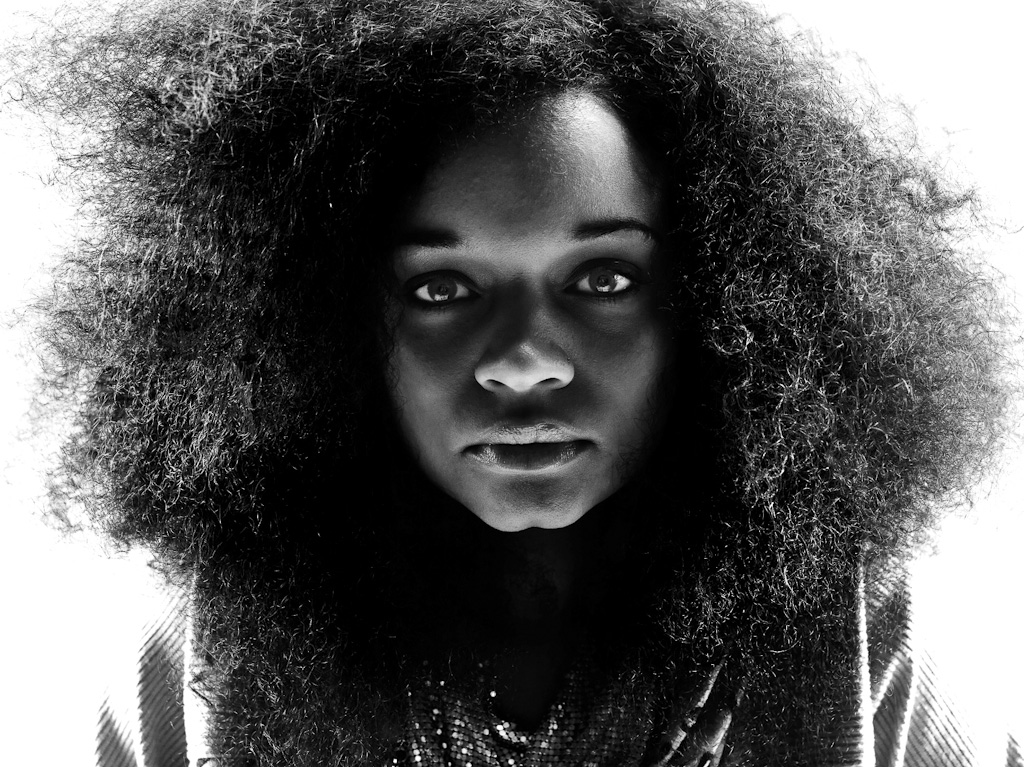
—
Since each of my staff are experts in their own right, fielding a growing amount of questions from you fine folks–and it’s nice to get a change in perspective–you’ll be seeing more and more posts from these talented people in weeks and months to come. Today, Scott takes the reins and answers a popular question about making great black & white images, with a case study to show you how. Take it away Scotty…
—
The world is not black and white…but the Seattle 100 post production is.
Following up on the popular guest blog post I penned about the sand jumper image, I thought I’d use this platform to respond to the string of questions I’ve been getting about how we got the striking high contrast black and white aesthetic in the Seattle 100 project.
In the tradition of this blog, this is not going to be a tutorial, rather a theoretical discussion with some visual aids to help illustrate. Post production, like photography is a vast set of tools which give an artist infinite ways to arrive at a finished product. Do not get caught up in the tools, they’re just tools.
Glad that’s out of the way. Now, here’s the theory of the Seattle 100 post production…
- Make the whites white and the blacks black.
- Emphasize interesting textures and features.
- De-emphasize distracting textures or features (see #1).
- Build contrast by adding layers (this can be very incremental).
- Black and white is a friendly medium, don’t be afraid.
- ‘Because it looks cool’ is a perfectly acceptable reason to do something.
Now a bit of the nitty gritty. I’ll dissect the layers briefly in order to illustrate the concept of creating real blacks and whites, and building contrast with layering. Before any of that is done there is a quick retouch process to remove surface blemishes. Since these are portraits and not glamour shots, the point of the retouching is just to be friendly with little bumps and blemishes, not to change the character or structure of the person in the image.
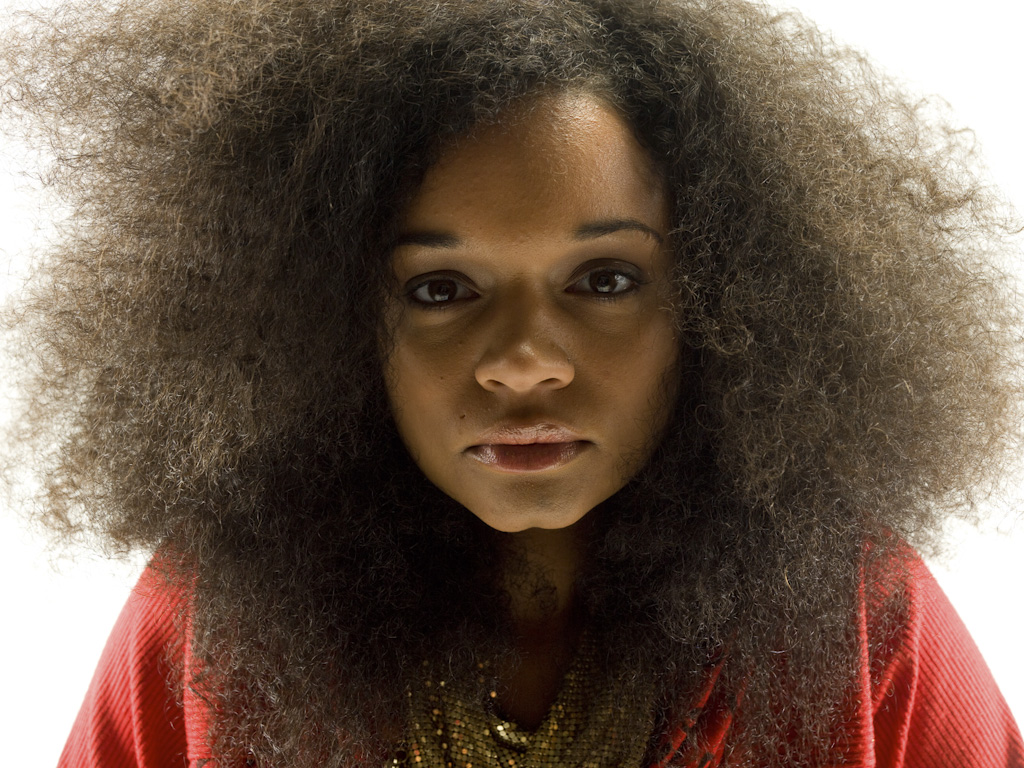

Next comes the conversion from color to black and white. I used a black and white adjustment layer set to yellow filter. The yellow and red filters tend to be very kind to skin, and generate strong contrast, a good initial starting point.
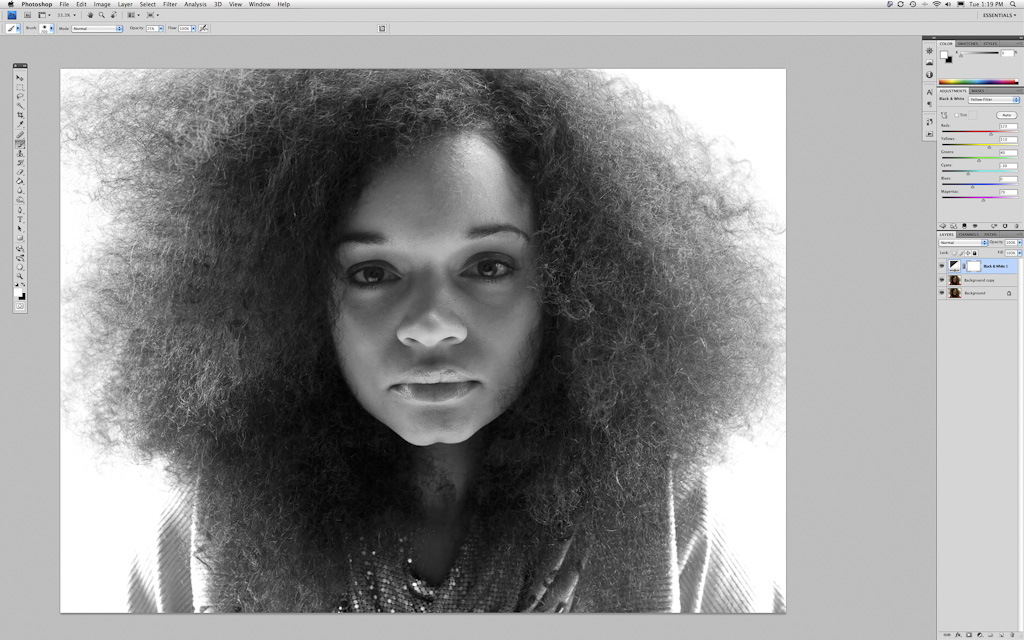
Converted to monochrome with black & white adjustment layer set to yellow filter. Yellow filter helps to make smooth skin.
The rest of the final look is developed using only a series of levels and curves layers with some strategic use of masking in order to emphasize the good and hide the bad.
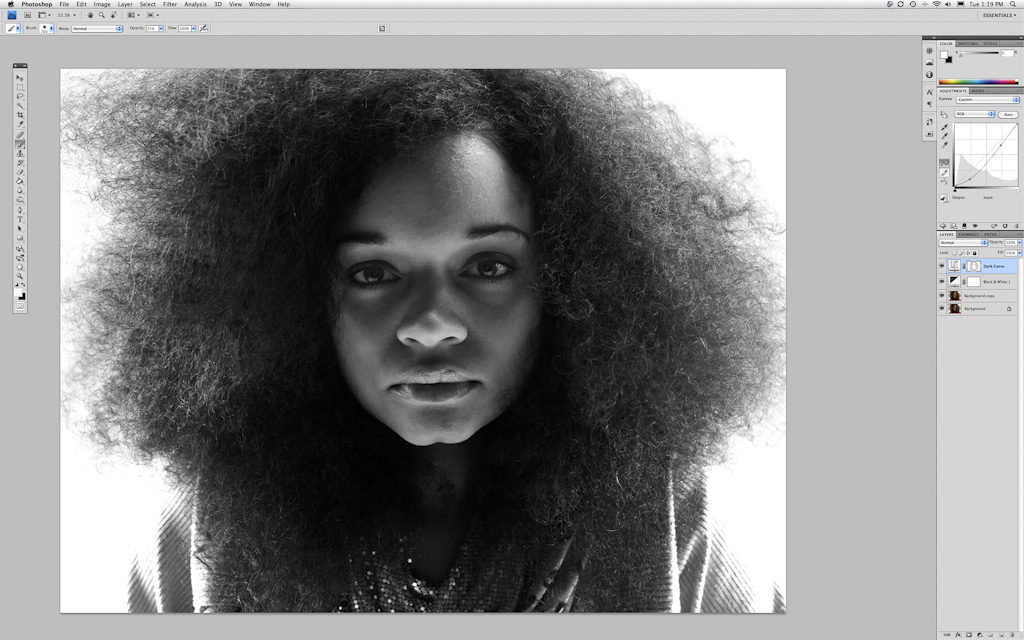
Step 1: Round 1 in overall contrast building. Curves layer set to darken shadows and midtones. Eyes and hair are masked out to varying degrees.
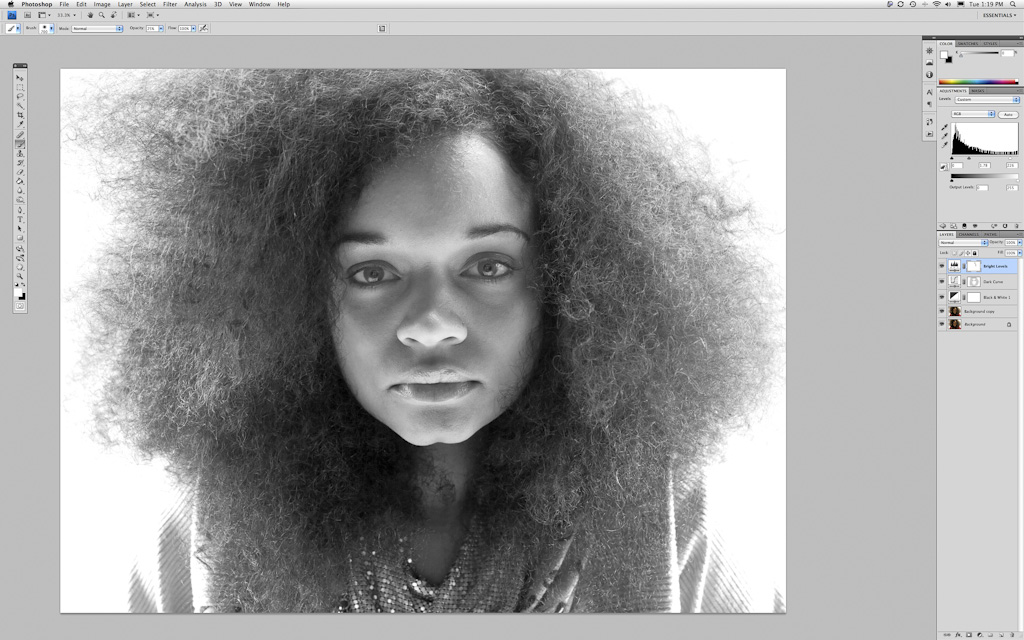
Step 2: Round 2 in overall contrast building. Levels layer set to lighten highlights and midtones. Hair next to her face masked out somewhat.

Step 3: Round 3 in overall contrast building. Curves layer set to darken shadows.
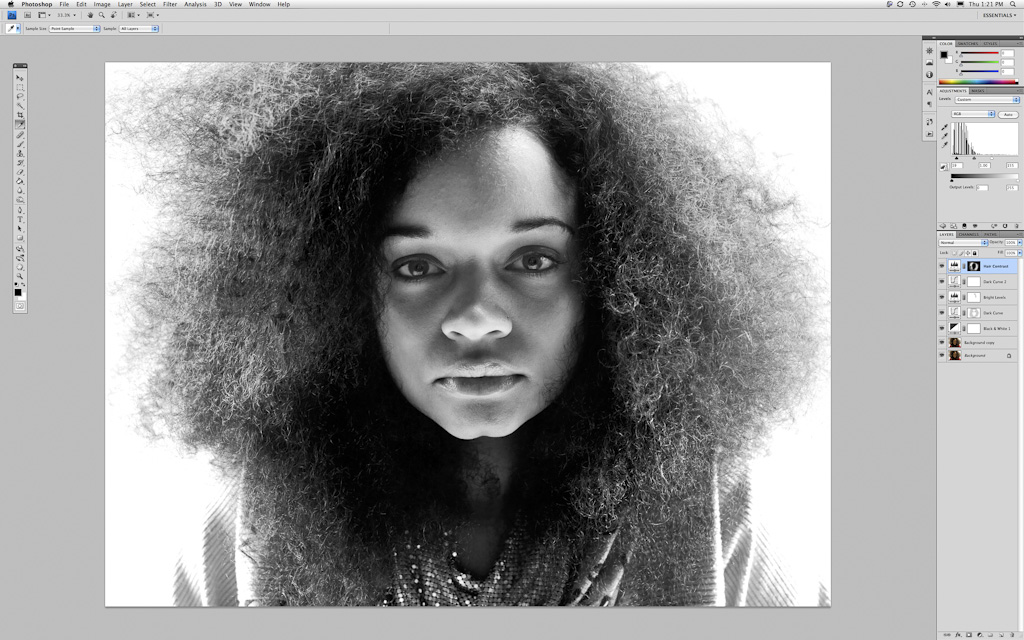
Step 4: Round 1 in hair contrast building. Levels layer set to darken shadows and lighten highlights. Only the hair is being adjusted, all other features are masked out.

Step 5: Round 4 in overall contrast building. Levels layer set to lighten highlights. Pushing the white areas all the way to white.
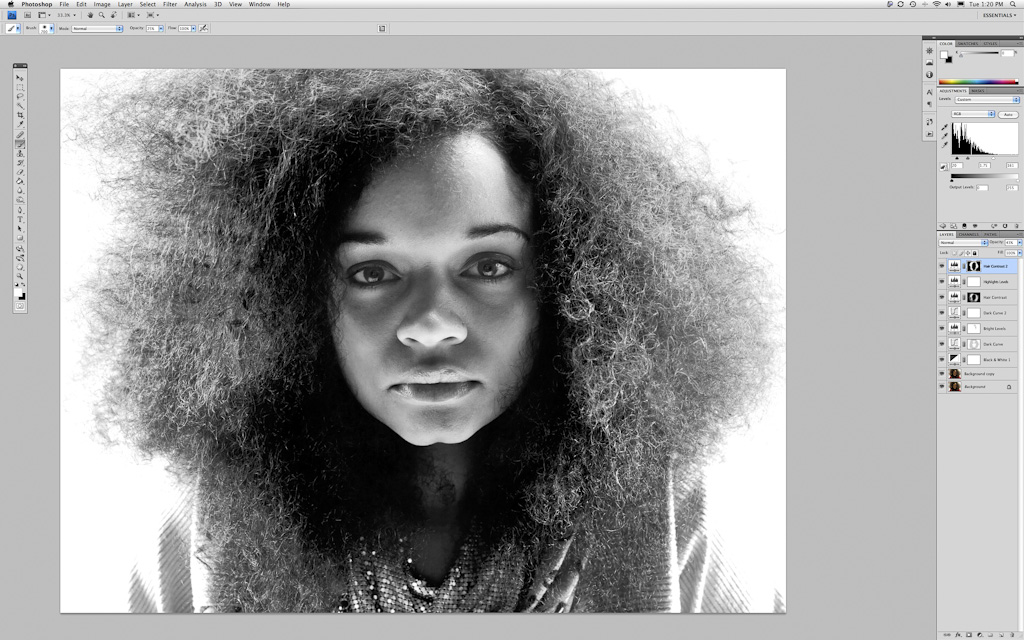
Step 6: Round 2 in hair contrast building. Levels layer set to darken shadows and lighten highlights. Only the hair is being adjusted, all other features are masked out.
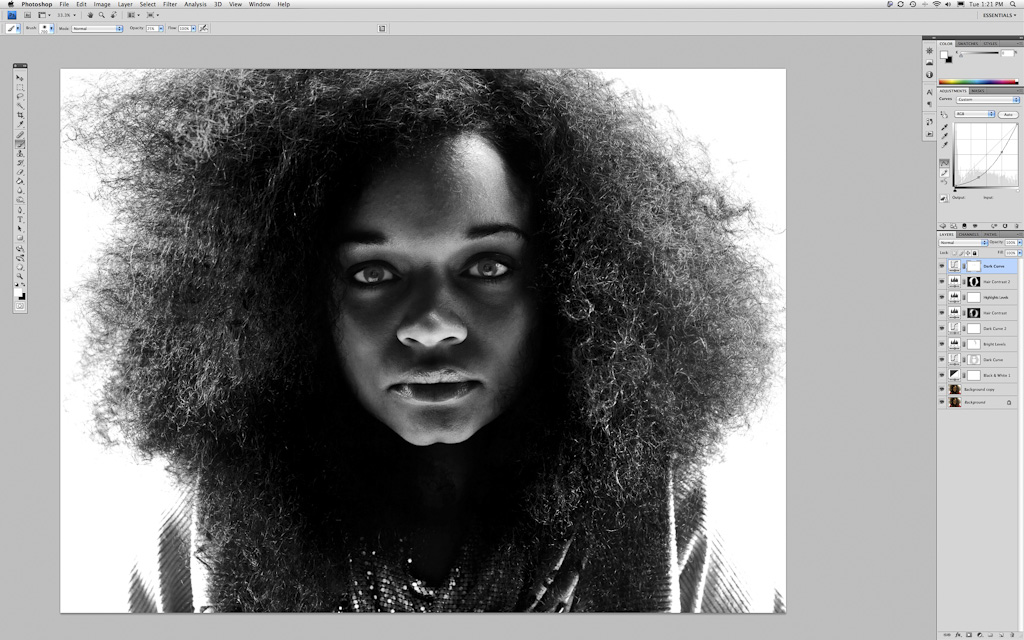
Step 7: Round 5 in overall contrast building. Curves layer set to darken shadows and midtones. Eyes are masked out somewhat.
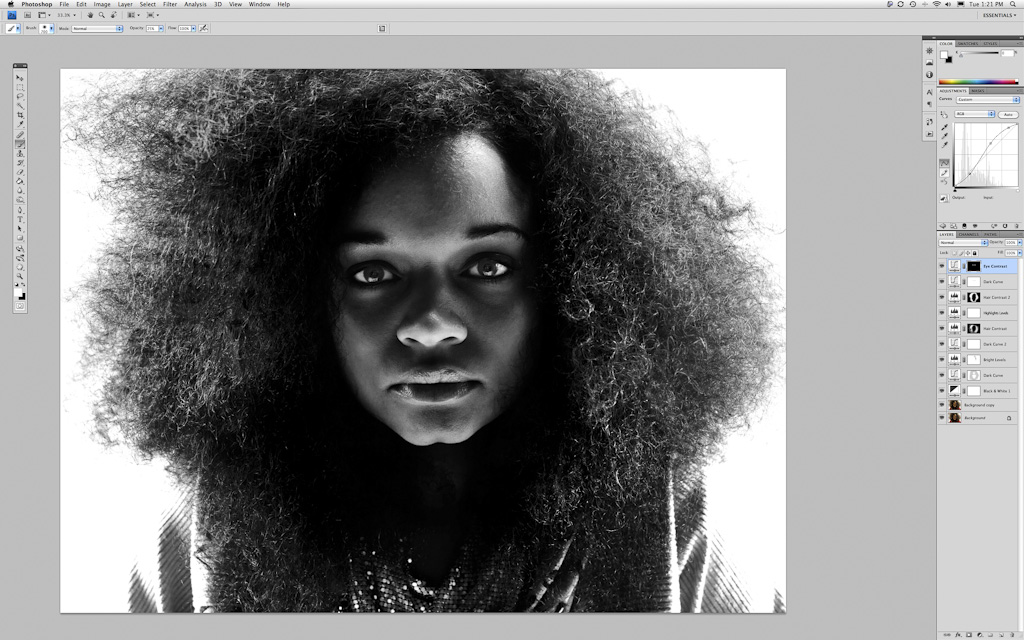
Step 8: Eyes only. Curves layer set to darken shadows and lighten midtones and highlights. Only the eyes are being adjusted, all other areas are masked out.
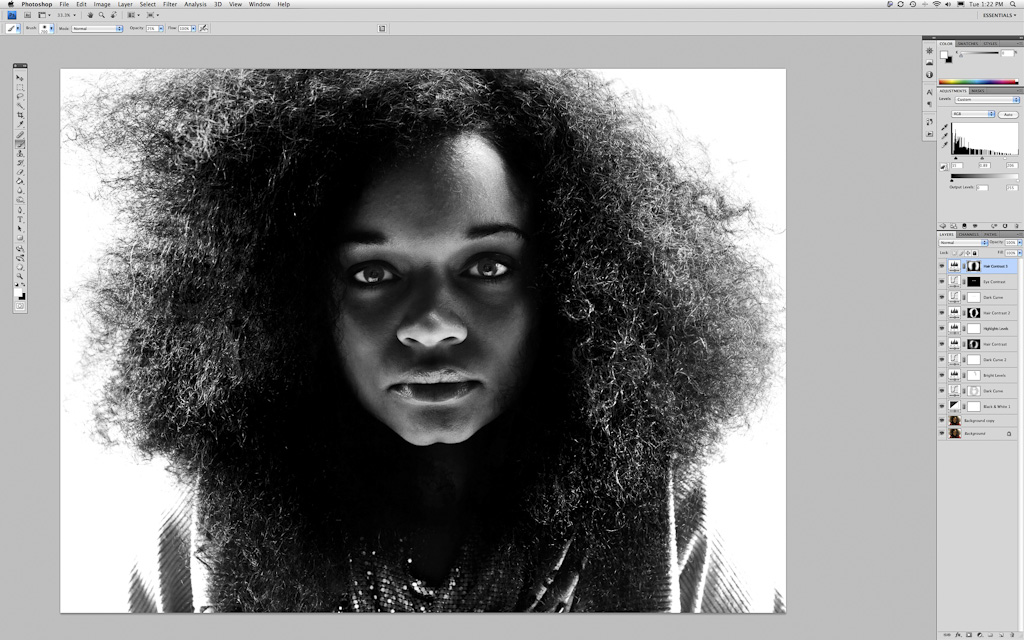
Step 9: Round 3 in hair contrast building. Levels layer set to darken shadows and lighten highlights. Only the hair is being adjusted, all other features are masked out.
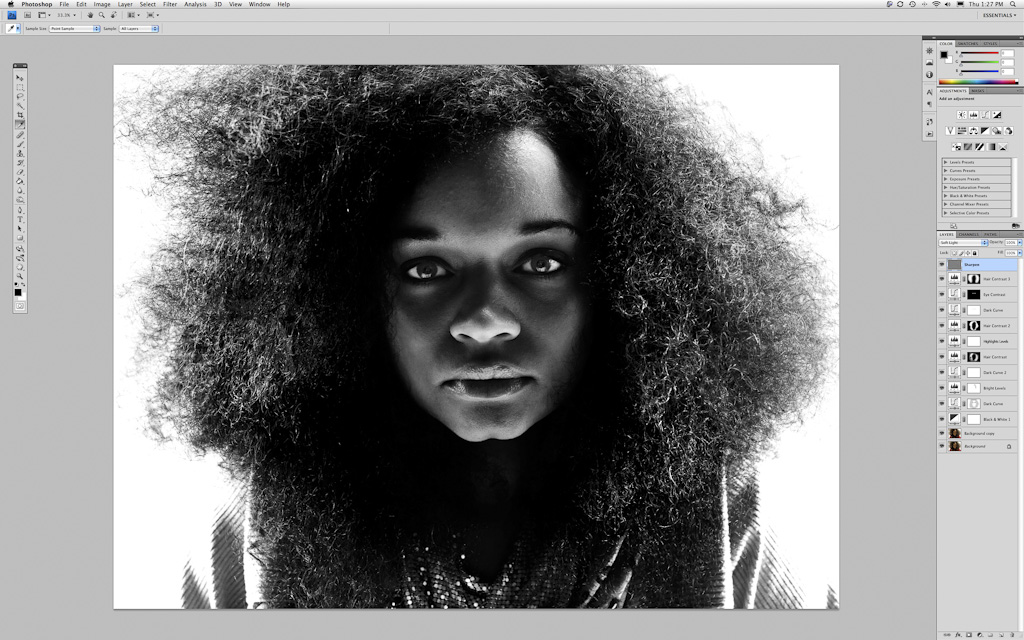
Step 10: Sharpening with high pass filter layer set to soft light.
Take a look at the series of images. On one hand, there is a drastic difference in terms of the impact of the image. On the other hand, all of the elements were there in the original. The direct striking gaze, the smooth dark skin framed in darkness, the exquisite wild hair. All of the post production efforts were aimed at enhancing the image by drawing the eye to the most compelling parts of the portrait.
If you were to pick this image apart you’d find that the blacks are very much black, there’s no data in the areas that appear black. The same goes for the white. Those tones serve as the absence of detail so that your attention is drawn to the person in the frame. Conversely, you’ll also find that there is detail in every single pixel of her skin, eyes, nose, and lips. These are the areas that Chase was working hard to capture in the image, and those are the areas that are highlighted in the post production.
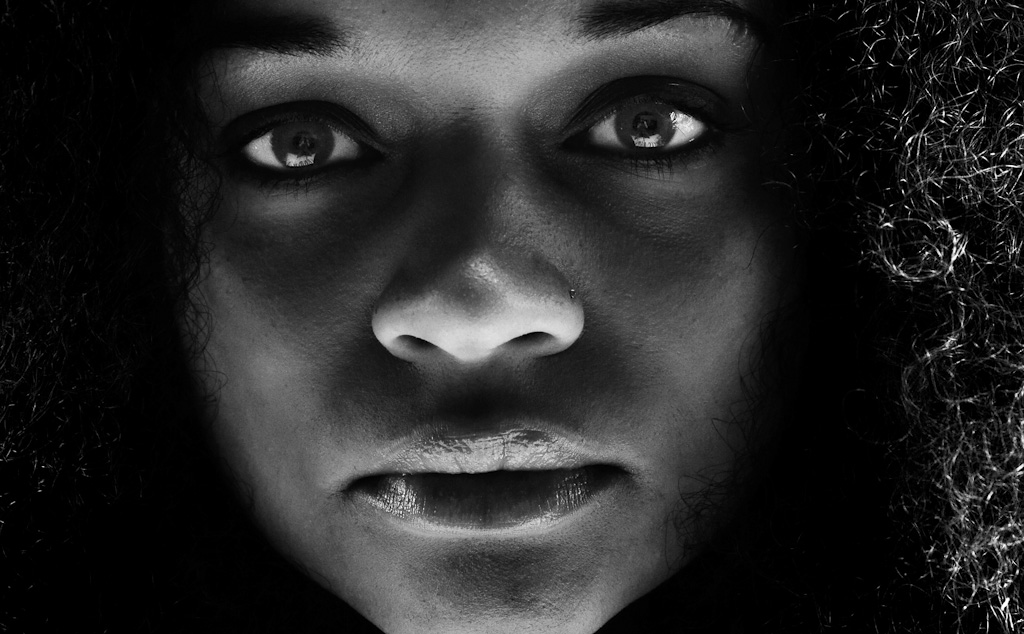
Close up on her face in the finished file.
Each final image in the book was given it’s own custom retouching, and the techniques varied quite a bit depending on the person and circumstances. What did not vary was the aesthetic concept, which served as a constant guide in both the photographic and post production processes. The real trick is not to figure out the how, there are always a thousand ways from A to B. I could have substituted channel mixer layers, dodging and burning, retouch brushes in Aperture, etc. for the curves and levels techniques I used. The real key is to develop a vision, and then do whatever works for you in order to execute. To check out the rest of the Seattle 100 images visit www.chasejarvis.com/seattle100.
Scott Rinckenberger










Awesome work!! Thanks for the tips, I am sure they will be put to good use..
Actually the contrast between the original image, especially right after the B&W conversion, and the final image is what I find interesting. In the original image the young lady looks sweet, innocent and a little bored. By the final image she looks intense, a bit vexed and slightly exasperated. To transform a person so much using nothing but post processing is empowering and a little scary. But then we learned that with the OJ Simpson Time cover.
I like that you have made the blacks “black” and the whites “white”. It’s a great way to draw your attention to what is important and to also add some mystery to the image. It adds to my confidence when I see guys at the top of their game doing it. Also, the quote ‘o the day is “Because it looks cool’ is a perfectly acceptable reason to do something.” Thanks for sharing.
Hi Scott
What about the images used for printing the book?
A printer is not pleased with 100% black and 100% white in an image. Depending on the printing process and the paper that is to be used you allways leave a white point in the black plate, to allow the ink to spread and to be absorbed in the paper. 100% black can also make the printing to stain when finishing the book.
For a photo-print full black and all white is fine but for printed mather you have to keep a white dot in the black areas to avoid complications and it is very helpfull for adjusting the press to match the print with the original photo.
But my question is: How do you save your images for the printer? Grayscale or RGB?
Or was the book printed in CMYK or in duotone gray/black?
Arttriq,
The images in the book were sent to the printer in CMYK with black blacks and white whites. I believe the printer set a black point for optimal print output. Digital printing continues to evolve and very high contrast images are printing beautifully. We’re thrilled with the way the files came out in the finished book.
Good Stuff Scott, I haven’t felt the need to go into photoshop much lately. I guess I’ve been on this au naturale tip lately, I guess as natural as enhancing raw images in Lightroom can be. Anyhow, you’ve rekindled my excitement in taking my post production back into Photoshop.
Thanks Again