The internet is full of “hacks” on how to remove the Nano Banana watermark using clone stamps or third-party erasers. Don’t do that. It degrades the image quality and wastes your time.
If you really need to do it manually, Photoshop’s healing brush tool is usually the easiest way. But the professional workaround is simple: Use the API.
When you access the Nano Banana model through an API (Application Programming Interface), you generally bypass the consumer-facing watermarking applied in the chat interface. You get raw, high-fidelity pixels. But you don’t need to be a coder to do this – you just need the right apps that act as a bridge.
Here’s three solid options, with the simplest first:
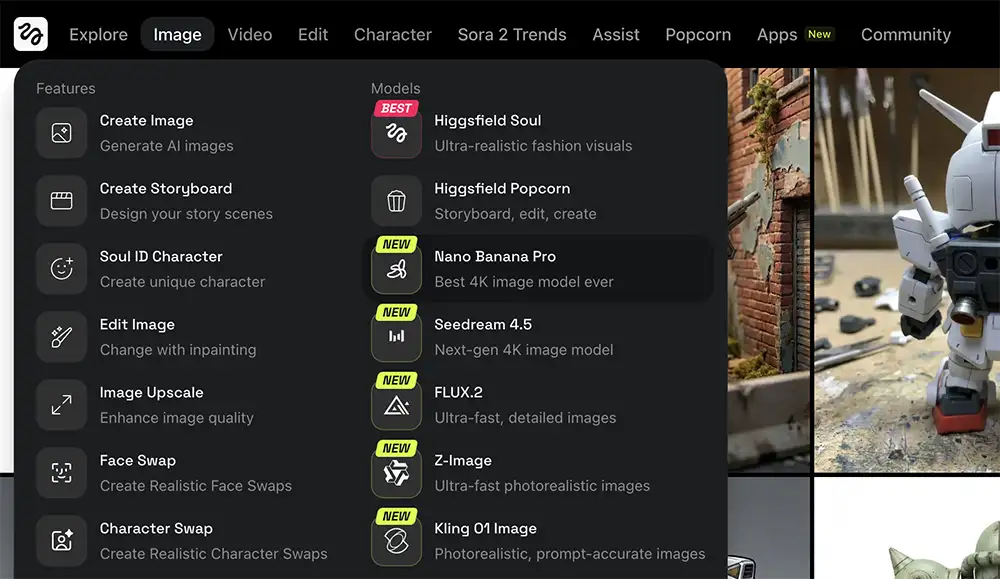
Higgsfield AI
If you are working in motion or high-end visual storytelling, you need to be looking at Higgsfield.
Higgsfield isn’t just a wrapper; it’s a full creative suite that has fully integrated the Nano Banana Pro (Gemini 3.0) model. They utilize the model’s “reasoning engine” to plan scenes before rendering them, ensuring better physics and lighting in your outputs.
It allows for native 4K generation and “Thinking” steps where the model analyzes your prompt for logic before creating pixels. This results in characters that stay consistent and text that is actually legible—perfect for storyboarding video projects.
How to use it:
-
Sign up for a Higgsfield account and enter the creative studio.
-
In the model selection dropdown (often at the top of the interface), select Nano Banana Pro.
- Enter your prompt, choose resolution, and the number of generations, and then click Generate
-
Make sure your plan supports the “Pro” features (they often have launch offers for unlimited generations).
-
Result: You get a pristine, 4K resolution image with zero watermarks. You can then use Higgsfield’s video tools to animate that exact image immediately.
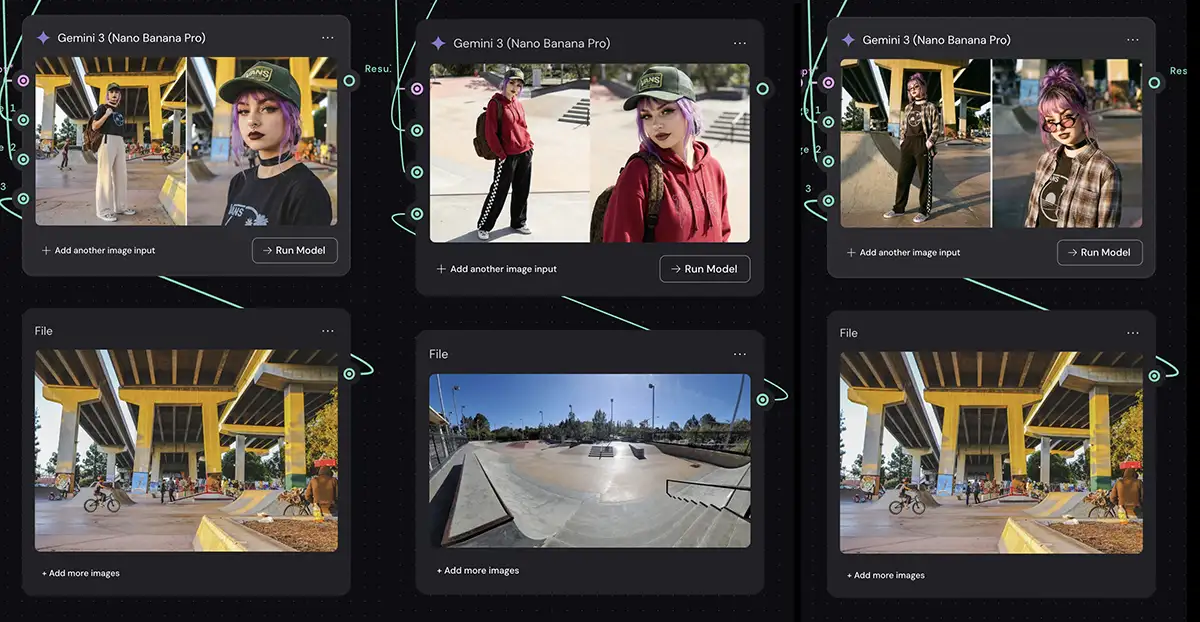
Weavy
This one is for the builders and the workflow obsessives who want granular control without writing code.
Weavy has shifted from just a developer tool to a powerful visual workflow editor. It allows you to build “logic” into your creativity using a node-based system.
It democratizes the “pipeline” approach. You aren’t just generating one image; you can string together multiple steps – like taking a rough sketch, passing it through a control net, and rendering it with Nano Banana – all in one visual flow.
How to use it:
-
Open the Weavy editor (the visual canvas).
-
Right-click or search the menu to add a “Nano Banana” node.
-
Connect your prompt and/or input image to the node.
-
In the node settings, simply select your desired Resolution (e.g., 2048×2048) and aspect ratio
-
Result: You hit “Run model,” and the node spits out a raw, high-res image file directly from the model, completely bypassing the watermarked chat interface.
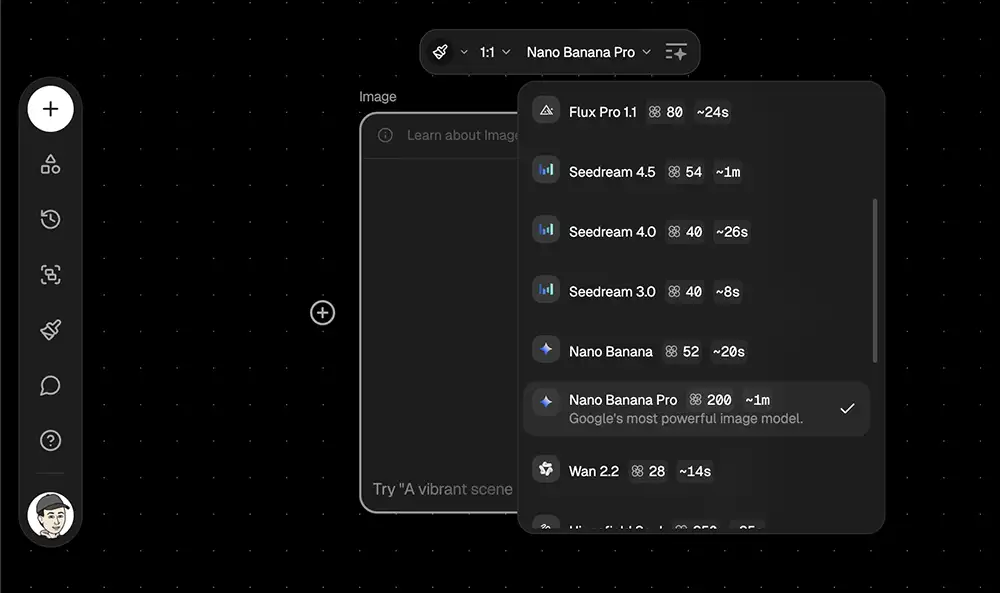
Flora
Sometimes you don’t need a complex pipeline; you just need a beautiful, distraction-free interface to get ideas out of your head. That’s Flora (aka FloraFauna).
Flora calls itself an “Intelligent Canvas,” and it lives up to the name. It uses a node-based system similar to Weavy but designed specifically for high-end creative exploration, allowing you to mix and match models on an infinite whiteboard.
How to use it:
-
Open your Flora project or create a new one.
-
Create a new Image Generation block (or node) with the plus button.
-
In the block’s settings, click the model dropdown and select Nano Banana Pro. Type your prompt in at the bottom of the block, then click the icon with the arrow pointing up to generate the image.
- The result? A crisp Nano Banana Pro image with no watermark.
The Bottom Line
We talk a lot about “hustle” in this industry, but true hustle isn’t about working harder on dumb tasks like removing watermarks. It’s about working smarter on the things that matter.
Don’t let a watermark distract from your vision. Use the tools. Use the API. Respect your work enough to present it cleanly.
PS – More on Nano Banana Pro:
- How to repose a model
- How to clone any image style
- Nano Banana FAQs
- Does JSON prompting work?
- How to master Nano Banana prompting
- How to use Nano Banana Pro for free
- Nano Banana vs ChatGPT Image 1.5
- How to use Midjourney with Nano Banana Pro
- Set up a virtual product shoot with Nano Banana
- How to create new angles for any image