Here is the truth about the current state of AI in the creative industry: it is messy.
You have one tab open for ChatGPT to write copy. You have Discord open to generate images in Midjourney. You’re dragging files into Runway or Kling to make videos. Then you’re dumping everything into Photoshop or Premiere to actually make it look like professional work.
It’s fragmented. It’s chaotic. And worst of all, it breaks your flow state. You aren’t designing; you’re file management.
This is where Flora AI (florafauna.ai) enters the conversation. It isn’t just another image generator. It is an attempt to fix the workflow problem. It positions itself as an “intelligent canvas”—a workspace that brings all those disparate models into one visual interface.
If you are a photographer, designer, or art director tired of the “slot machine” style of prompting, this tool demands your attention.
What Exactly Is Flora AI?
Flora AI (often styled as FLORA or Flora Fauna) is a node-based creative workspace. Think of it as a mashup between Figma, Miro, and a powerful AI engine.
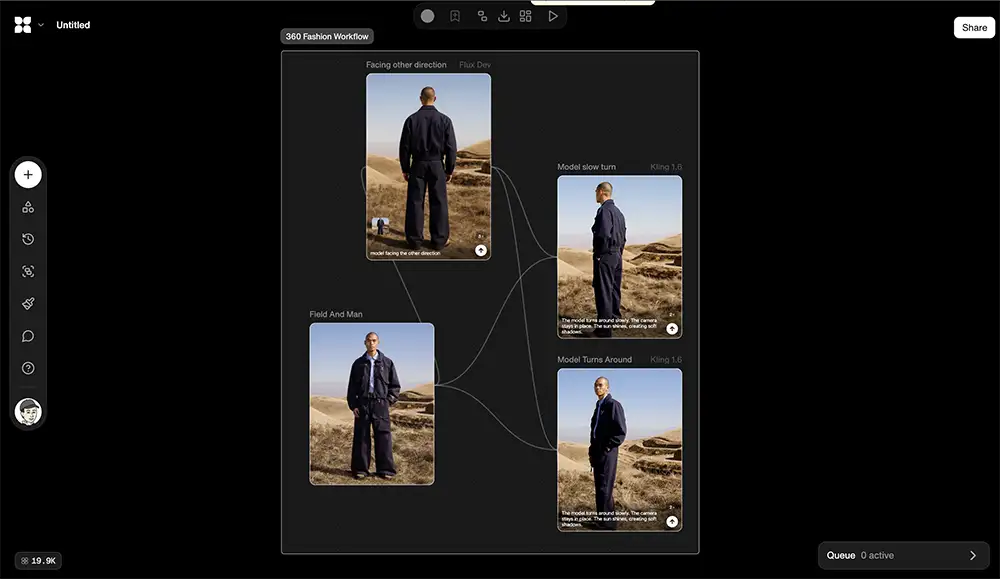
Instead of a chat box where you type a prompt and hope for the best, Flora gives you an infinite canvas. You place “blocks” or “nodes” on this canvas to build a creative chain.
For example, you might create a “Text Node” to write a scene description. You connect that to an “Image Node” powered by Flux Pro or Stable Diffusion to visualize it. Then, you connect that image to a “Video Node” powered by Kling or Luma to animate it.
It happens in one place. No downloading, no uploading, no alt-tabbing.
Most importantly, it aggregates the best models. Flora doesn’t just run its own proprietary model; it acts as a hub. It integrates industry-standard tools like Flux, Kling, Google Gemini, and GPT-4o. You get access to the heavy hitters of generative AI without needing five separate subscriptions.
You can check it out directly at florafauna.ai.
How Can Creative Professionals Use It?
The biggest mistake novices make with AI is treating it like a magic button. Experienced pros know that great work comes from iteration and control. Flora is built specifically for that level of control.
Here is how to deploy it in a professional workflow.
1. Build “Chained” Workflows
In a traditional AI tool, if you generate an image you like, it’s a dead end. You save it and move on. In Flora, that image is just a step in a chain.
The Strategy:
Start with a Text Node utilizing GPT-4o to refine your creative brief. Don’t just prompt “cool car.” Feed the node your client’s brand guidelines and ask for five distinct visual concepts.
- Link that text node to three separate Image Nodes.
- Set one Image Node to Flux Pro for photorealism.
- Set another to Stable Diffusion for stylized illustration.
- Run them simultaneously.
You can now see three distinct art directions side-by-side. This mimics the “concepting” phase of a real design project, allowing you to present options rather than just scattered results.
2. The “Branching” Technique for Iteration
Creative direction is rarely linear; it is a tree of decisions. Flora’s infinite canvas visualizes this perfectly.
The Workflow:
Let’s say you generate a portrait of a subject that is 90% there, but the lighting is off. In Midjourney, you might reroll and lose the composition.
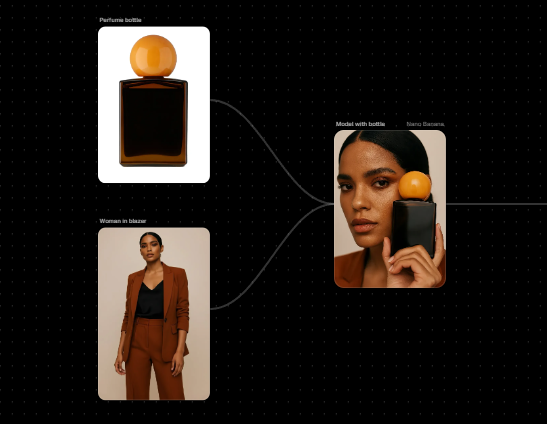
- In Flora, take your successful Image Node and create a “branch.”
- Connect it to an Image-to-Image Node.
- Adjust the parameters to shift the lighting from “studio strobe” to “golden hour.”
- Keep the original node active.
Now you have Version A and Version B visible on the same canvas. You can branch again to change the wardrobe, or branch again to change the background. This creates a visual genealogy of your idea. You can show a Creative Director exactly how you arrived at the final solution.
3. Storyboarding with Context
For videographers and filmmakers, consistency is the enemy of AI. Characters morph, styles drift.
Flora helps mitigate this through its specific node controls. You can create a “Character Reference” node (uploading photos of your talent or product) and pipe that into every subsequent generation node.
Actionable Tip:
Use the Kling or Luma integrations within Flora for motion.
- Generate your keyframes as high-res images first.
- Lock the look.
- Pipe those images into the Video Generation node to create 5-second clips.
- Because the source image is locked, the video start point is consistent.
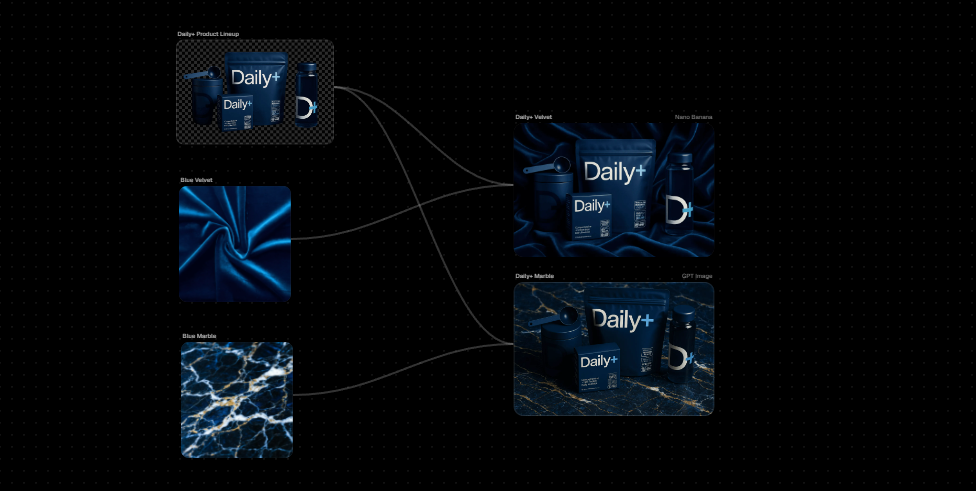
4. Rapid Style Transfer
If you are an illustrator or branding expert, you often need to apply a specific aesthetic across multiple assets.
Flora allows you to set up a “Style Node.” You can upload a reference image—say, a specific grain pattern or color palette from your mood board. You can then wire this style into every generation block on your canvas. This ensures that whether you are generating a landscape, a product shot, or a texture, they all share the same DNA.
Is Flora AI Right For You?
This tool is not for everyone. It bridges the gap between consumer toys and complex developer tools like ComfyUI.
Consider Flora AI if:
- You think in systems: You like seeing your workflow mapped out visually rather than hidden in a chat history.
- You need mixed media: Your work involves text, images, and video simultaneously.
- You want control: You are tired of “slot machine” prompting and want to tweak specific steps in the process.
- You value organization: You want to keep client projects in dedicated workspaces where you can see the entire evolution of an idea.
Skip it if:
- You want one-click magic: If you just want a funny picture for a slide deck, this is overkill. Stick to ChatGPT or Midjourney.
- You are intimidated by interfaces: The node system is powerful, but it has a learning curve. If seeing “wires” connecting boxes stresses you out, you will hate this.
The Bottom Line:
Flora AI is currently one of the most promising “operating systems” for creative AI. It respects the fact that creative professionals need workflow, not just output. If you are serious about integrating generative tools into a paid commercial pipeline, it is worth the time to learn the canvas.