You’re asking the wrong question.
Most creatives ask “Which tool has better features?” That’s the mediocre path. The real question—the one that determines whether you land the $150k retainer or get ghosted—is “Which tool fits the career I’m building?”

I’m not here to list bullet points you can find on a feature page. I’m here to tell you how these platforms function in the actual, high-pressure environment of professional design. We’re going to look at the workflows, the limitations, and the specific settings that affect your speed and output.
Figma and Sketch are no longer just “design tools.” They are ideologies. One believes in the cloud, the browser, and radical transparency. The other believes in the desktop, privacy, and the native macOS experience.
Let’s dismantle them both so you can make a decision and get back to work.
The Fundamental Divide: Cloud vs. Native
This is the biggest operational difference between the two platforms. It dictates everything from how you save files to how you hand off work to developers.
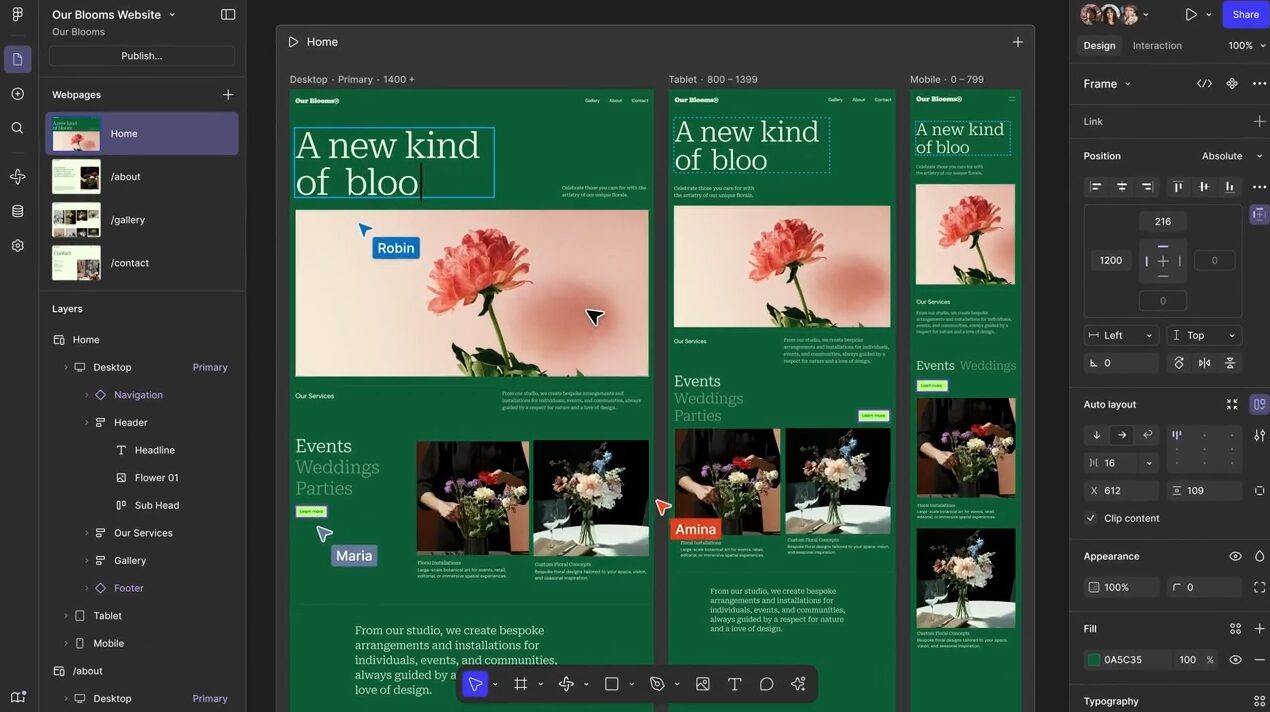
Figma: The Browser Is The OS
Figma is built on WebGL. It runs in Chrome, Safari, or its own electron-based desktop wrapper. This means it is platform-agnostic. You can design on a MacBook Pro, check a prototype on a Windows gaming rig, and view comments on an iPad.
The Implication:
You are always online. Yes, Figma has an “offline mode,” but it is a temporary state. You cannot create new files offline. You are tethered to the server. If your internet connectivity drops, your ability to sync changes stops.
Key Setting:
In the desktop app, check Preferences > Keep in Dock. Since Figma lives in the cloud, you don’t “save” files to your hard drive in the traditional sense. You must rely on Version History (Command+Option+Y). Stop saving manually. Trust the auto-save, but name your versions in the history panel before major milestones.
Sketch: Native Mac Performance
Sketch is a native macOS application. It uses Apple’s Metal API to render graphics. It feels different—heavier, more solid, significantly faster when handling millions of vectors on a local machine.
The Implication:
You own your files. They are .sketch documents sitting on your hard drive. You can work in a cabin with zero Wi-Fi for a week and lose nothing. For creative professionals working on strict NDAs (think Apple, defense contracting, or unreleased hardware), this local-first approach is often a non-negotiable requirement.
Key Setting:
Use Sketch > Settings > General > Auto Save. Unlike Figma, you are managing local storage. Ensure you also configure Sketch Cloud if you want to use their rigorous versioning, but know that the “truest” version of the file lives on your SSD, not a server.
Collaboration and “Multiplayer” Mode
If you work on a team, read this section twice. The difference here is stark.
Figma’s Real-Time Engine
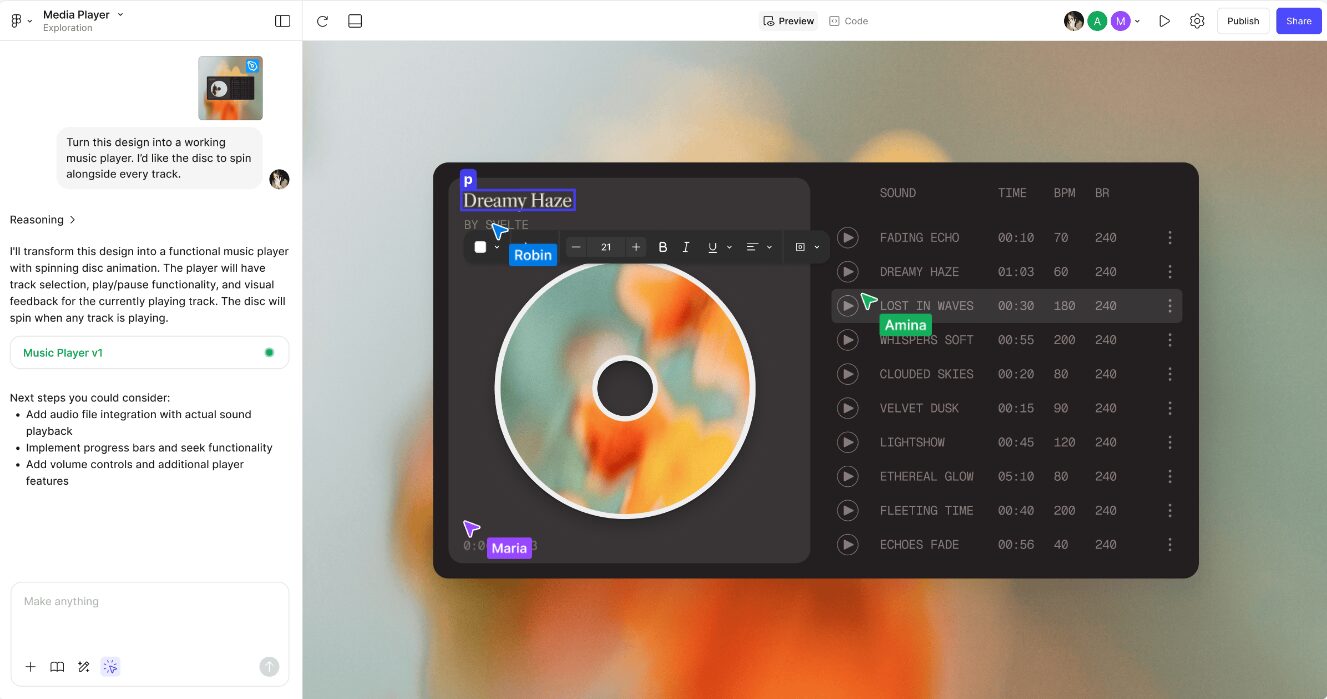
Figma’s “multiplayer” capability is its primary selling point. Multiple cursors appear on the screen simultaneously. A copywriter can fix a headline while a developer inspects the code and you adjust the padding—all at the exact same second.
This changes the social dynamic of design. It forces you to design in the open. Clients can watch you work if you give them the link.
Workflow Tip:
If the presence of others distracts you, turn off Multiplayer Cursors (View > Multiplayer Cursors). You don’t need to see “User123” flying across your canvas while you are trying to kern type.
Sketch’s Asynchronous Workspace
Sketch has moved toward collaboration with “Workspaces,” but it is fundamentally different. It is not a real-time multiplayer video game. You design locally, then you push updates to the Workspace.
This creates a “check-out / check-in” rhythm. It prevents the chaos of someone moving your artboard while you are drawing on it.
Workflow Tip:
Use Libraries. In Sketch, create a separate .sketch document that houses your Symbols (buttons, headers, icons). Add this document as a Library in Settings > Libraries. When you update the master file, Sketch pushes a notification to all other files using those components, asking if you want to update. This gives you control. You choose when to accept changes, rather than having them forced upon you live.
Prototyping and Motion
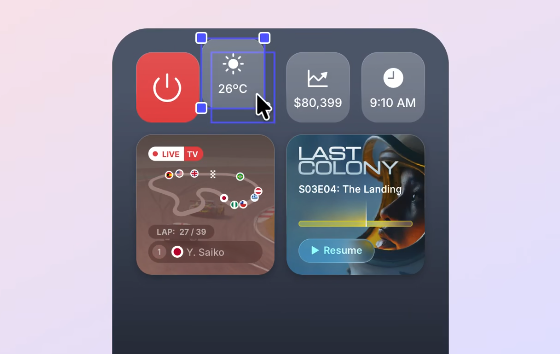
Static mockups are dead. If you can’t show how it moves, you haven’t finished the job.
Figma: Smart Animate
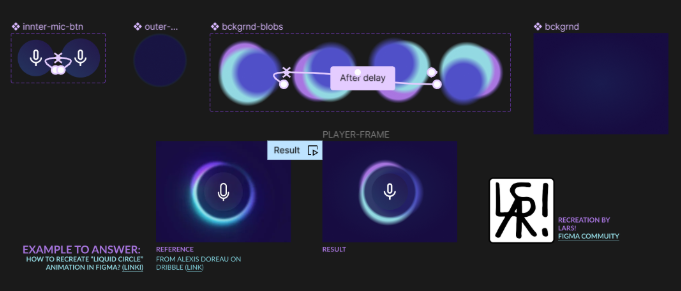
Figma dominates interactive prototyping. The Smart Animate feature is the industry standard for micro-interactions. You simply connect two frames, ensure your layer names match, and select “Smart Animate” in the interaction details. Figma interpolates the difference.
Specific Detail:
When using Smart Animate, check your Layer Structure in the left panel. If a rectangle is named “Rectangle 1” in Frame A and “Shape 5” in Frame B, Figma will fade them, not morph them. Rename them to match exactly (Command+R) to force the morph effect.
Sketch: Native Prototyping
Sketch has built-in prototyping, but it is more rigid. You link Artboards. You can set fixed elements (like headers) and scrollable areas.
Specific Detail:
Use Prototyping > Auto Link to Right. If you are building a linear flow, you can speed up the process by selecting a layer and waiting for the “Link” handle to appear, connecting it rapidly to adjacent artboards. It’s fast for flowcharts, but lacks the granular motion control of Figma’s variables.
Developer Handoff
This is where you get paid. If developers hate your files, you are costing the company money.
Figma: Dev Mode
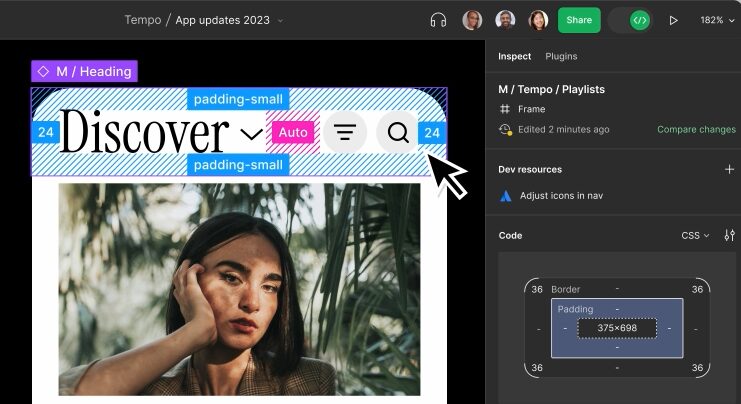
Figma recently introduced Dev Mode (Shift+D). This is a distinct interface designed specifically for engineers. It strips away the design tools and shows CSS, iOS (SwiftUI), and Android (Compose) code.
Crucial Feature: Code Connect.
You can now link your design components to the actual code repository. When a developer clicks a button in Figma, they don’t just see “Background: #0000FF.” They see the actual React component name from your design system.
Action Item:
Use Variables for everything. Do not use raw hex codes (e.g., #FFFFFF). Define a variable named surface-primary. Figma’s Dev Mode will display the token name, not the hex code, ensuring the developers use the system, not hard-coded values.
Sketch: Inspector and Integrations
Sketch has a native Inspector, but many pros still rely on third-party tools like Zeplin or Sympli for handoff. You upload your .sketch file to these platforms, and they generate the specs.
However, Sketch’s native Web Inspector has improved. Developers can view the Sketch Cloud link and inspect elements for free, even if they don’t have a Mac app license.
Action Item:
Use Export Presets. In the right sidebar, click “Make Exportable.” Set up your presets (1x, 2x, 3x, SVG) globally. Sketch’s export engine is cleaner and faster than Figma’s when dealing with high-res assets for print or complex SVG paths.
Design Systems: Auto Layout vs. Smart Layout
You are not drawing pictures. You are building systems.
Figma: Auto Layout
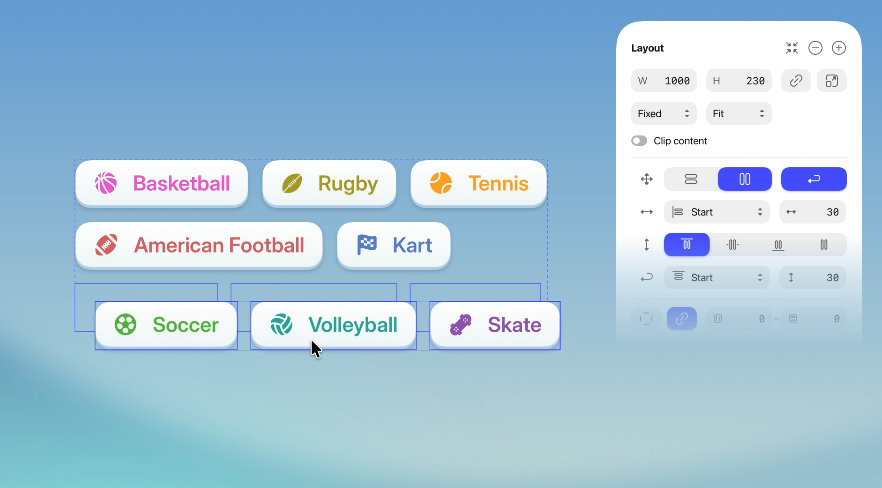
Figma’s Auto Layout (Shift+A) is based on the CSS Flexbox model. It is rigorous. You define padding, gap, and distribution.
Advanced Move:
Use “Wrap” in Auto Layout. This allows items to flow to the next line when the container shrinks, mimicking responsive web behavior perfectly. Set your container width to “Fill Container” and your inner items to “Fill” or “Hug” to rigorously test responsiveness without touching a line of code.
Sketch: Smart Layout
Sketch uses Smart Layout. It is less rigid than Flexbox and often more intuitive for designers who don’t code. You can set a symbol to resize horizontally or vertically based on its content.
Advanced Move:
Use Smart Layout in Groups. You no longer need to turn everything into a Symbol to get resizing behavior. Group elements (Command+G) and apply Smart Layout settings in the Property Inspector. This lets you iterate faster during the messy “exploration” phase before you formalize components.
The Verdict
Stop looking for a “winner.” Look at your client list and your team structure.
Choose Figma if:
- You work in software, SaaS, or product design.
- You work with developers who use React, Vue, or Angular.
- You work on a remote or distributed team.
- You need to prototype complex animations.
- The unspoken truth: If you want a job at a Fortune 500 tech company in 2024/2025, you must know Figma. It is the language of modern product development.
Choose Sketch if:
- You are a solo designer or run a boutique agency.
- You work in a strictly Apple-centric environment (iOS/macOS design).
- You require absolute privacy and offline file ownership (NDAs, government work).
- You prefer a tool that respects the native macOS user interface guidelines.
- The unspoken truth: If you value focus and hate the “always-on” noise of multiplayer cursors, Sketch provides a sanctuary for deep work.
Final Word
Tools are cheap. Your time is expensive.
Don’t be the designer who knows every keyboard shortcut but ships nothing. Pick the platform that removes the friction between your brain and the screen. Learn it so well that it becomes invisible.
Then, go do the work.