Nano Banana Pro (the engine behind Google’s Gemini 3 Pro Image) is rarely discussed as a dedicated upscaler, but it’s actually a powerhouse that delivers incredible results with zero friction. While most tools require fiddling with complex sliders, this one is radically simple: just prompt “Upscale to 4K” and the model understands exactly what to do.
However, using the native web or mobile apps often adds a professional dealbreaker: a visible watermark or SynthID embedding.
So what’s the solution? Easy: just use Nano Banana Pro through a third-party implementation like Higgsfield AI, Freepik, or Weavy, etc.
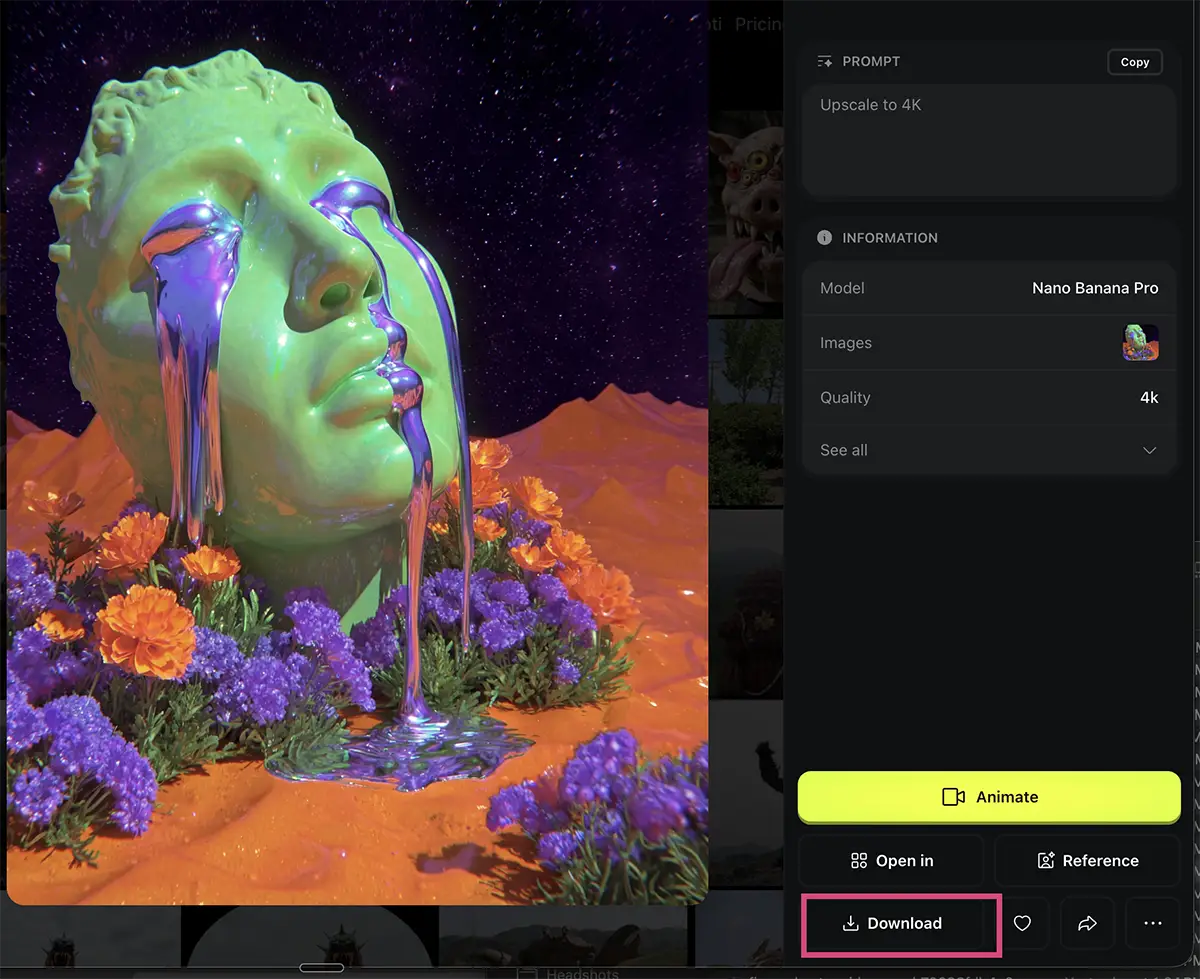
Step by step upscaling process
I used Higgsfield AI, here but it should be essentially the same in any AI creation platform like Freepik, Weavy, Flora, or Leonardo, etc.
1. Select the Model
First, make sure you are using the right engine. In Higgsfield (or your platform of choice), look for Nano Banana Pro. As you can see in the menu, it’s often flagged as a “Top” model for 4K images.
2. The Prompt
You don’t need a paragraph of text. I uploaded a low-res image and simply typed:
Upscale to 4K
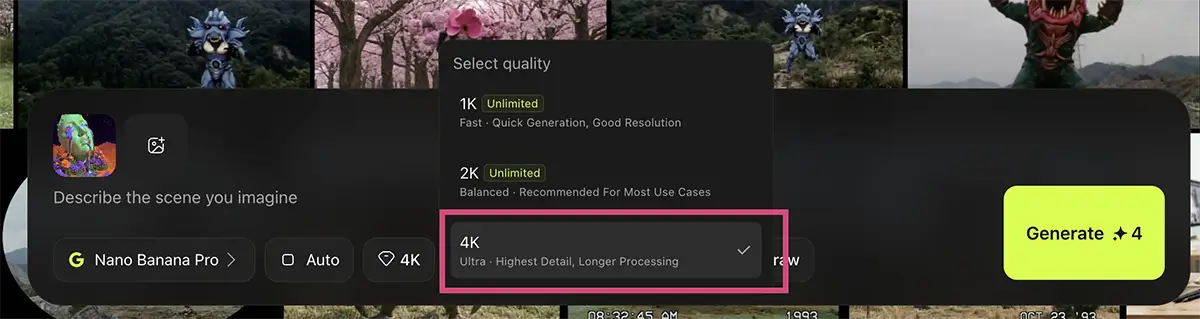
3. Dial in the Settings
In the quality/resolution dropdown, ensure you have 4K selected. If you want to kill two birds with one stone, this is also the perfect moment to change your aspect ratio – extending a square image to 16:9 for YouTube or 9:16 for socials – otherwise, just leave it on Auto.
4. Download
Once the generation is done, simply hit download to get your watermark-free, high-res file. Done!
And no watermark.
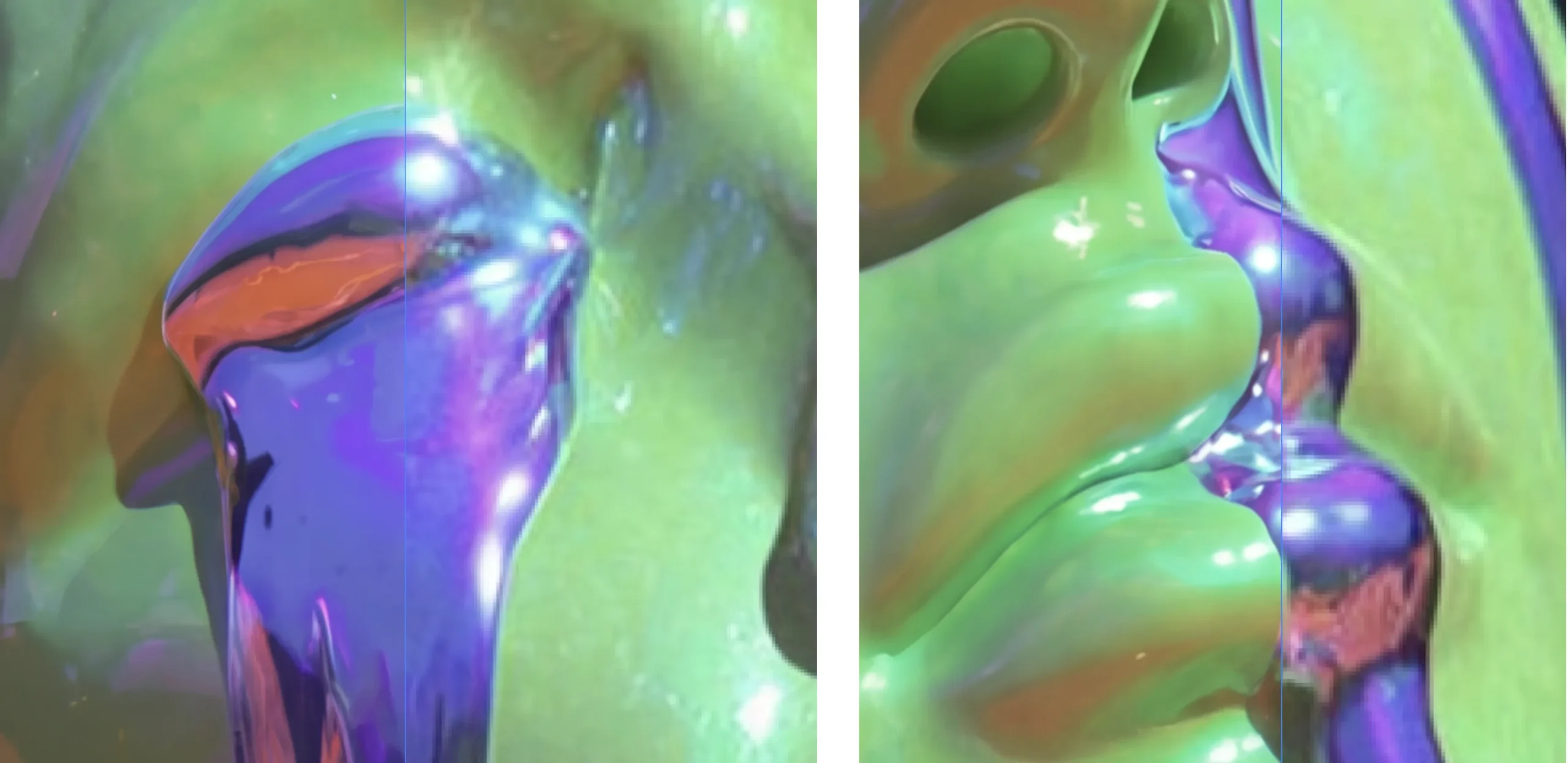
The Results
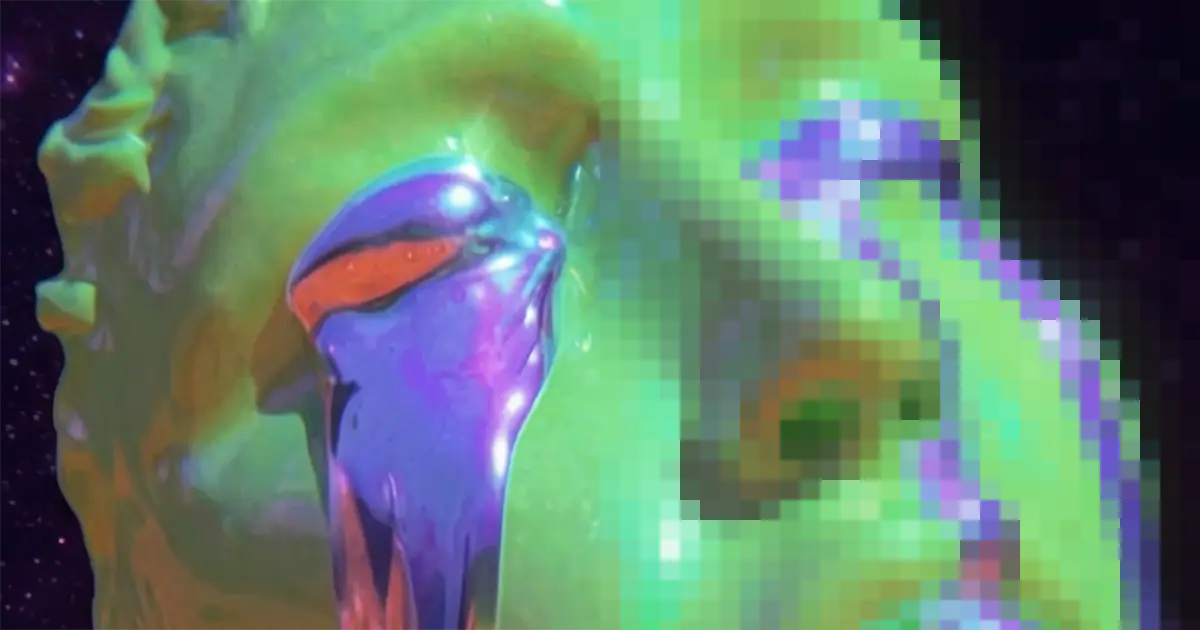
I tested this with an image from Midjourney – a surreal, colorful image of a crying statue that I made in Midjourney.
The original was good but soft, yet after running it through Nano Banana Pro, the difference was immediate.
As you can see, it didn’t just “sharpen” the pixels; it filled in correct detail, crisping up the reflections and smoothing out lighting artifacts while respecting the artistic intent.
Nano Banana vs a dedicated upscaler
So, why not just use Photoshop, or something like Topaz, Magnific or another upscaler?
Use Nano Banana Pro when you want speed and creative flair. Honestly, for a one-shot extension, Nano Banana usually nails it. It’s a great option for moving quickly when you’re in the concepting phase or building rapid mockups.
If you want granular control over the details (for example, sharpness or how exactly it should add new pixels to prioritize faces, textures, etc) then Topaz, Magnific, or Photoshop’s Generative Upscale are good options.
But for most, I’d say Nano Banana is a great option 80-90% of the time.
PS – More on Nano Banana Pro:
- How to repose a model
- How to do style transfer in Nano Banana
- Nano Banana FAQs
- Does JSON prompting work?
- How to master Nano Banana prompting
- Extend an image
- How to use Midjourney with Nano Banana Pro
- Remove the Nano Banana watermark
- How to add film grain
- Add texture to a logo
- Edit an image in Nano Banana