The world of generative video has officially left its experimental phase. The era of surreal, morphing clips and unstable physics is over. We’re now in a full-scale industrial sector where the conversation has shifted from novelty to production. It’s no longer about who can generate pixels, but who can integrate those pixels into a professional workflow with non-linear editors (NLEs), 3D compositing, and client-ready pipelines.
In this crowded and rapidly maturing landscape, Midjourney has carved out a unique and powerful niche with its Animate function. It isn’t trying to be a “world simulator” like OpenAI’s Sora 2 or an enterprise workhorse like Google’s Veo 3. Midjourney Animate is an aesthetic specialist. Its purpose is to take the platform’s world-class, artistically driven still images and breathe life into them. This isn’t about generating a feature film from a text prompt; it’s about adding motion to masterful art direction.
What is Midjourney Animate?
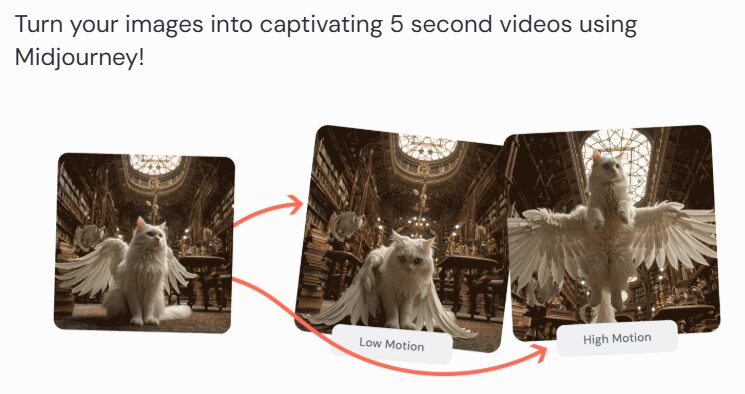
At its core, Midjourney’s video capability is an Image-to-Video (I2V) system. This is a critical distinction. You don’t write a prompt to create a video. You first dedicate your effort to generating a perfect static image using the Midjourney V6 model. Only after you’ve achieved a visually stunning result do you apply motion using the /animate command.
This workflow is Midjourney’s strategic advantage. It leverages the platform’s superior aesthetic engine. A video that starts from a Midjourney frame inherits its rich textures, nuanced lighting, and sophisticated composition. The result is often a clip that feels more art-directed and texturally complex than footage generated natively from text-to-video models. However, that beauty comes with a trade-off in control and narrative capability.
The Core Workflow: From Still to Motion
Mastering Midjourney Animate is a two-part process. The quality of your final video is almost entirely dependent on the quality of your initial still image.
Step 1: Crafting the Perfect Still Image
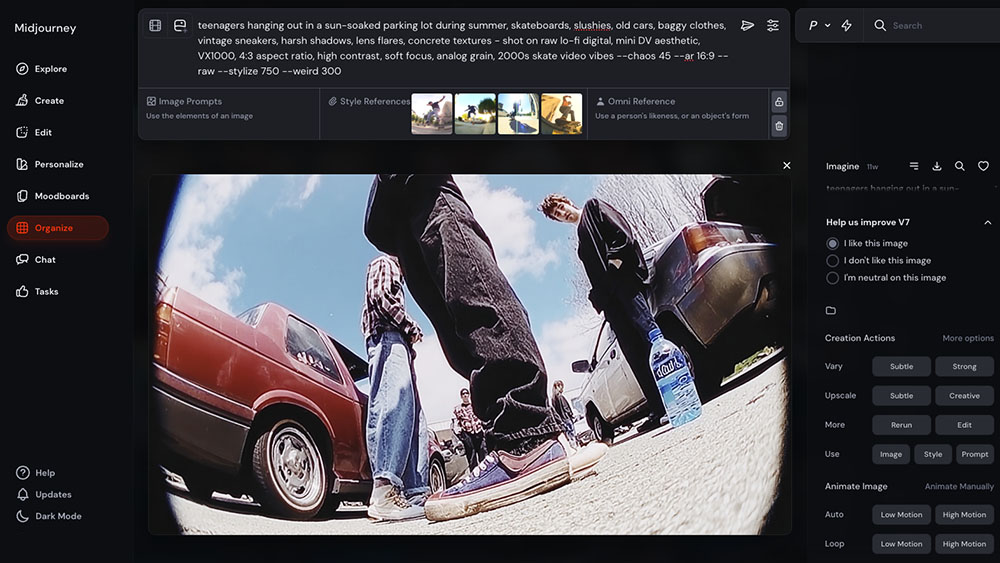
This is where you do 90% of the work. Your initial V6 image prompt is your primary tool for art direction. Obsess over this step.
- Prompting with Intent: Be specific and descriptive. Instead of “a cyberpunk street,” try “cinematic wide shot, a rain-slicked cyberpunk alleyway at midnight, neon signs reflected in puddles, atmospheric haze, shot on Arri Alexa, anamorphic lens flare,
--ar 16:9 --style raw.” The--style rawparameter is crucial for a more photographic and less overly-opinionated starting point. - Controlling Composition: Use parameters to define your frame. The aspect ratio (
--ar) is non-negotiable for any serious video work. A cinematic--ar 16:9or a social-ready--ar 9:16sets the stage for the final output. - Subject and Background: Think about what should be in motion. A character with a simple, uncluttered background is more likely to generate a clean, focused animation. A busy scene with multiple characters and complex geometry can sometimes result in unpredictable or mushy movement. The AI has to decide what moves, and you can guide its decision by creating a clear focal point in your still image.
Step 2: Using the /animate Command
Once you have an image you’re happy with from your initial grid, your next step is to upscale it. This creates the larger, more detailed image that the Animate function will use as its source.
After the upscale is complete, you will see a series of buttons beneath the image. Simply click the “Animate” button. Alternatively, you can save the image, get its URL, and use the /animate command with the image URL as a parameter.
The output from this process is typically a 5-second video clip with gentle, looping motion. The movement is generated by the model’s interpretation of the still image; you are not providing it with any motion instructions. Think of it as hitting “play” on a photograph and letting the scene unfold subtly.
Step 3: Refining by Re-rolling
Just like generating images, your first animation might not be perfect. The motion is largely out of your direct control. You can’t tell it “pan left” or “zoom in slowly.” The model infers the motion.
If the first result isn’t what you wanted, re-run the /animate command. Each time, the model will interpret the motion slightly differently. You might get a slow zoom on one attempt and a subtle pan on the next. This iterative process is key. If you find the motion is consistently awkward, go back to Step 1 and generate a new source image. A stronger composition in the still image is the best way to influence a better final animation.
Where Midjourney Animate Wins: The Aesthetic Advantage
In a market obsessed with physics simulation and narrative consistency, Midjourney video is focused entirely on beauty. This is its key differentiator and why it belongs in a professional toolkit.
Unmatched Texture and Art Direction
The single biggest reason to use Midjourney Animate is its artistic foundation. While other models are getting better at realism, they often lack a distinct visual personality. A Midjourney animation starts with an image that has already been through a sophisticated aesthetic filter, resulting in a clip with superior lighting, texture, and mood. This makes it an exceptional tool for projects where the visual vibe is more important than complex action.
Ideal Use Cases for Creative Professionals
Midjourney Animate is not the tool you use to generate a scene with two people having a conversation. It’s the tool you use to create visually stunning assets that elevate a larger project.
- Living Stills: Create subtle, looping animations for website hero sections, digital displays, or high-end social media posts. A “living photograph” is often more engaging than a static image.
- Animated Concept Art: Bring character designs or environmental concepts to life. A slight animation can help sell a creative vision far better than a flat JPEG.
- Visual Textures and B-Roll: Generate beautiful, abstract, or atmospheric video loops to use as backgrounds in motion graphics projects in a tool like Adobe After Effects.
- Styleframe Development: Use the animate function to get a quick sense of how a static styleframe, meticulously crafted in Midjourney, might translate to motion.
The Broader AI Video Landscape in 2025
To use Midjourney Animate effectively, you have to understand what it isn’t. The professional video market of 2025 is highly specialized. Using the right tool for the job is the difference between a fluid workflow and a frustrating dead end.
The Production Powerhouses: Sora 2 and Veo 3
At the high end, you have the closed-source giants. OpenAI’s Sora 2 is positioned as an ecosystem tool, with deep integration into Adobe Premiere Pro. It excels at physics simulation and object permanence, making it reliable for more narrative-driven shots. Google’s Veo 3 is a pure enterprise play built for scale and strict prompt adherence. Both are incredibly powerful, but they come with a high per-second cost and are geared toward corporate or high-budget production environments.
The Control Freaks: Runway Gen-4 and Kuaishou Kling
Other platforms have decided that control is the most important feature. Runway’s Gen-4 is a director’s tool, allowing you to export camera tracking data as FBX or JSON files. This is a game-changing feature for 3D integration, empowering you to perfectly composite 3D assets in Blender or Cinema 4D on top of AI-generated footage. Meanwhile, Kuaishou’s Kling offers a “Professional Mode” with granular sliders for camera pans, tilts, and zooms, giving you deterministic control over motion that Midjourney lacks.
The Open-Source Disruptor: Alibaba Wan Alpha
Perhaps the most significant development for VFX professionals is Alibaba’s Wan Alpha. Its killer feature is the native generation of alpha channels (transparency). This is the holy grail for compositing. It allows you to generate an effect—like smoke, fire, or a character—on a transparent background and drop it directly into a Nuke or After Effects timeline without the painful process of rotoscoping or keying. Because it’s open source, you can run it locally on consumer hardware like an NVIDIA RTX 4090, free from cloud costs.
Creating a Hybrid Workflow: The AI Orchestrator
The era of mastering a single piece of software is over. The defining skill for a creative professional in 2025 is orchestration. It’s about knowing the strengths and weaknesses of each specialized tool and weaving them together into a seamless pipeline. The prompt engineer is becoming obsolete; the future belongs to the AI Orchestrator.
Here’s what a modern, hybrid workflow can look like:
- Art Direction and Styleframes: Begin in Midjourney. Craft the perfect look and feel for your project with its industry-leading aesthetic engine. Generate your key styleframes here.
- Character or VFX Elements: If you need an isolated element with a transparent background, turn to Wan Alpha. Generate your character, magical effect, or UI element and export it with a perfect alpha channel.
- Background Plates and Motion: For a longer, more stable shot that requires realistic physics, you might use Sora 2. Or, if you need a specific camera move, use Runway to generate the shot.
- Integration and Compositing: This is where the director takes over. If you used Runway, export its camera data. Bring your Midjourney styleframe, your Wan Alpha VFX element, and your Runway background plate into After Effects, Blender, or your 3D software of choice. The camera data allows you to perfectly lock all the disparate AI-generated elements into one cohesive and professionally executed scene.
This is the new craft. It’s a workflow that leverages Midjourney for what it does best—creating beauty—while using other tools to solve for its limitations in control and technical output.
The Future: Midjourney V7 and Beyond
Midjourney is not standing still. The roadmap for its V7 model includes plans for “NeRF-like” 3D modeling capabilities. This indicates a strategic move toward understanding 3D geometry, which could unlock far more complex and controllable camera movements in future versions of Animate. But for now, its power lies in its beautiful simplicity.
Stop thinking about which AI video tool is “the best.” There is no single winner. Midjourney Animate is an essential part of a modern creative toolkit, but it’s not the only part. It’s a specialized instrument for adding life to world-class imagery. Master it for that purpose, understand where it fits in the larger ecosystem, and start building the hybrid workflows that will define the next decade of creative work. The creators who thrive will not be those who can write the best prompt, but those who can orchestrate a symphony of specialized AI tools into a singular, powerful vision.