The industry isn’t shifting; it has shifted. If you’re a photographer, illustrator, or video editor sitting on the sidelines waiting to see if generative video is “just a fad,” you are already late.
We are past the era of glitchy, morphing nightmares. We are in the era of usable, professional-grade AI video generation. Google’s Veo 3 (and the enhanced Veo 3.1) has landed, and it is reshaping how we storyboard, pitch, and even produce final assets.
I talk to creators every day who are either paralyzed by this tech or blindly burning cash on subscriptions they don’t know how to use. This article cuts through the noise. We aren’t talking about “magic” or “dreaming.” We are talking about a tool. Here is the direct, no-nonsense FAQ on how to put Veo 3 to work in a professional creative career.
What Is Veo 3 and Is It Studio-Ready?
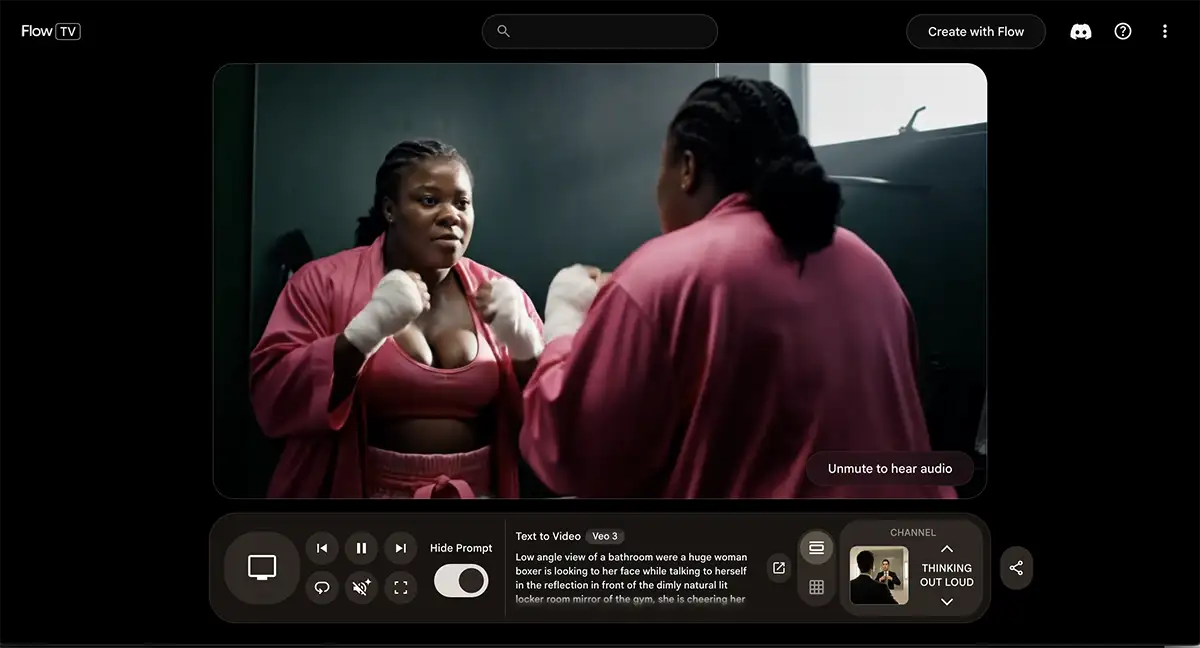
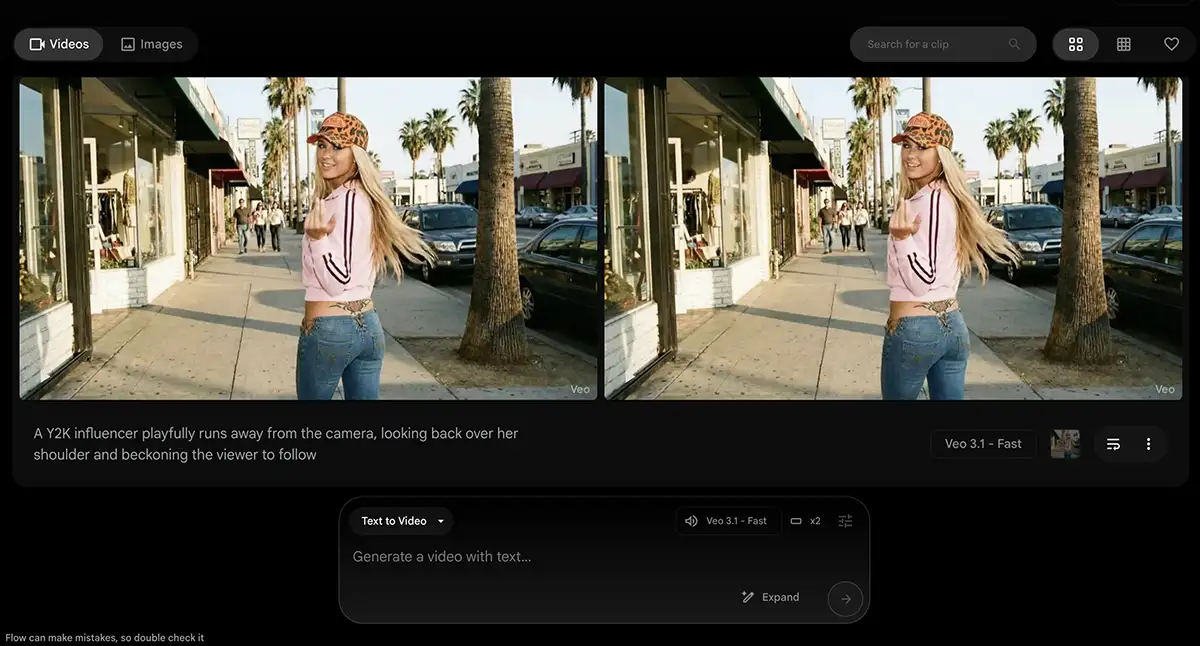
Veo 3 is Google’s generative video model, integrated into their Flow filmmaking interface and accessible via the Gemini API. Unlike early models that outputted low-res, silent GIFs, Veo 3 generates 1080p (and upscaled 4K) video with synchronized, native audio.
Is the footage actually usable for client work?
Yes, but you have to manage your expectations. It is not replacing a masterful DP (Director of Photography) on a controlled set yet. However, for B-roll, concept art, animatics, and social cut-downs, it is production-ready. The 1080p output is crisp enough for web delivery, and it handles real-world physics—like the way light wraps around a subject or how fabric moves—better than its predecessors like Sora or Gen-3.
What is the “Flow” interface?
Flow is the dashboard where you control Veo 3. Think of it less like a slot machine and more like a minimalist NLE (Non-Linear Editor). It allows you to generate clips, arrange scenes, and use text-to-video or image-to-video workflows. It integrates directly with Google Workspace, meaning you can pull assets from Drive without friction.
What are the resolution and frame rate limits?
Natively, Veo 3 outputs at 1920×1080 (1080p). However, the ecosystem includes an AI upscaler that can push this to 4K cleanly.
Standard frame rates are 24fps (cinema) and 30fps (broadcast/web). You can request 60fps for slow-motion interpolation, but artifacts can appear in fast-motion scenes.
Does Veo 3 generate audio?
Yes. This is the killer feature of Veo 3.1. It doesn’t just slap a generic track on top; it generates synchronized dialogue, ambient noise, and foley that matches the action.
Note: The audio is compressed (~128kbps quality) and oftentimes just straight up weird and glitchy. So you’ll generally want to strip it and have your sound designer rebuild the soundscape in Pro Tools or Suno/Elevenlabs, using the AI track as a scratch guide.
How do I export for Adobe Premiere Pro or DaVinci Resolve?
Veo 3 exports in MP4 (H.264) or ProRes 422 (LT) if you are on the Ultra plan.
My recommended workflow:
- Generate your clips in Flow.
- Upscale to 4K within Flow using the “Enhance” button.
- Export as ProRes 422 to minimize compression artifacts.
- Import clarity into DaVinci Resolve Studio.
- Use Resolve’s Neural Engine to denoise slightly, as AI video often has a subtle digital grain in the shadows.
Prompting and Control Settings
This is where amateurs fail and pros get paid. The machine does exactly what you tell it, so you need to speak the language of cinema, not vibes.

How do I control camera movement?
Stop writing “cinematic shot.” Use specific camera terminology in your prompt. Veo 3 understands syntax like:
- “Truck left, medium speed.”
- “Dolly in, slow push.”
- “Rack focus from foreground bottle to background actor.”
- “Low angle, 24mm lens distortion.”
Pro Tip: If you want consistency, use the Camera Control sliders in the Flow interface rather than just text. You can manually set pan, tilt, and zoom values to ensure the camera moves exactly how you need it to for a match cut.
Can I keep characters consistent across shots?
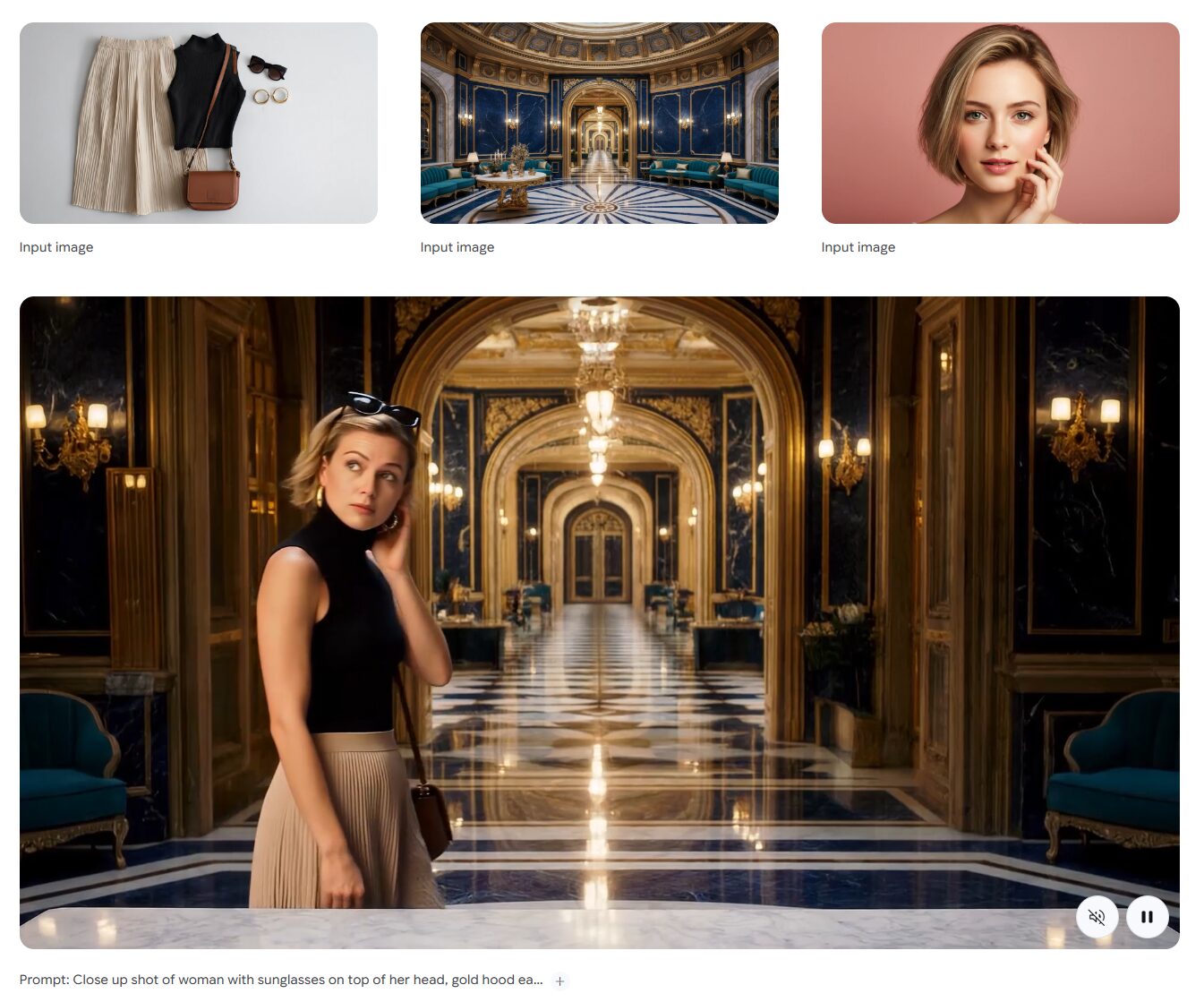
Yes, but it requires the Reference Image workflow. Do not just type “a woman in a red hat” in five different prompts; you will get five different women.
- Upload a Character Reference sheet (or a mid-journey generated portrait) into the Context Window.
- Check the “Fixed Character Reference” box.
- Veo 3 will lock the facial structure and clothing to that seed image. It isn’t 100% perfect—sometimes accessories glitch—but it’s close enough for storytelling.
What are the best aspect ratios for social vs. broadcast?
Veo 3 supports native aspect ratio generation. Do not generate 16:9 and crop it later; you lose resolution.
- 16:9 for YouTube/TV.
- 9:16 for TikTok/Reels.
- 2.35:1 for anamorphic/cinema delivery.
Set this before you generate. Changing it post-generation forces a “remix” which costs extra credits and can hallucinate edges.
Pricing and Business Logic
Creative careers run on economics. Is this tool an asset or a liability?
How much does it cost?
As of late 2025, the standard pro entry point is the AI Ultra Plan, which runs around $250/month.
That sounds steep compared to a Netflix subscription, but compare it to stock footage. A single HD clip on a premium stock site can cost $79-$199. If Veo 3 generates three usable background plates for you, it has paid for itself.
Who owns the copyright?
Google’s terms currently grant commercial usage rights to paid subscribers. You own the output. However, you cannot copyright the raw AI generation itself (based on current US Copyright Office guidance).
The fix: The copyright applies to your final edit. Once you cut the AI footage into a timeline, add color grading, overlay text, and mix sound, that derivative work is yours to protect.
Is there a free version for testing?
There is a “starter” tier in Google Gemini, but it is watermarked and limited to 720p. Do not use this for client pitches. Nothing screams “amateur” like a watermark in a slide deck. Pay for the month, do the job, cancel if you must—but never show a client watermarked work.
Troubleshooting Common Issues
Why does my footage look “rubbery” or slow?
You are likely using too high of a frame rate in your prompt (e.g., “smooth motion 60fps”) for a scene that lacks movement data.
The Fix: Force 24fps. It hides imperfections with natural motion blur. If the motion still feels weird, bring the clip into After Effects and apply the Pixel Motion Blur effect to simulate real shutter drag.
The lighting doesn’t match my other footage.
Veo 3 tends to output “flat” or “perfectly lit” commercial looks by default.
The hack: Add lighting modifiers to your prompt. Use terms like “high contrast,” “Rembrandt lighting,” “sub-exposed,” or “harsh noon sun.”
Make sure to export in a Log-style flat profile if available (a distinct setting in the Advanced tab). This gives you dynamic range headroom to grade the footage in Resolve so it matches your ARRI or Sony FX3 footage.
The lips aren’t perfectly syncing with the generated audio.
This happens. The native audio is good, but lip-flap can still drift.
The Fix: In the Flow interface, use the “Regenerate Region” tool. Mask just the mouth area and re-roll the generation with a higher “Audio Reactivity” weight. This forces the model to prioritize lip synchronization over other visual details.
The Reality Check
Veo 3 is a force multiplier. It allows a solo editor to generate a crowd scene without hiring 50 extras. It allows an art director to visualize a storyboard with motion instead of static sketches.
But it is not a “make movie” button. It requires taste. It requires you to know what a good shot looks like so you can reject the bad ones.
Trust your instincts. If a generated clip feels soulless or uncanny, delete it. Do not fall in love with the tech; fall in love with the result. If Veo 3 gets you there faster and under budget, use it. If it doesn’t, pick up your camera and shoot it yourself.
You have the tools. Now go make something.