If you’ve been following the creative landscape lately, you know the speed of innovation is crazy. For years, we talked about the power of the still image. And now, the ability to bring those images to life isn’t just a “nice to have,” it’s becoming a requirement for modern storytelling.
There’s a few ways to do this but today, I want to zero in on how to do it with Google’s Veo 3.1 video model in Higgsfield AI.
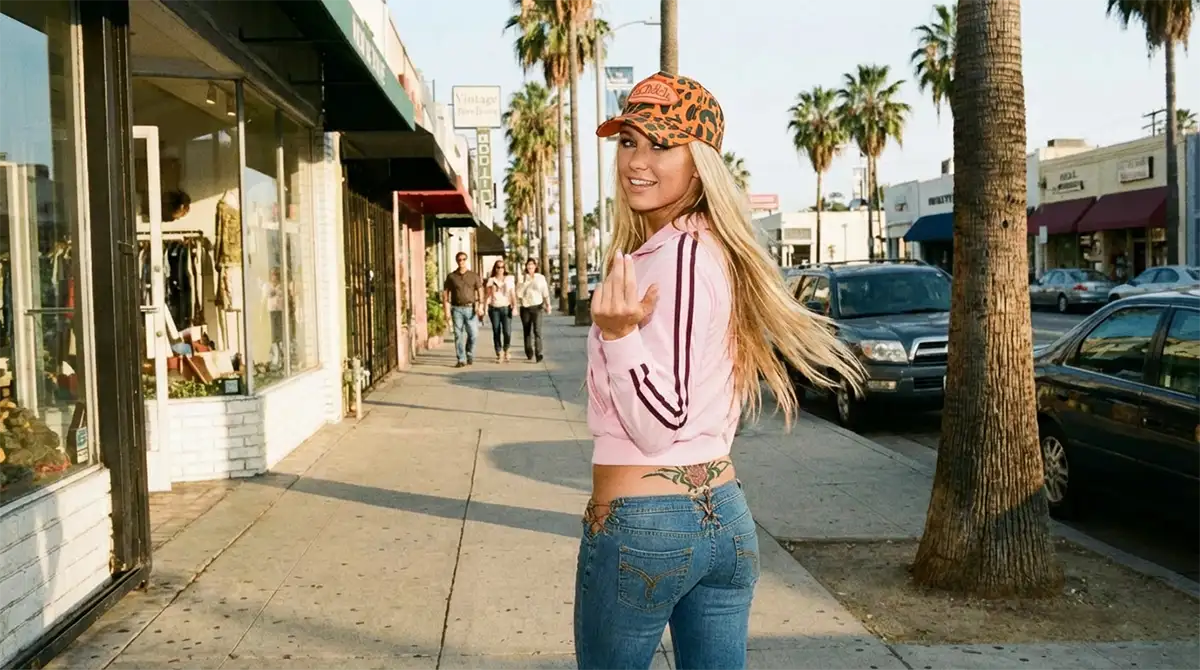
The starting frame for this video, created entirely with Nano Banana
Why Higgsfield and Veo 3?
We’ve covered Higgsfield AI before, and their integration of Veo 3 is very well done. Veo 3 offers high fidelity, but usually, high fidelity comes at the cost of control. Higgsfield solves this by wrapping the model in a UI that actually feels like a creative studio, not a slot machine, and also integrates Nano Banana Pro so you can modify images as needed.
A similar workflow should work with Weavy, Flora, Freepik, or any other app that supports Veo 3.1
1. The Anchor Points: First and Last Frames
The biggest frustration with AI video is the “drift.” You start with a great image, but by second three, your subject has morphed into something unrecognizable.
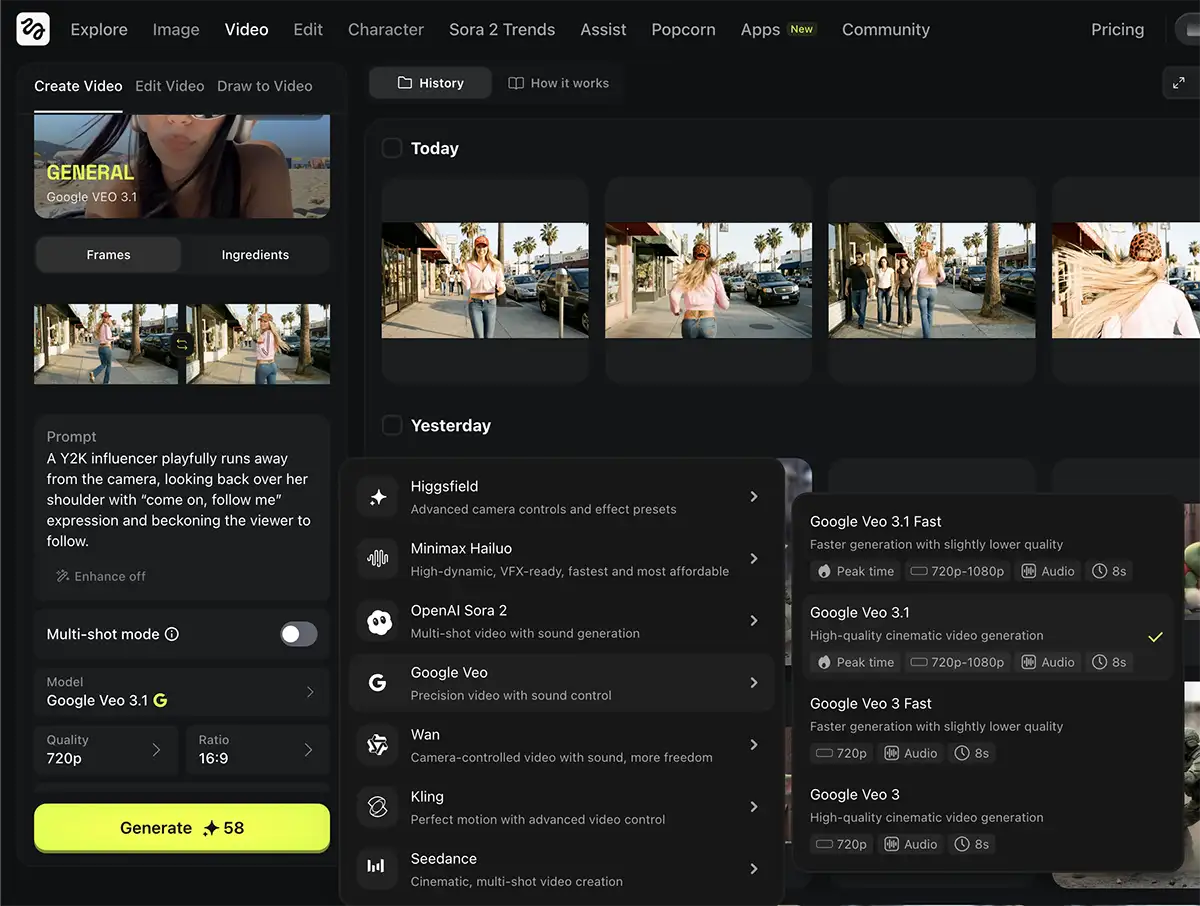
In Higgsfield, you’ll see an option for Frames. This is your secret weapon.
-
First Frame: Upload your primary image here. This is your starting block.
-
Last Frame (optional): This is where the magic happens. By uploading a “target” image for the last frame, you tell the AI exactly where to land.
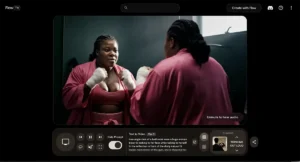
If you want a specific action – like the Y2K influencer in the screenshot below playfully running away – you don’t just prompt it; you bookend it. This constrains the AI’s imagination to your narrative arc – although try a few versions where you let the AI run with it. Sometimes you’ll get great results.
2. Character Consistency with “Ingredients”
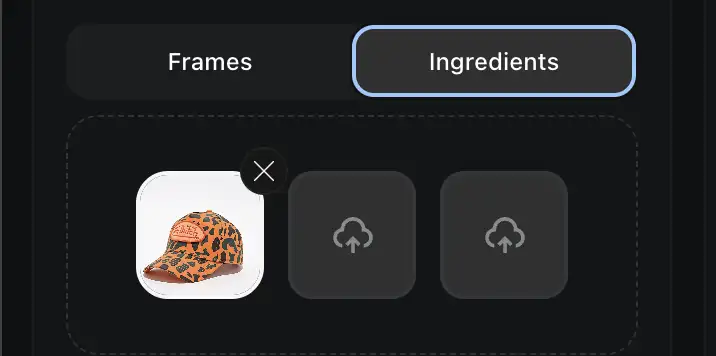
If you are building a brand or a narrative series, you can’t have your main character changing faces every other shot. This is where the Ingredients feature comes in.
Think of “Ingredients” as your style reference or character reference. By uploading a clear image of your subject (like the hat or the model in our examples) into the Ingredients slot, you force Veo 3 to reference that specific data throughout the generation.
This is how you move from “cool random video” to “professional asset.”
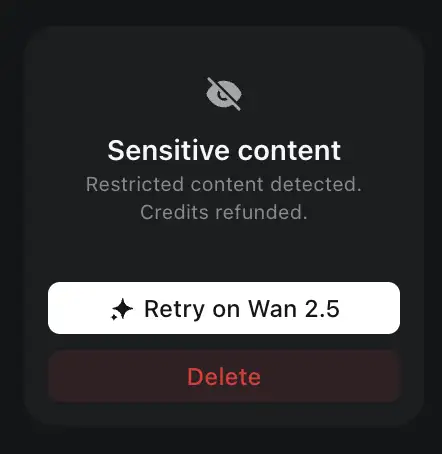
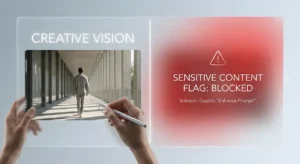
3. How to fix the “sensitive content” issue
Here is a reality check—Veo 3 is sensitive. It can oftentimes flag your video as “sensitive content” even if it’s completely benign. If you get flagged:
-
Don’t panic. It happens to everyone.
-
Edit the prompt. Check your language. There’s usually some specific word or phrase that’s triggering it. Sometimes words like “shoot,” “explosive,” or even “running” can trigger the safety filters depending on context.
-
Turn off “Enhanced Prompt.” This feature (often on by default) rewrites your simple prompt into a paragraph of flowery description. Sometimes that “enhancement” adds keywords that trigger the safety filter. If you’re getting blocked, toggle this off and use your raw, simple prompt.
- If all else fails, try running it on Wan 2.5, which tends to be less uptight about content.
- More info here on how to fix it
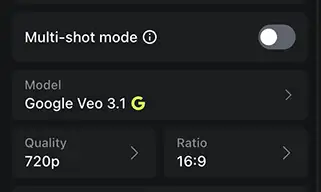
4. Dialing in the Settings
Don’t ignore the technical specs at the bottom of the UI:
-
Duration: Longer isn’t always better. Short, 5-second loops are often higher quality than 10-second narratives that lose coherence.
-
Aspect Ratio: Ensure this matches your destination (16:9 for YouTube, 9:16 for Reels/TikTok).
-
Quality: You’ll want 1080p (and likely upscaled) for finals, but 720p can save time for experiments.
5. Multi-Shot Mode
You’ll notice a toggle for Multi-shot mode (visible in the screenshots). For creative professionals, this is worth experimenting with. It allows the AI to generate multiple cuts or angles within a single generation flow, giving you options to choose from without burning through credits on completely new prompts.
A Note on Audio
Veo 3 will generate audio that matches the video, and honestly, it’s a great reference track. It helps you get the “vibe.”
But you’ll usually want to redo it for the final deliverable since it’s not quite there yet:
-
For Music, use a tool like Suno.
-
For Voice, use ElevenLabs.
Take the video you made in Higgsfield, strip the audio, and rebuild the soundscape in your app of choice.
The Takeaway
The goal isn’t to let the AI do the work for you. It’s to use the AI to execute your vision faster than ever before. Use your constraints – frames, ingredients, and specific prompts to get the tool to do your bidding.
Start experimenting, and don’t let the “flagged content” warnings discourage you. It’s just part of the new workflow.